
C64 OS Networking Guide
Introduction: Part I
Part I focuses on getting online with C64 OS. It also discusses what you can do with C64 OS networking and practical considerations for sharing network hardware between C64 OS and non-C64-OS software.
Part II of this guide is more philosophical and more technical. It describes how the C64 Network Protocol works and what sorts of networking Applications it can enable.
The future belongs to those who believe in the beauty of their dreams. Eleanor Roosevelt
Quick Setup: Step-by-Step Guides
Skip the details and get step-by-step set up instructions for the following devices:
- Commodore 64 Ultimate
- Ultimate 64 (Coming soon)
- Ultimate II+ Cartridge (Coming soon)
Part I: Getting Online
Networking in C64 OS is more similar to networking in a modern OS than to how most Commodore 64 programs talk directly to a modem.
C64 OS goes online and provides a socket API to Applications and Utilities so they can share network hardware. All software uses the same API regardless of the underlying hardware.
This is particularly useful with Fast App Switching. Multiple Applications can establish connections to the internet at the same time and you can quickly switch between them.
Network Overview
The network is organized as a stack of layers each with its own responsibilities. It isn't necessary to understand how these layers work, but it's useful to what's involved. The following are the components of the network stack.

-
Network Accessing Applications
(e.g., Wikipedia, READYChat, etc.) -
Network Configuration Utility
(//os/utilities/:Network) -
Network Libraries
(//os/library/:cnp.lib, network.lib) -
Network Hardware Drivers
(//os/drivers/:nhd.*) -
Physical Network Hardware
(UltimateII+, C64Net, TeensyROM, etc.) -
C64 Network Protocol Server
(e.g., services.c64os.com) -
Network Proxy Services
(e.g., wikipedia, image conversion, etc.) -
Internet Services
(e.g., websites, databases, etc.)
You use the Network Utility to configure the network hardware driver for the physical network hardware you have. This may also involve configuring some settings in hardware. All settings are saved.
An Application that wants to use the internet loads in the network library. This library coordinates all the parts with your saved settings and establishes one connection to the C64 Network Protocl (CNP) server.
Applications open socket connections to network proxy services. CNP supports multiple concurrent sockets which allows different Apps and Utilities to be connected to their own internet services at the same time. Apps only ever work with sockets, they don't know anything about the underlying hardware, its transfer speed, or how it is physically connected to the network (i.e., WiFi or ethernet.)
Network Hardware
C64 OS needs a driver to be able to use specific network hardware. Drivers are included with support for several devices and compatible device families at a variety of standard addresses.
Unsupported Hardware
If your hardware device, by name, is not listed below, then it is not currently supported by C64 OS.
Our goal is to support as many hardware devices as possible by writing additional drivers, however not all networking hardware drivers are as good as others. Some wifi modems lack standard features and cannot be supported by a C64 OS driver.
Supported network hardware
| Hardware Device | Driver | Comm | Interface | Speed * | Network |
|---|---|---|---|---|---|
| C64Net | up24.zi | RS‑232 | User Port | 300 baud → 2400 baud | WiFi |
| C64 WIFI MODEM (RetroRewind) |
up24.zi | RS‑232 | User Port | 300 baud → 2400 baud | WiFi |
| UltimateII+ | slde.u6 | RS‑232 | Swiftlink @ $DE00 | 300 baud → 38.4 Kbps | WiFi / Ethernet |
| UltimateII+ | sldf.u6 | RS‑232 | Swiftlink @ $DF00 | 300 baud → 38.4 Kbps | WiFi / Ethernet |
| UltimateII+ | sld+.u6 | RS‑232 | Swiftlink @ $DF80 | 300 baud → 38.4 Kbps | WiFi / Ethernet |
| Ultimate64 | slde.u6 | RS‑232 | Swiftlink @ $DE00 | 300 baud → 38.4 Kbps | WiFi / Ethernet |
| Ultimate64 | sldf.u6 | RS‑232 | Swiftlink @ $DF00 | 300 baud → 38.4 Kbps | WiFi / Ethernet |
| Ultimate64 | sld+.u6 | RS‑232 | Swiftlink @ $DF80 | 300 baud → 38.4 Kbps | WiFi / Ethernet |
| Commodore 64 Ultimate | slde.u6 | RS‑232 | Swiftlink @ $DE00 | 300 baud → 38.4 Kbps | WiFi / Ethernet |
| Commodore 64 Ultimate | sldf.u6 | RS‑232 | Swiftlink @ $DF00 | 300 baud → 38.4 Kbps | WiFi / Ethernet |
| Commodore 64 Ultimate | sld+.u6 | RS‑232 | Swiftlink @ $DF80 | 300 baud → 38.4 Kbps | WiFi / Ethernet |
| Link232 WiFi | sld7.zi | RS‑232 | Swiftlink @ $D700 | 300 baud → 38.4 Kbps | WiFi |
| Link232 WiFi | slde.zi | RS‑232 | Swiftlink @ $DE00 | 300 baud → 38.4 Kbps | WiFi |
| Link232 WiFi | sldf.zi | RS‑232 | Swiftlink @ $DF00 | 300 baud → 38.4 Kbps | WiFi |
| Swift-T/Swift-L WiFi | slde.zi | RS‑232 | Swiftlink @ $DE00 | 300 baud → 38.4 Kbps | WiFi |
| Swift-T/Swift-L WiFi | sldf.zi | RS‑232 | Swiftlink @ $DF00 | 300 baud → 38.4 Kbps | WiFi |
| TeensyROM | t2de.tr | RS‑232 | Turbo232 @ $DE00 | 300 baud → 230.4 Kbps | Ethernet |
* Speeds above 38.4Kbps requires either a SuperCPU or an Ultimate64 with turbo enabled to a minimum of 20MHz.
** WiC64 support is coming soon.
More drivers will be added in the future, but there are certain minimum requirements that the hardware needs to support.
Are you designing a modem?
The following are the minimum requirements from a network hardware device:
- Ability to open one TCP/IP socket
- Support for hardware flow control
- Support for carrier detect signal
- Bi-directional asynchronous communication
The following are not required but are useful to have:
- Programmatic ability to join WiFi access point
- Ability to disable local echo
- Ability to disable verbose responses
- Support for standard hayes response codes
- NMIs when data is received
- NMIs when data is able to be sent
Network Utility
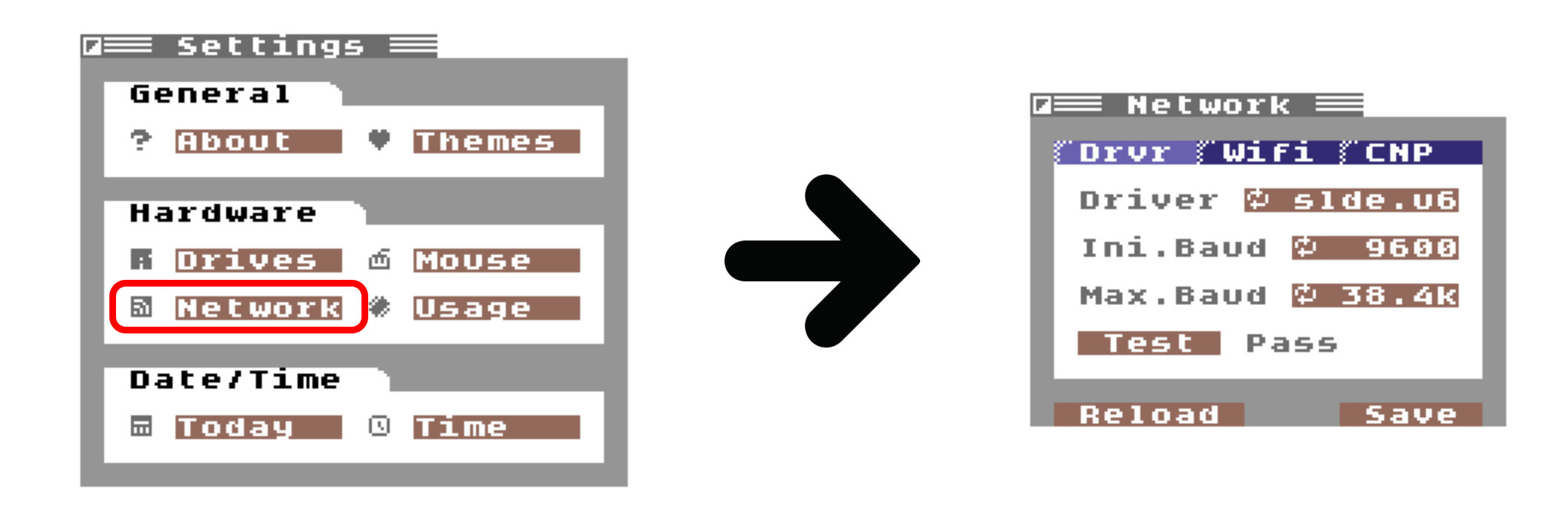
To configure network settings, open the Network Utility. From the Utilities menu, choose Settings. From the Hardware section, choose Network.
Memory Constraints
The Network Utility requires a lot of memory; it cannot be opened from File Manager. Open it instead from App Launcher or from inside another Application such as Wikipedia, Image Search, World Explorer, etc.
Configure Network Hardware Driver
The first tab "Drvr" is to configure the network hardware driver.

When the Network Utility is opened for the first time, the selected driver is set to "none." Choose the driver to load by clicking the Driver cycle button. (Hold the COMMODORE key to cycle in reverse.)
Choose the correct driver for your hardware by referencing to the Supported Network Hardware table above.
Explanation for how drivers are named
The driver names are made up of a series of codes. The first 2-letter code refers to the interface the computer uses to talk to the hardware.
- UP means User Port
- SL means Swiftlink
- T2 means Turbo232
The next 2-letter code depends on the hardware interface. The User Port uses more than one protocol, so the code refers to this protocol. Swiftlink and Turbo232 are cartridges or compatible interface chips mapped into I/O at certain addresses. The second 2-letter code for these devices refers to the address where they're found.
- 24 means RS-232 maximum 2400 baud protocol
- 96 means special 9600 baud protocol
- D7 means $D700 (Special address available to some devices with an addressing clip)
- DE means $DE00 (or IO1)
- DF means $DF00 (or IO2)
- D+ means $DF80 (Special address offered by Ultimate64)
The final 2-letter code is separate from the others by a dot (.) and refers to the device's firmware, its command set or command language.
- ZI means ZiModem
- U6 means Ultimate64 (compatible with Commodore 64 Ultimate and UltimateII+)
- TR means TeensyROM

Initial Baud / Maximum Baud
The next two sets of cycle buttons are labeled Ini.Baud and Max.Baud. The initial baud is the baud rate at which the modem communicates when it's powered on. This is the baud rate that is saved in the modem's firmware. The maximum baud rate is the rate at which you want the modem to operate. Usually this would be set as high as it can go, but there might be reasons for setting it lower.
Not all network hardware uses RS-232 to communicate with the computer. Any driver that does not communicate at a "baud rate" will ignore the values specified in these fields.
When communicating over RS-232 both sides need to agree on the communications speed. There is no way to auto-negotiate speed of an RS-232 connection, but C64 OS performs a test to confirm that it can communicate with the hardare.
If C64 OS can communicate with the modem at its initial baud rate, it negotiates with the modem to increase speed to the maximum baud rate setting.
Communications Complications
Using some other telecommunications software the user could change the baud rate of the modem to neither its initial rate nor its maximum rate. In this case, C64 OS will not be able to communicate with the modem and cannot resolve this on its own.
You either need to change the initial rate to match the modem's current rate, or reset the modem. Some modems (like C64Net) have a reset button that can be pressed at any time. For other modems, it may be necessary to reset or power-cycle the computer to reset the modem.
User Port modems
The Commodore 64 can communicate with User Port modems over RS-232 directly from the READY prompt. However, 1200 baud is the fastest reliable speed. For this reason, it makes sense for your modem to start up at either 300 or 1200 baud, and let C64 OS step it up to 2400.
Commodore 64 Ultimate / Ultimate64 / UltimateII+
The Commodore 64 Ultimate, Ultimate64 and UltimateII+ emulate the Swiftlink interface and modem. For this reason the Swiftlink and modem are always synchronized. It is therefore unnecessary to step up the speed from an initial rate to a maximum rate. Set both speeds to the same maximum speed. Usually 19.2Kbps or 38.4Kbps is appropriate.
Save the driver selection
When you cycle the button to a driver that is not currently loaded, the status message says "unsaved" and the test button is disabled.
Click the "Save" button to load and configure the selected driver.
If the test is successful, the status message beside the test button says Pass, if the test cannot communicate with the modem, the status message says Fail.
Freezing or Locking Up?
Be careful to pick the correct driver. Pay attention to the address where your network hardware can be found. If the driver tries to communicate on the wrong address it can result in a crash, freeze, or lockup.
Exercise caution. Do not randomly pick a driver and click Save.
Change Network Hardware
It will happen at some point that you want to change your network hardware. For example, to change the address where a SwiftLink is found. Or you boot a copy of C64 OS that was installed on a different C64 with a different set of hardware. Having the wrong driver loaded may lead to a crash or lockup.
The safest and most convenient way to change network hardware is to plan ahead. With the current hardware still installed, open the Network Utility, cycle the driver button until it says "None" and click Save. This will uninstall any currently loaded driver.
Shut the computer down and change the hardware. Boot back up and run the Network Utility, it is configured for no network hardware driver. You can proceed to pick the correct driver for your new hardware.
Reset Network Settings
If you have already changed the hardware but you forgot that the networking driver for the old hardware is still configured, you have two options:
Hold the CONTROL key while the Network Utility is opening. This prevents loading and configuring the driver saved in settings. Network Utility will show "none" for the current driver. Proceed as normal to choose the correct driver and click Save.
The second option is to reset network settings completely. This can be helpful if you are running into a problem and want to ensure a clean slate. But it requires putting in all network settings again, not just the driver.
Using File Manager, navigate to the system's settings directory. Choose System from the Go menu. Double-click the settings directory. Find and select network.t, choose Scratch... from the File menu. Click Start to confirm and scratch the file.
//os/settings/:network.t
Switch back to App Launcher to run the Network Utility again. All network settings will be cleared.
WiFi Access Point
The second tab in the Network Utility is for configuring the network hardware's connection to WiFi.
Most WiFi modems support a command for joining a WiFi access point. Type the SSID and password into the fields provided and click Save. After changing these parameters you can click Join to explicitly join this access point. If these are already set when you open the Network Utility it will join automatically.
C64 OS always uses these settings to join an access point. These are not saved to the device's internal settings. These settings may be different than those saved internally to the device.
Commmodore 64 Ultimate, Ultimate 64, Ultimate II+
These devices have sophisticated backend menu systems with options for configuring the WiFi and ethernet connection parameters. They do not expose an API to C64 software for changing these settings.
- Set up your network settings in the device's menu system.
- Enter "test" and "test" for SSID and Password, click Save.
- Click Join, you should see "Status Ultimate".
Ethernet not WiFi
If your network hardware device uses wired ethernet instead of WiFi, you still need to fill in some dummy values into these fields.
- Connect your device via an ethernet cable.
- Enter "test" and "test" for SSID and Password, click Save.
- Click Join.

When the Network Utility opens, if the network has already been booted and the modem has already joined an access point, click the refresh button to request the current SSID.
Saving and Reloading Settings
After entering an SSID and password, you can click Join to see if it is able to connect. Click Save to keep these settings.
You can change the WiFi settings, use Join to test them, and if they don't work, then before clicking Save, click Reload to reload your previously saved settings.
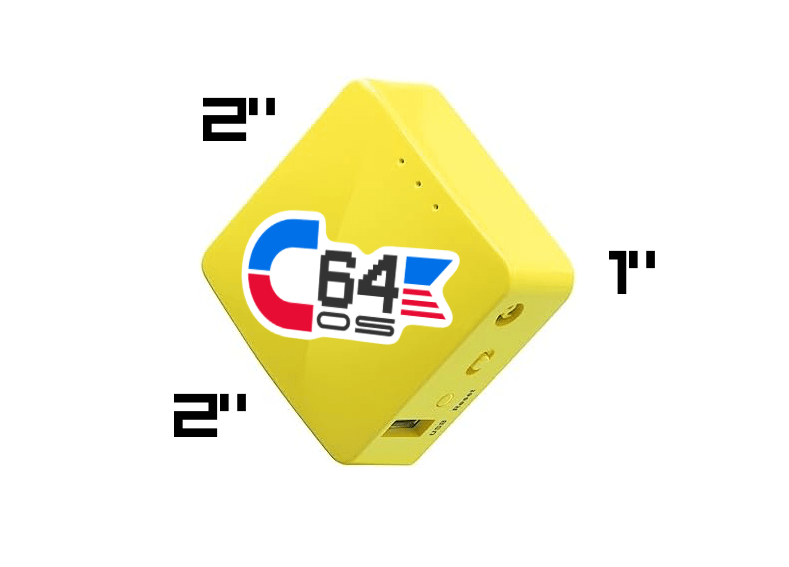
Traveling? Try the Mango Wireless Mini Router.
When you're traveling, you have no idea what security protocols will be employed by the WiFi where you're staying. Sometimes hotels use captive portal which redirects web traffic, requiring you to use a web browser to enter a password or agree to terms and services. This can put a serious damper on your Commodore 64's ability to get online.
The Mango Router (GL-MT300N-V2) is very small, quite affordable, and highly configurable. You can configure it using a smartphone to serve as a wireless repeater or even a WiFi to ethernet bridge. You can use your smartphone, connected to the Mango, to get the IP address of the Mango past captive portal.
If you are traveling, going to tradeshows, demo or gaming parties, and you want to ensure that your Commodore 64 can get online, we vouch for Mango Wireless Mini Router as a brilliant solution and stalwart networking companion.
OpCoders Inc. has no affiliation with GL.iNet.
C64 Network Protocol
The third tab in the Network Utility is for configuring access to a C64 Network Protocol (CNP) server.
Why is a CNP server needed?
Most Commodore 64 networking hardware can only maintain one TCP/IP connection at a time. But modern networking expects multiple connections at the same time. The C64 Network Protocol (CNP) overcomes this limitation and adds a layer that controls the flow of data and auto-corrects errors in transmission.
Your network device opens one connection to a CNP server. C64 OS then lets Applications open as many virtual network connections as they need. The CNP server receives those requests and makes the real internet connections on the C64's behalf.
If you remember dial-up internet, it's a similar idea to how your ISP's PPP server allowed one phone connection to carry many TCP/IP connections.
OpCoders hosts a CNP server, along with proxy services that make the modern internet more accessible to a Commodore 64. Access to these hosted services requires a Network Proxy Services subscription, available to licensed C64 OS users.
CNP server is open source
If you are technically-minded and do not want to pay for the hosted Network Proxy Services, the CNP server has also been open-sourced. Other proxy services hosted by OpCoders Inc. will be added to this repository as they become available.
The CNP server is written in NodeJS and can be hosted on a local computer or on your own cloud infrastructure.
Manage your CNP access credentials
Sign into your account at c64os.com/c64os/account, using a modern web browser. From here you can subscribe to Network Proxy Services, manage your CNP access credentials, and review your monthly usage and access logs.
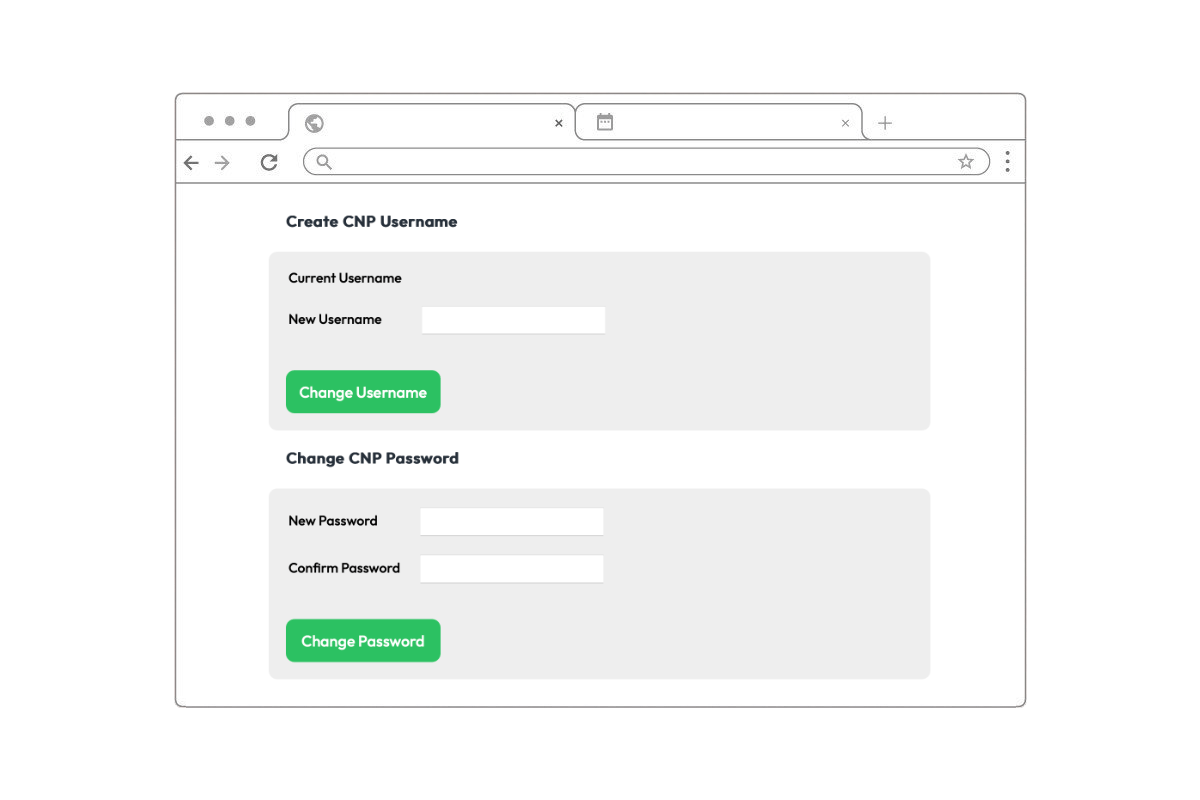
Instructions found under the CNP access section of your account provide the hostname and port of the CNP server. Input these along with your CNP username and password into the Network Utility's CNP tab. Click Save to save these settings.

Security Considerations
The CNP username and password are transmitted over the internet unencrypted by the C64 to the CNP server. They should not be the same ones you use for any other service.
Your CNP username and password are fully independent of the email address and password used to log into your c64os.com account. The CNP username and password are used only to authenticate C64 OS with the CNP server. To be cautious, periodically change your password.
Starting and stopping the CNP connection
With the Network Utility open and all settings configured, click the Start button to start the CNP connection. While connected to the CNP server, all controls are disabled, except the Stop button. To change settings, first stop the CNP connection.
If the CNP connection stops automatically a few seconds after you start it, check the CNP host, port, username and password again. This happens when C64 OS is either unable to connect to the CNP server or the access credentials are invalid.
Automatic network boot
You only need to use the Network Utility to set up or change your network settings.
Simply open an Application or Utility that uses the internet and it will automatically use your saved network settings to take C64 OS online.
Use the system status bar to check your online/offline status.

Status Bar - Status Mode - Online
Managing Connection
There are a few things to be aware of to maintain the network connection and what to do if the network connection is lost.
Network traffic is paused and resumed automatically
The C64 OS network stack is tiny and efficient by modern standards, but it requires a non-trivial amount of memory on a computer with only 64KB of RAM.2 For this reason, the network stack is only loaded into memory in an App bank where something needs to use it. Therefore, if you are in an Application, like Wikipedia, the network stack is loaded into that App bank. But if you switch back to File Manager, the network stack is not loaded in that App bank.
The network hardware is smart. It can maintain a TCP/IP connection with the CNP server without active intervention from the C64. When the network stack is frozen in an App bank in the REU, it's not active and cannot respond to incoming data. When an App is being frozen network traffic is paused. If the App that you switch to uses the network then network traffic is resumed.
When you're in an App that doesn't use the network, incoming data cannot be handled because the entire network stack is not loaded into memory. This is also the case if you quit to BASIC, or use PRG Runner to launch into non-C64-OS software. Network traffic is put on pause as you leave C64 OS. When you fast reboot and switch to an App that uses the network, traffic is resumed.
CNP connection is maintained with keep-alives
While the network stack is running, it sends a keep-alive message to the CNP server after every 60 seconds of inactivity. This keeps the network connection alive indefinitely. However, when network traffic is paused, keep alive messages are not being sent.
The CNP server drops the connection after 10 minutes of inactivity. It does this so that, if you simply turn off your Commodore 64 and walk away, ten minutes later the CNP server closes the connection. This closes all open sockets, cleans up and reclaims any resources the connection was using.
Unfortunately, if you switch to an Application that doesn't use the network and stay there for 10 minutes or more, the connection is closed automatically and any open sockets in background Apps are closed.
If you switch back to a network-using Application but the CNP server connection has been closed, the network stack should open the Network Utility automatically. Simply click the Start button in the CNP tab to go back online. You can then close the Network Utility and carry on. If you try to use the network and you're offline there will be a system alert–the border blinks. Check the status bar, and if you are offline then open the Network Utility manually and restart the CNP connection.
What can you do with C64 OS Networking?
C64 OS continues to gain new Utilities and Applications that take advantage of its networking technologies. Here are a few that are currently available, with more network-based Apps coming down the pike.
Wikipedia
The first C64 OS Application to make use of networking is the native Wikipedia Application.


Read the Wikipedia User's Guide ⇒
READYChat
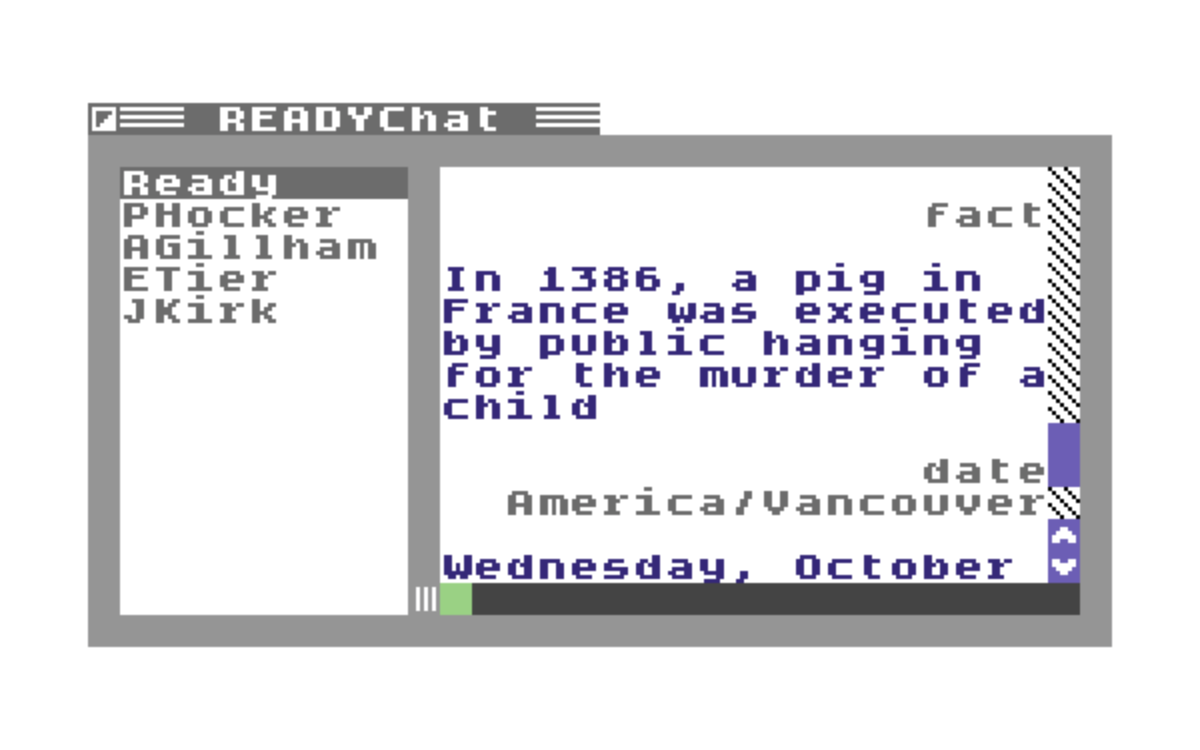
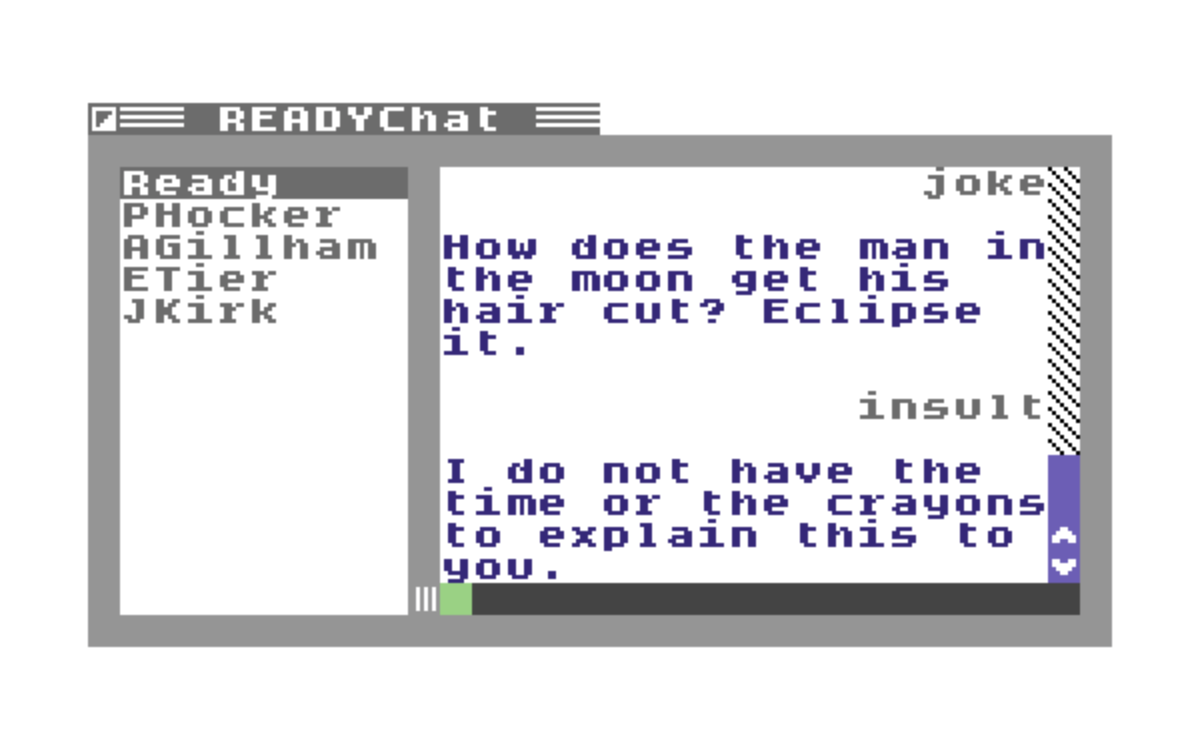
READYChat is a one-to-one instant messenger between READYChat users. You can also send messages to Ready, your internet-powered assistant. Ready has a growing vocabulary of commands thanks to its plugin architecture.
Read the READYChat User's Guide ⇒
World Explorer
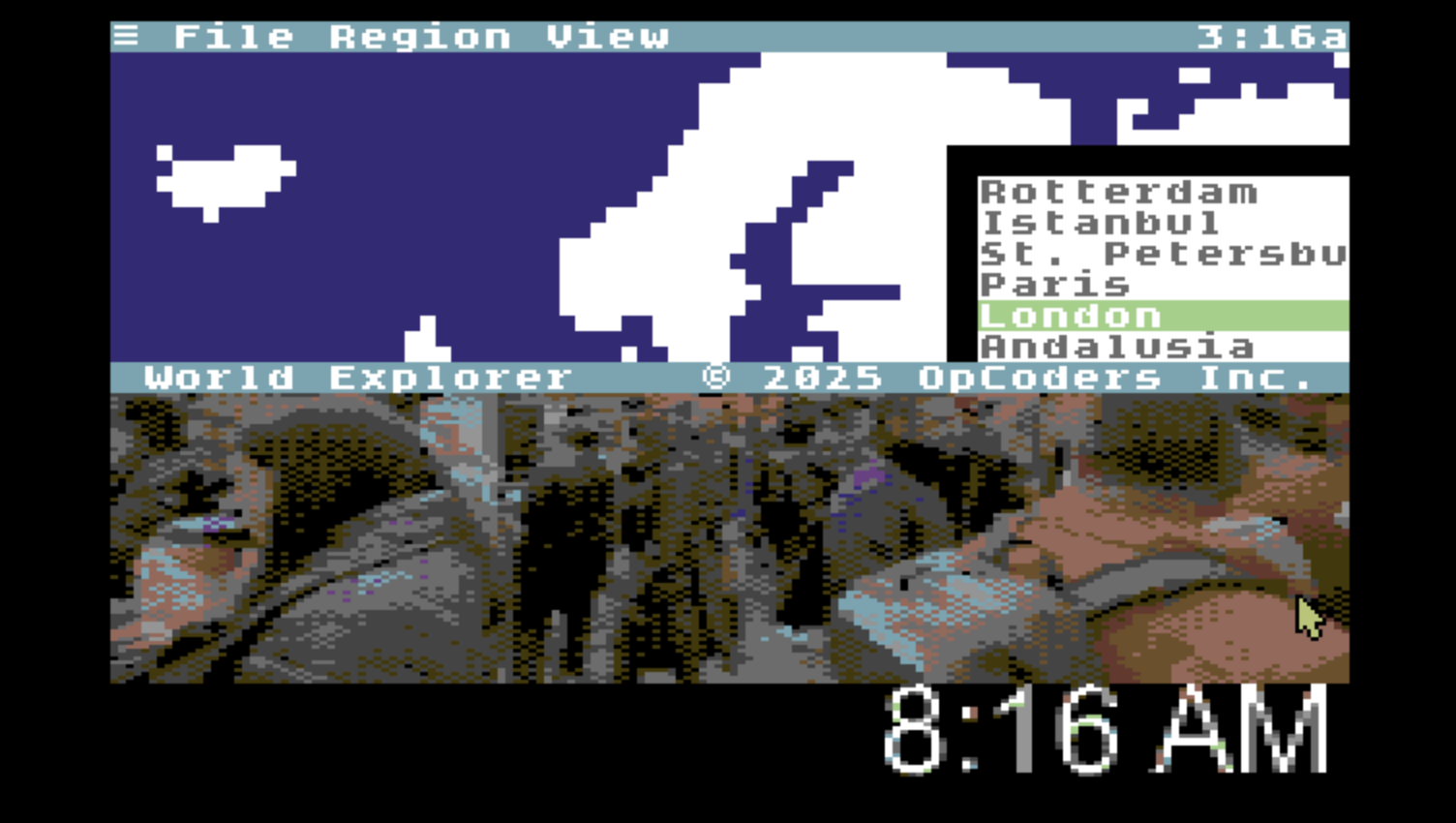
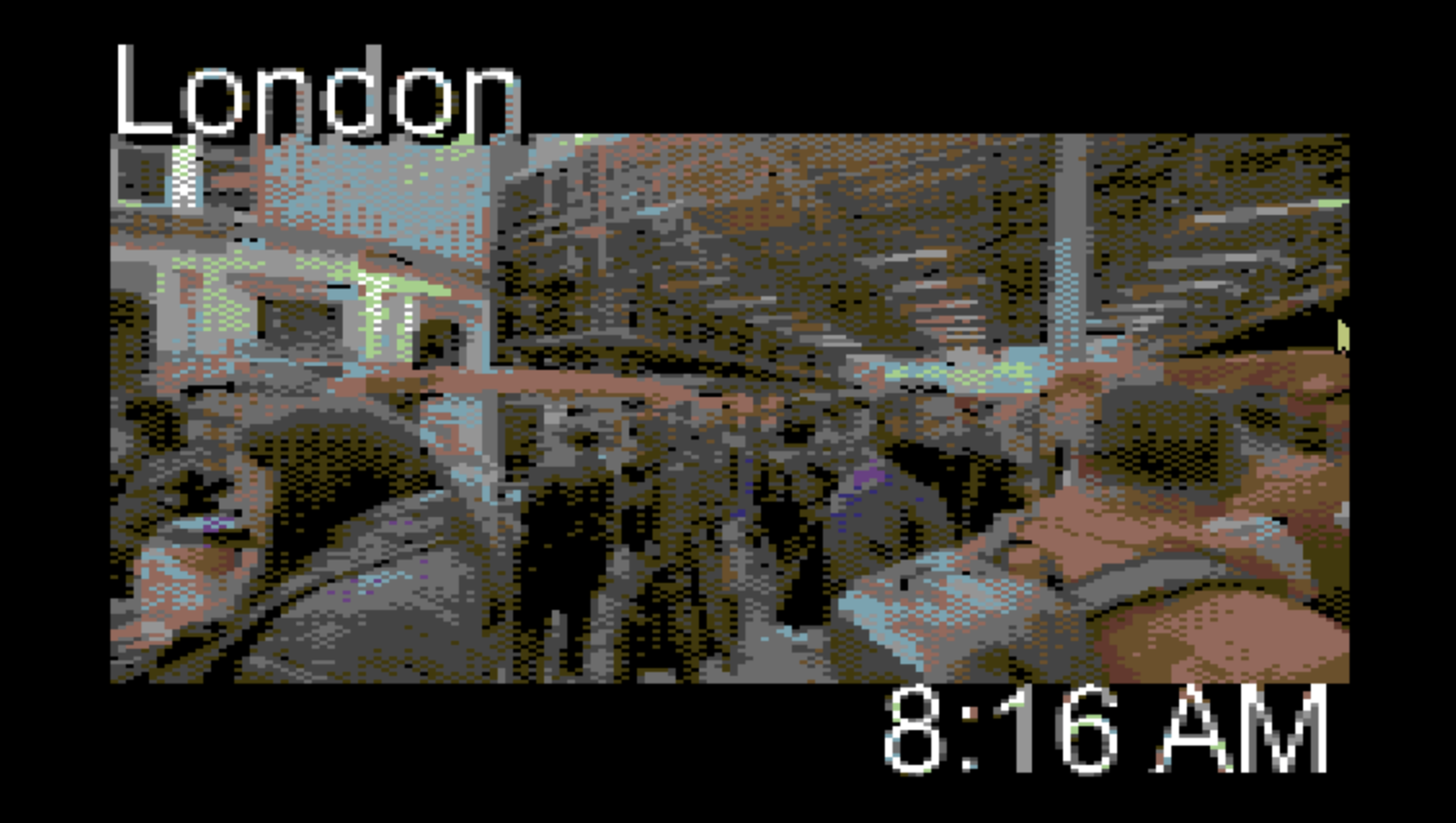
World Explorer is an App that lets you check in on public webcams from cities around the globe. Pick a continent, pick a city from the list, and enter fullscreen mode.
Read the World Explorer User's Guide ⇒
Image Search
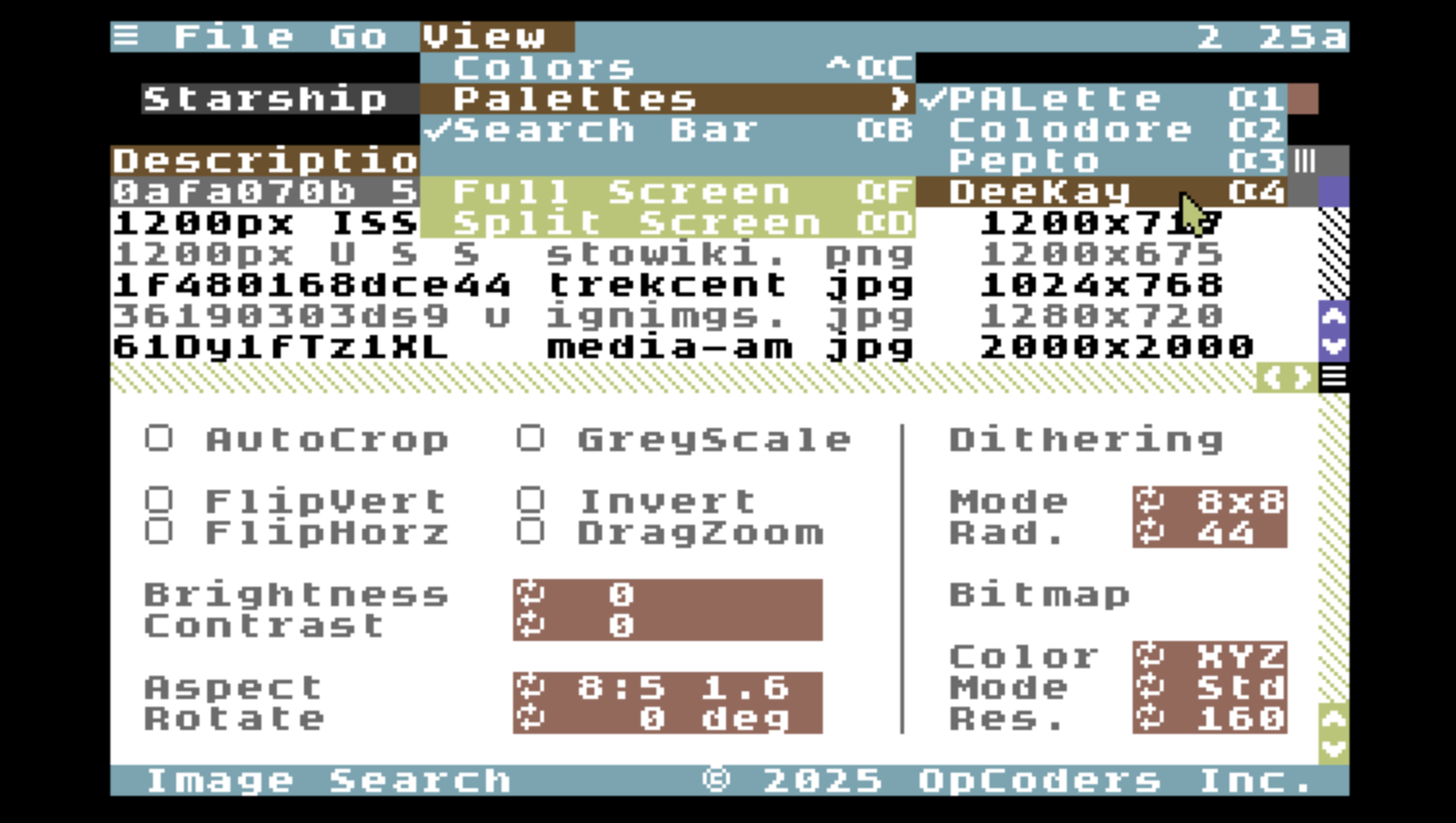
With Image Search you can look up images from around the internet and download with server-side conversion directly to your C64. It also integrates with Google Maps, Wikimedia, and Computer Vision.

Read the Image Search User's Guide ⇒
Software Center
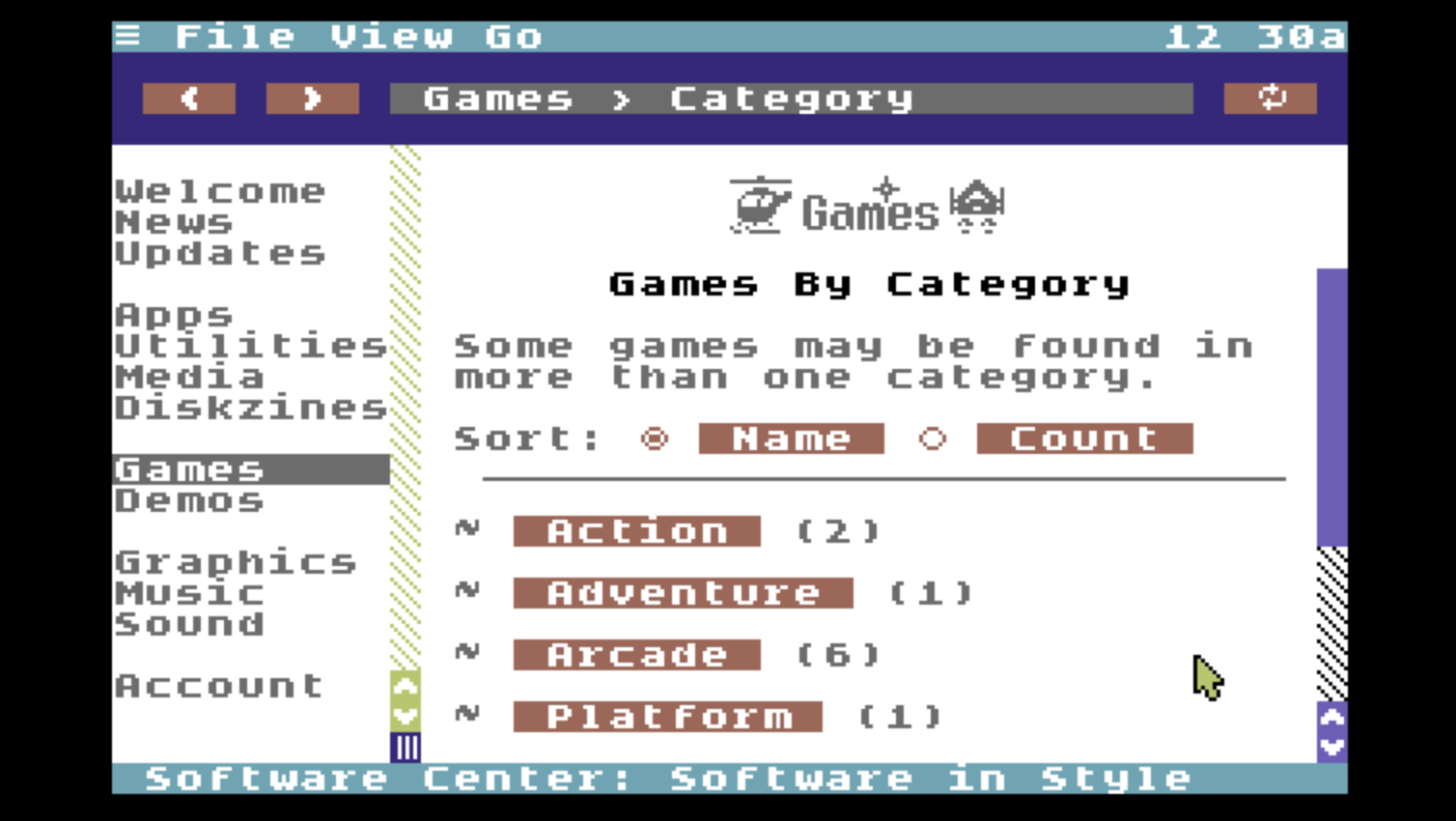
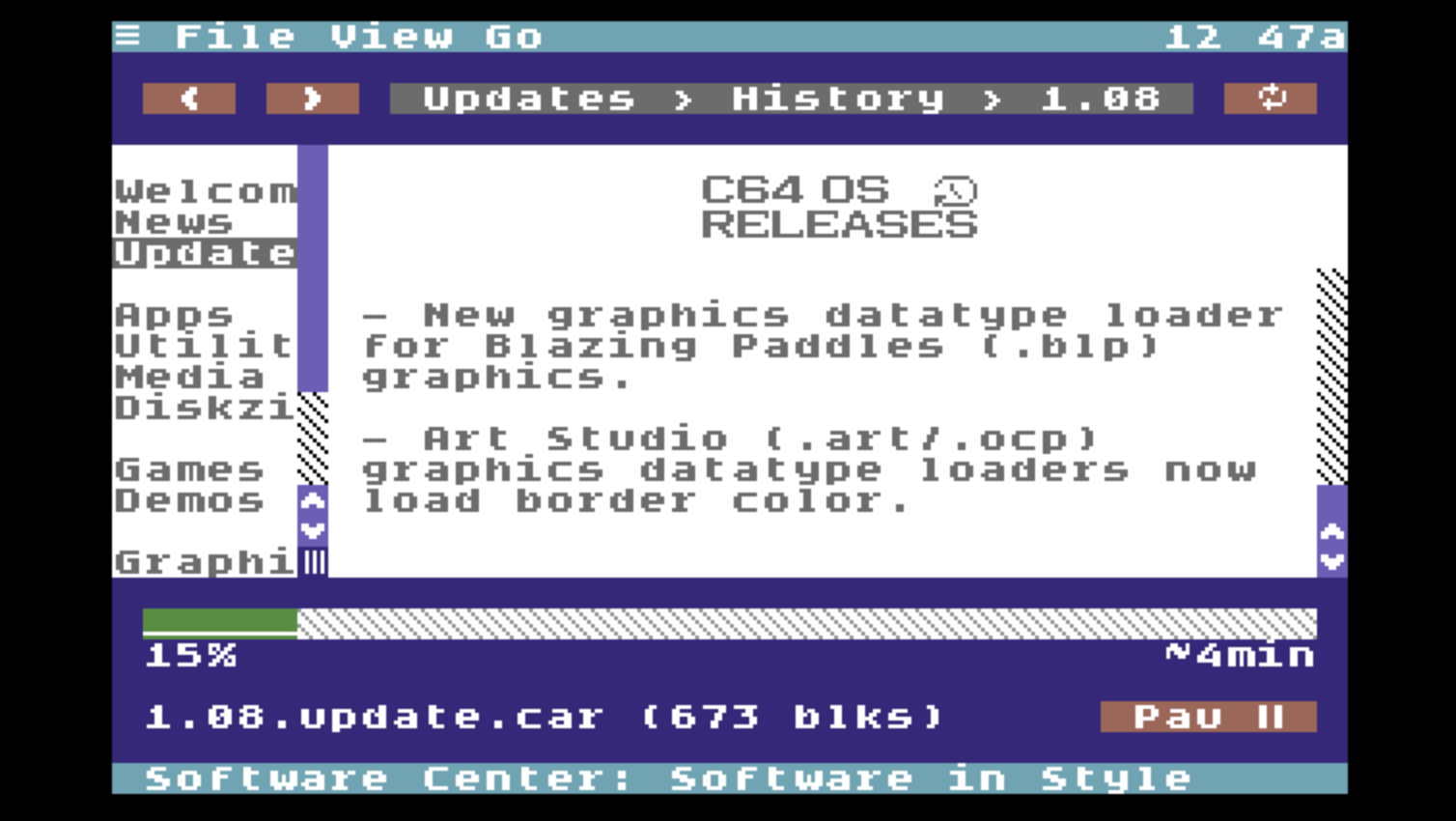
Software Center dramatically improves the experience of using a Commodore 64 to browse, find and download software and other digital assets.
Read the Software Center User's Guide ⇒
Part I of this guide covered the basics of what the C64 Network Protocol is, what hardware C64 OS supports, how to identify and choose the right driver, and how to configure your settings for joining an access point. It also covered how to manage your CNP access credentials and how to use them to get online. It concluded with an overview of some Apps and Utilities for C64 OS that take advantage of its networking technologies.
Part II of this guide dives deeper into the philosophy of networking in C64 OS. It covers in more detail how the C64 Network Protocol works, how the socket-based API is used and what kind of Applications we can expect from the future on C64 OS.
Part II: Advanced Networking
-
Driver: 3 to 5 pages CNP Library: 4 pages Network Library: 5 pages
Total: 12 to 14 pages, or ~5% of total memory.
Table of Contents
This document is subject to revision updates.
Last modified: Jul 21, 2026