Software Center
Browse. Find. Download.
Get C64 Software in C64 OS Style.
Introducing Software Center

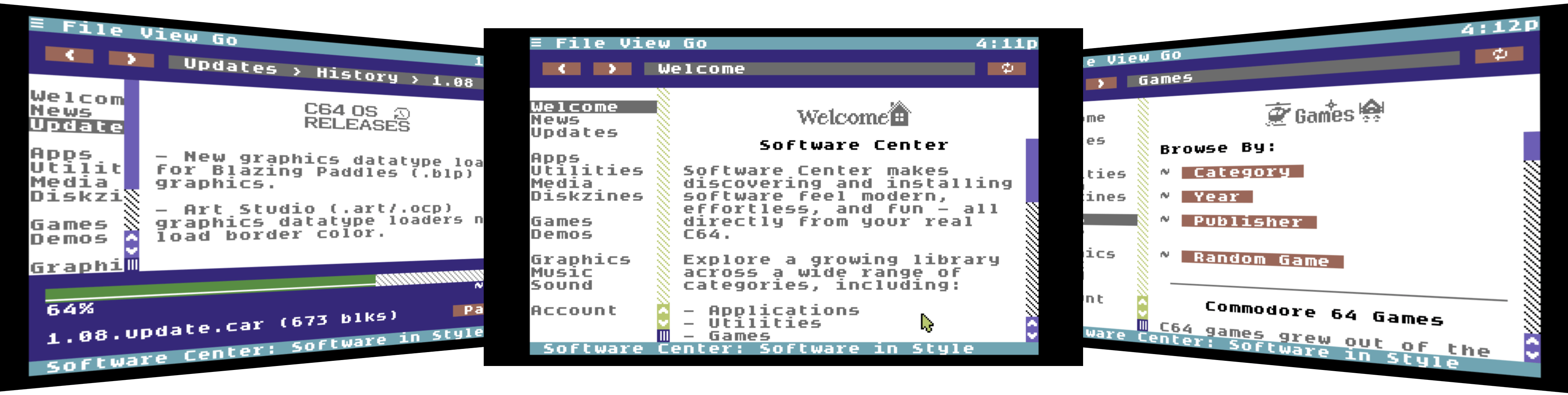
Software Center has one major goal; dramatically improve the experience of using a Commodore 64 to browse, find and download software and other digital assets.
Games, Demos, Utilities, Applications, Pictures, Sounds, Music, Diskzines, and more.
Software Center is not like a BBS or an FTP server. It is more like a web browser designed to surf one big site. A site that's geared towards finding and downloading C64 content. Downloads are integrated with commentary, history, news, and editorial review.
Use the table of contents to jump in to major sections. Pages are formatted with MText and generated from server-side templates populated by database records. Pages are hyperlinked together so that you can truly surf, much like in a web browser. Software and assets are searchable by different criteria, like publisher, year, category. You can view by popularity, recently added, or get something at random.
Software Center can be navigated with back and forward buttons, and the path bar gives you a sense of where you are in a hierarchy. You can copy and paste page addresses, save them for later, or even share links to pages with a friend via READYChat. Software Center tracks your download history, your purchase history, and it knows what version of C64 OS you're on. It can offer recommendations for system updates, suggest related content, and more.
Downloading is powerful and convenient too. All downloads have C64-friendly filenames. This means PETSCII filenames that fit in 16 characters, and come with proper CBM file types. While downloading, you get a synchronous progress bar showing you the percentage complete and an estimated time remaining. Downloads can be paused and resumed. You can even leave Software Center, use other internet Applications in C64 OS, return to Software Center and your download carries on like nothing happened. Downloads can even be stopped completely and continued later to fetch just the part you're missing from a partial download.
Software Center is the most elegant
and advanced way to browse and download
on the Commodore 64.
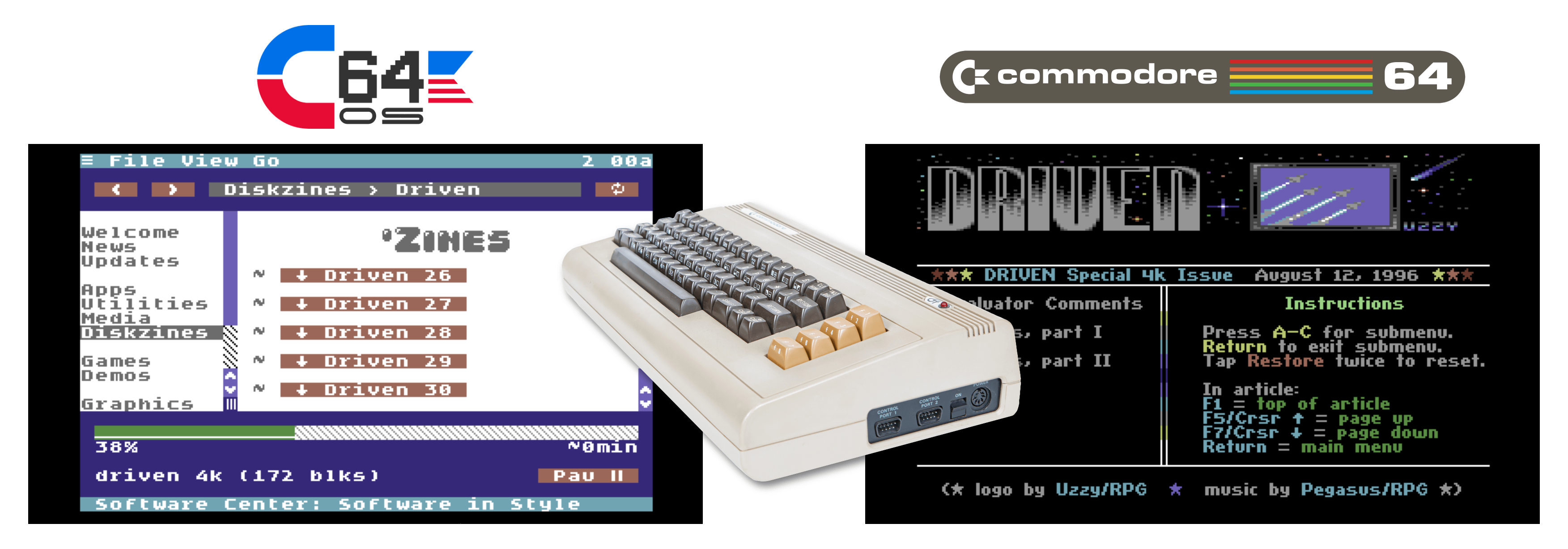
Software Center's server-side is always getting better. New content is being continually added and new ways to organize and browse that content are constantly evolving.
Software Center is a revolution in browsing, finding and downloading software and other digital assets on the Commodore 64. Greg Nacu — 2026 — C64OS.com
Software Center comes included with C64 OS, starting in version 1.09. If you haven't updated your system to v1.09 yet, there has never been a better reason to do so.
Getting started
Software Center is included as part of the operating system, starting in C64 OS v1.09. If you haven't yet updated to version 1.09, visit the C64 OS System Updates page now and learn how to update your system software.
If you already running at least C64 OS v1.09, then Software Center can be found in the applications directory. From File Manager, choose Go → Applications, or press F4, and double-click Software Center from the list. Alternatively, consider adding an alias to Software Center to a desktop in App Launcher.
Minimum Requirements
Software Center will run on any hardware configuration capable of running C64 OS v1.09, but it also requires a C64-OS-compatible network hardware and a configured internet connection.
Review the C64 OS Networking Guide for everything you need to know to get online.
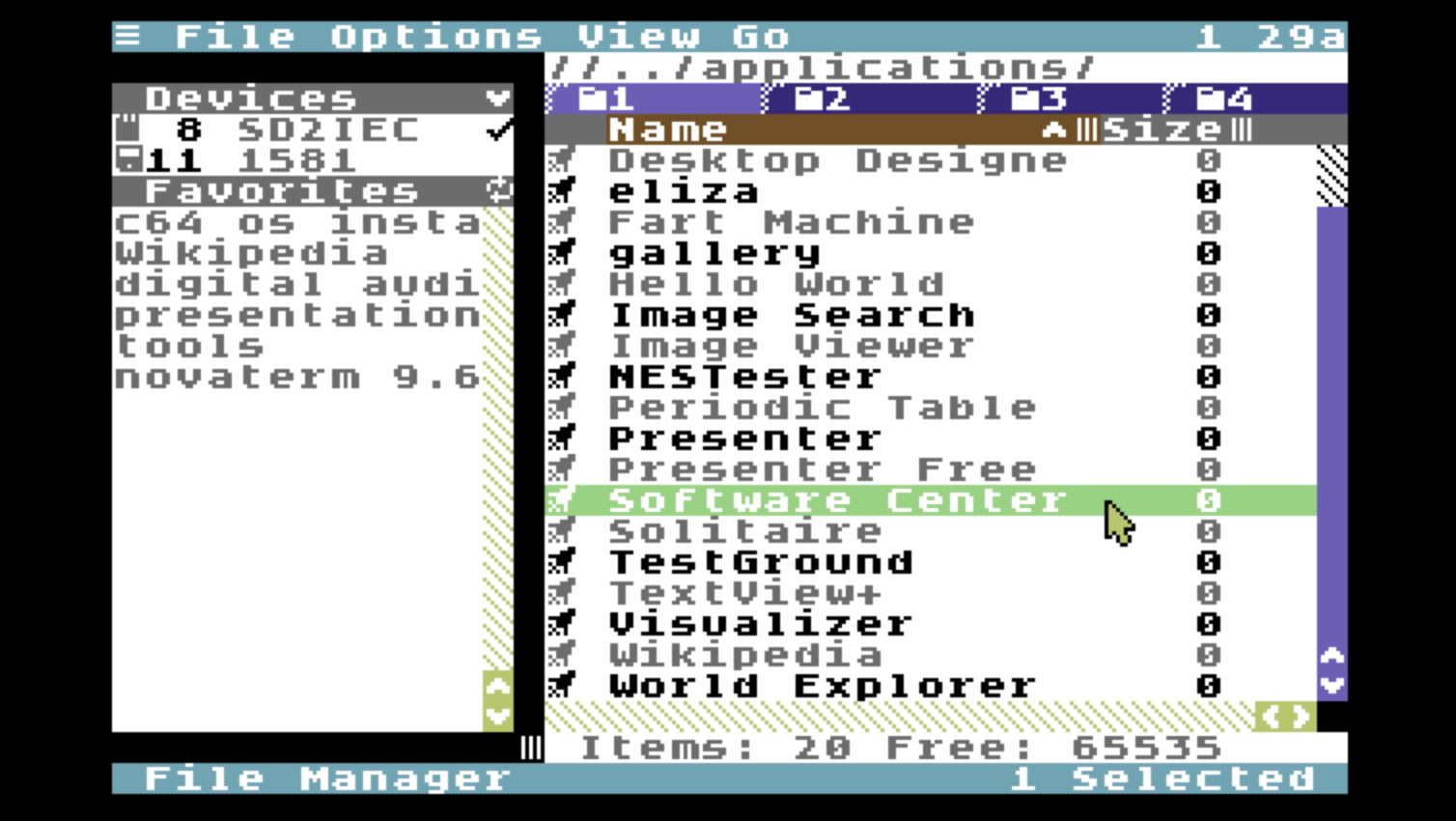
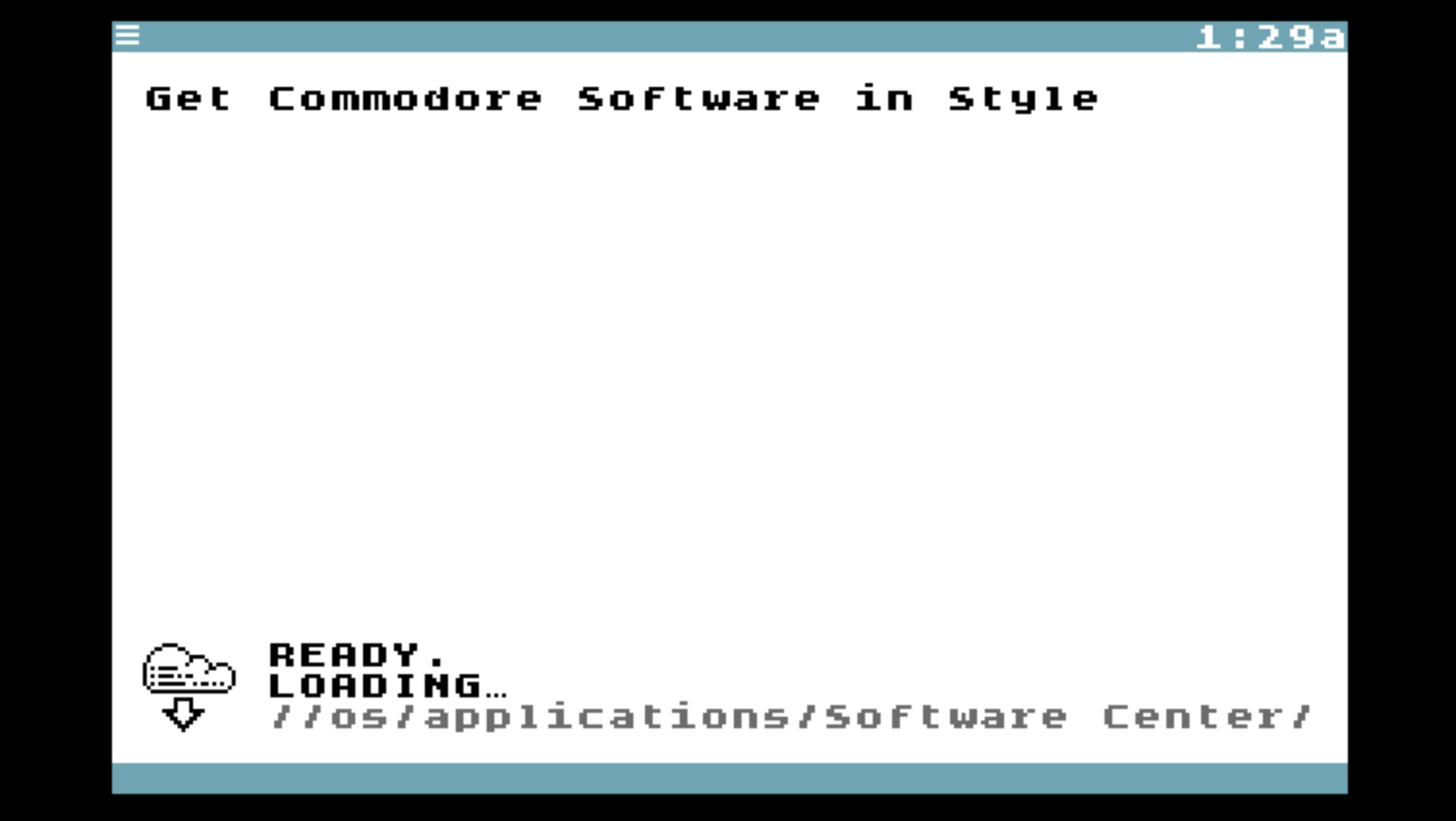
Opening Software Center for the first time
Getting started is very simple. From the very first time you open Software Center, you're ready to go. There's no need to create an account or choose a password. Software Center uses the CNP authentication protocol to create your user account and fetch basic profile information.1
Your profile information, including your name, email address, country and timezone, are provided by the CNP authentication protocol and come from your account settings which can be changed at https://www.c64os.com/c64os/account
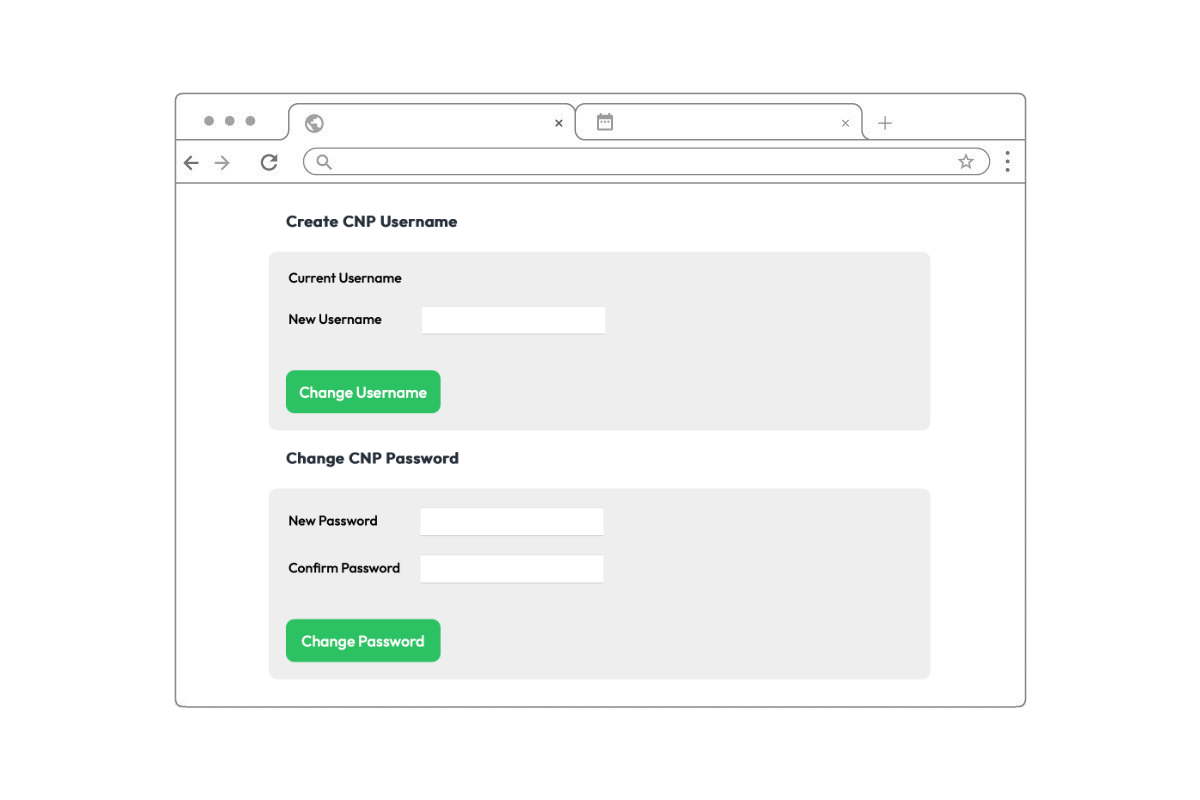
If you haven't already, be sure to set your timezone in your C64OS.com account settings. This affects the displayed date and time in your download history and purchase history, as well as the date and time of your last login. If you change your name, email address or timezone settings, that information is automatically updated in your Software Center account the next time you launch the App.
Overview of the user interface
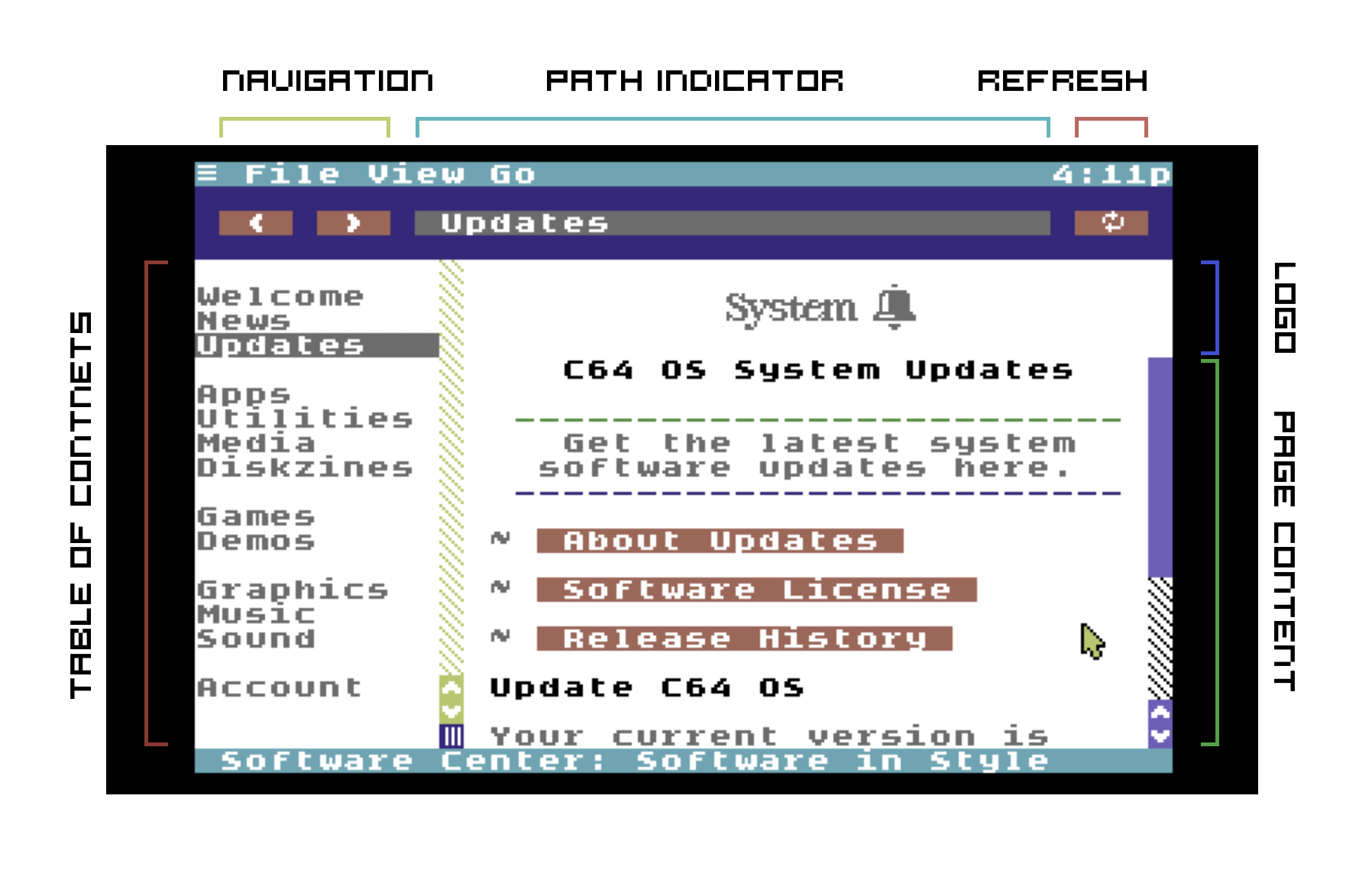
The screen is divided into several sections.
Navigation Bar
Along the top is the navigation bar. Visibility of the navigation bar can be toggled on an off to provide more room for the main content. The navigation bar has a back and forward button on the left. These work just like in a web browser. Next is a path indicator. As you navigate around Software Center the path indicator shows you where in the hierarchy you are. For example, it may indicate:
Games → Category → Arcade
Lastly is a refresh button. While a page is being downloaded, the refresh button changes to be a stop button. While a page is downloading, or if a page gets stuck downloading, click stop. Click refresh to reload the current page. All of these navigation options can also be selected from the Go menu, and the menu options provide keyboard shortcuts.
Main Content
The main content is divided into two sections, the table of contents on the left and the page content on the right. The width of the table of contents can be adjusted by dragging the split left and right.
Click on any main heading from the table of contents to jump directly to that section. As you navigate Software Center by following hyperlinks, you may be moved from one major section to another. The selected item in the table of contents changes to indicate which major section you are under. There are options under the Go menu, as well as keyboard shortcuts, to move up and download the table of contents.
Above the page content on the right there is a bitmapped page logo, 72px by 18px. Every page can have its own custom page logo, although in practice many pages will use the logo that is common to the section it belongs to. Keyboard focus is always returned to the main page content so that you can use standard keyboard controls (cursor keys, SPACE, B, HOME, etc.) to scroll quickly and easily through the content.
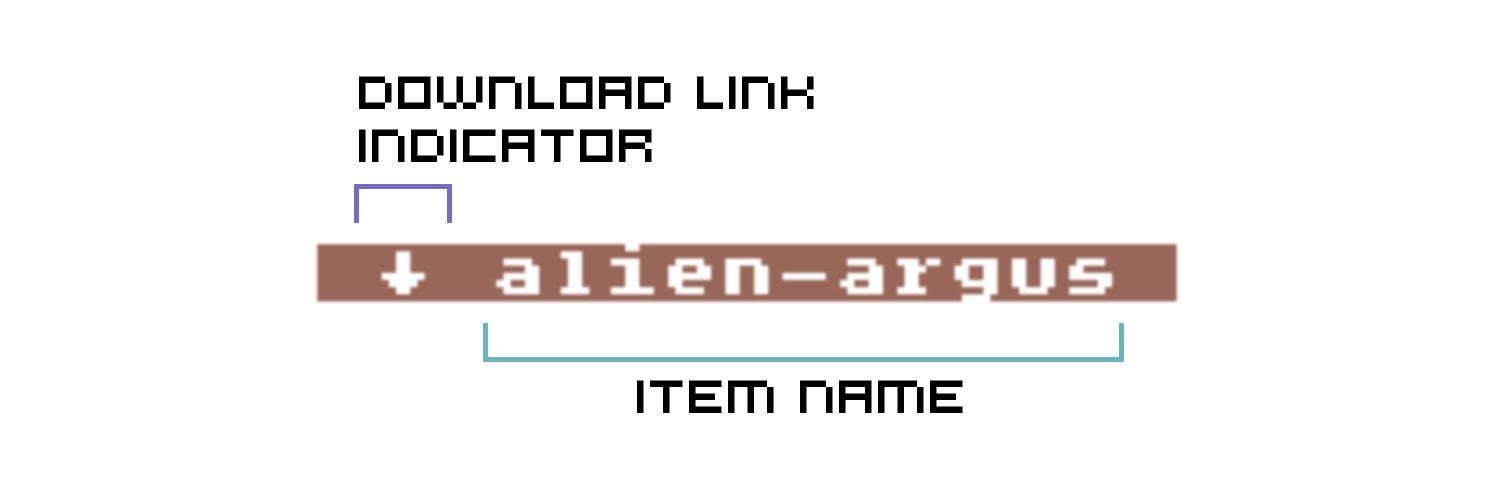
Page content has links so that you can drill in on a topic or navigate away to a related page. Some links are preceded by a down arrow (↓). If you see the down arrow on a link, you know that it will not take you to a different page, but instead opens the download footer in preparation to download the linked item.
Download Footer
The download footer appears at the bottom of the screen. Visibility of the download footer can be toggled on and off. Usually, if you're not downloading something, this footer will be closed.
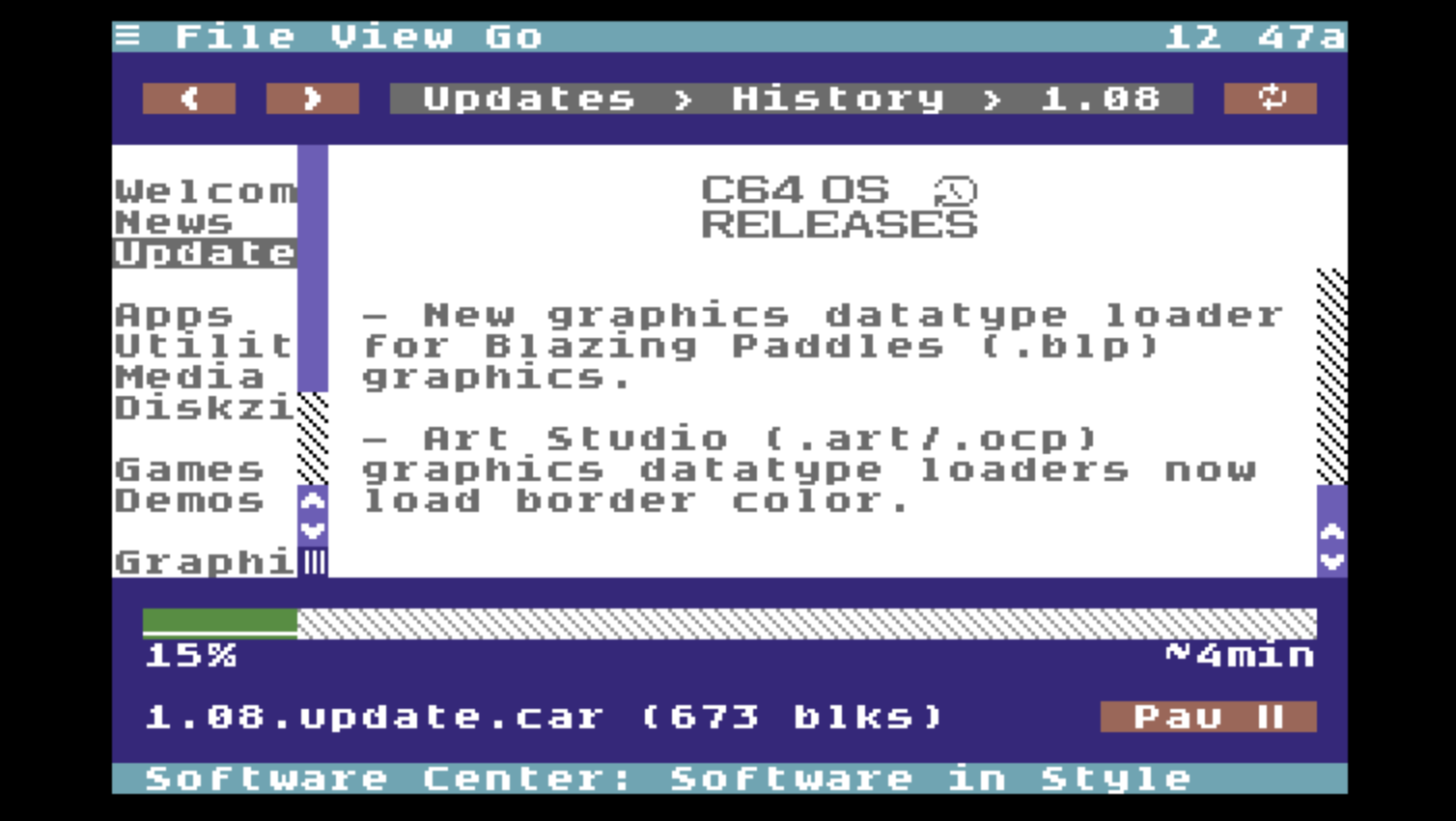
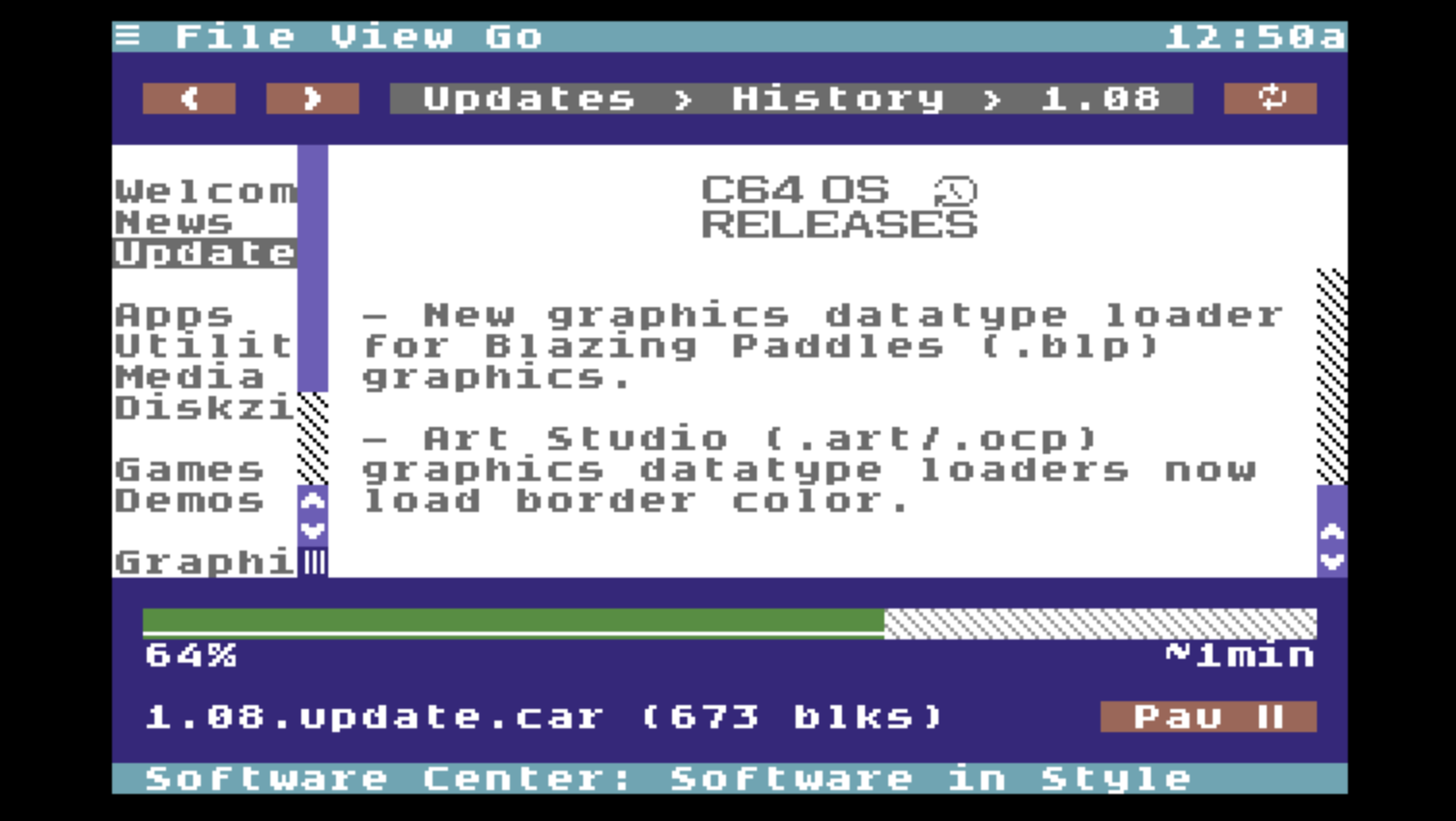
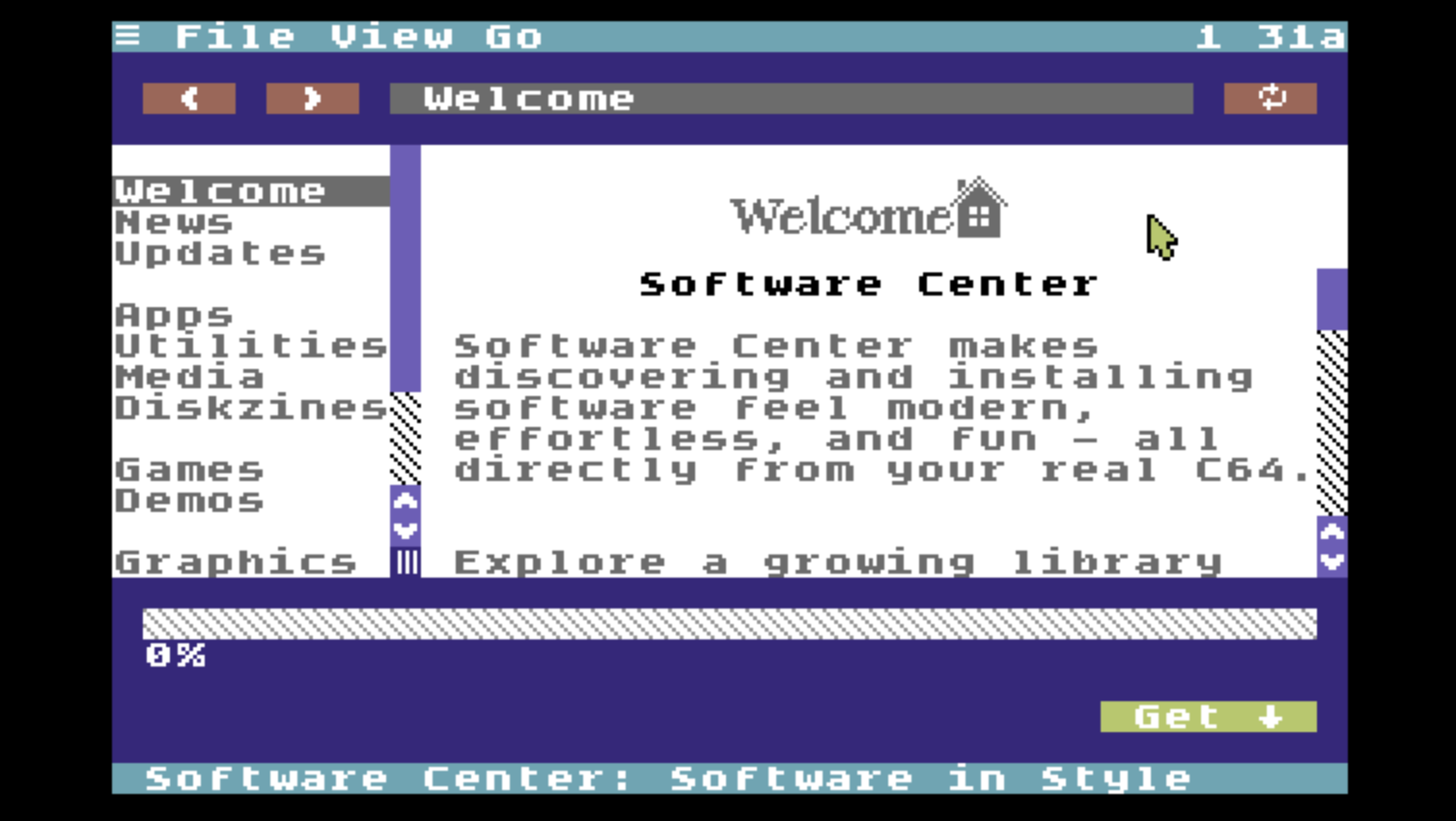
When you click a download link the footer pops up automatically and is populated with several controls. The syncrhonous progress meter stretches across the top. While downloading this shows visually how much of the download is complete. Below it to the left has a percentage complete, and below it on the right is an estimated time remaining.
Below the progress meter it shows the filename and its disk size in blocks. Software Center is oriented to be C64-first. This means everything downloadable always has a C64-friendly filename. Names are in PETSCII, they are limited to 16-characters, and the download knows what CBM file type (PRG, SEQ, etc.) which which to save the file. File sizes are in disk blocks because that's how File Manager presents all file sizes and available space on storage devices.
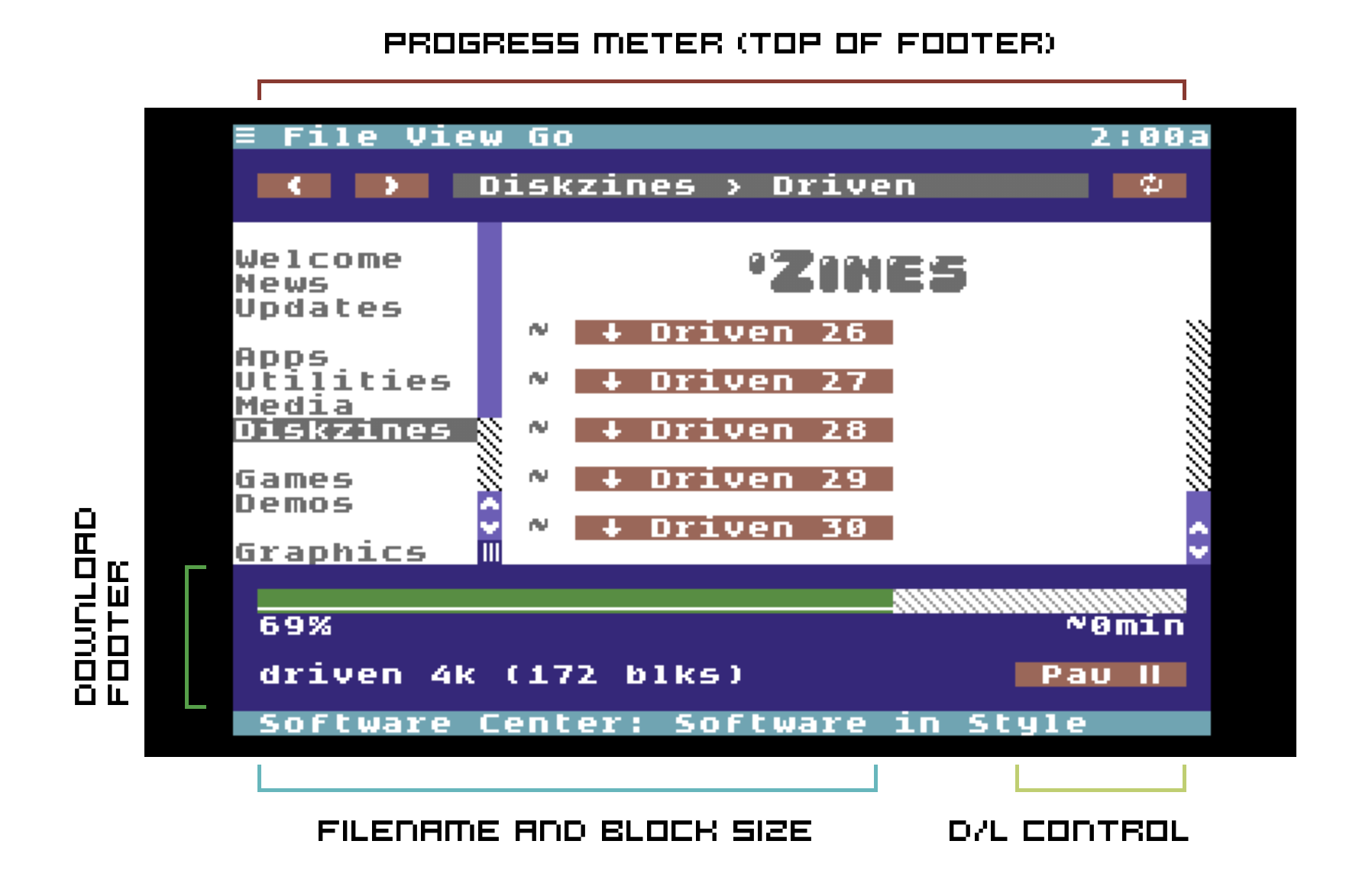
A button on the download footer lets you start, pause and resume the download whose information is being displayed. Download controls are also available as menu options, with keyboard shortcuts, under the File → Downloads menu. When a download completes, unless you have explicitly toggled the download footer to remain visible, it closes automatically.
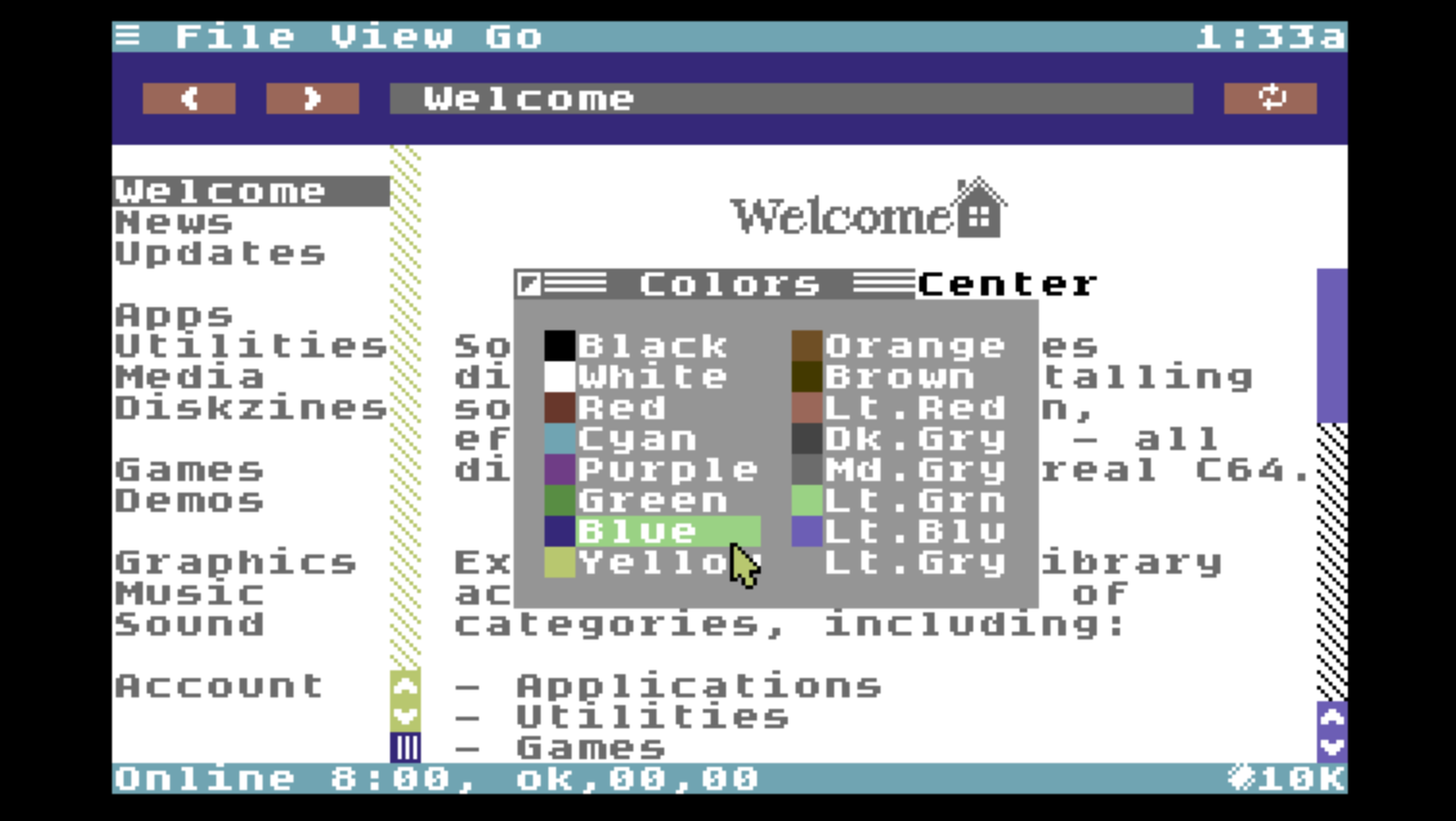
Customize the UI Color
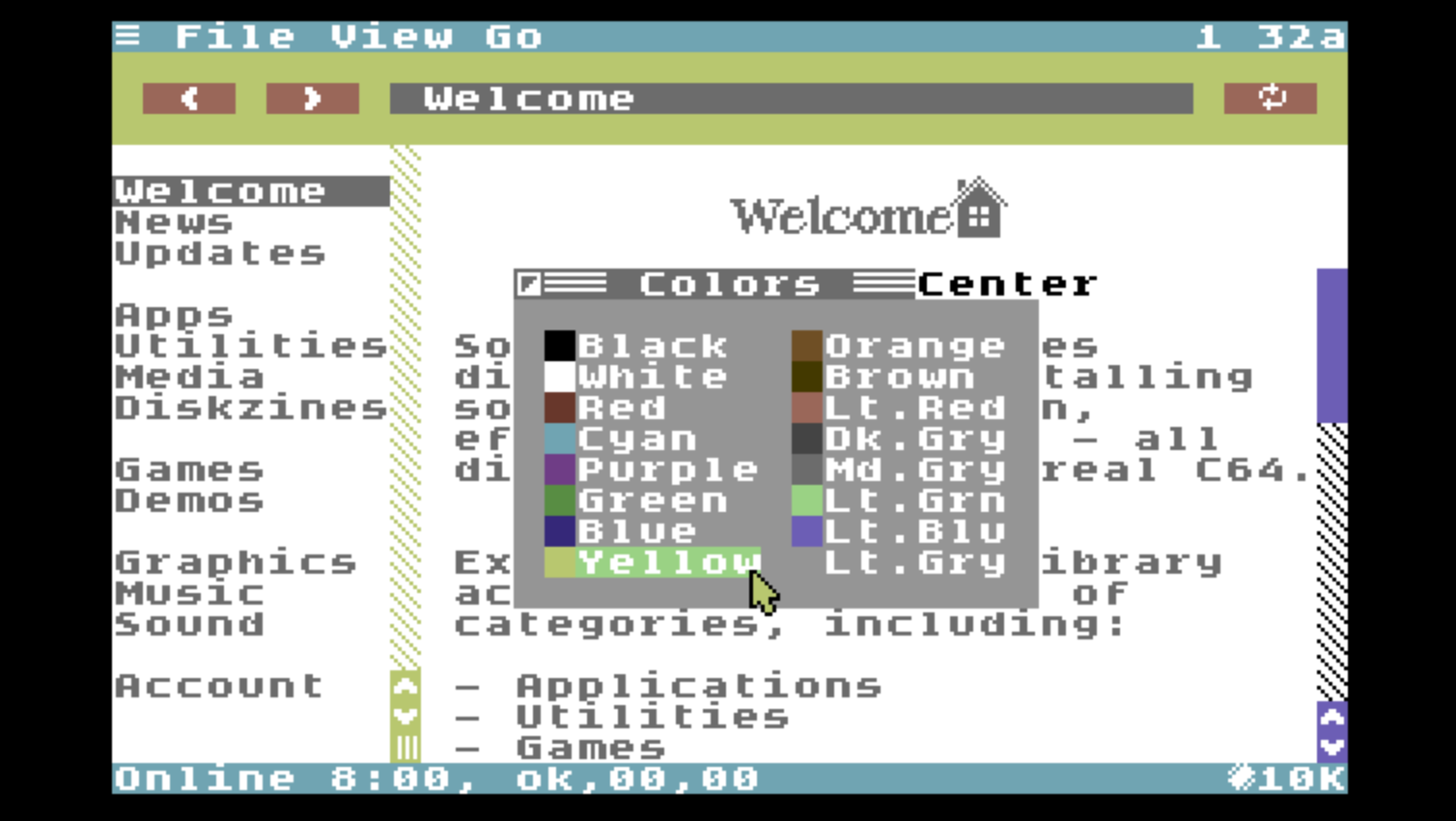
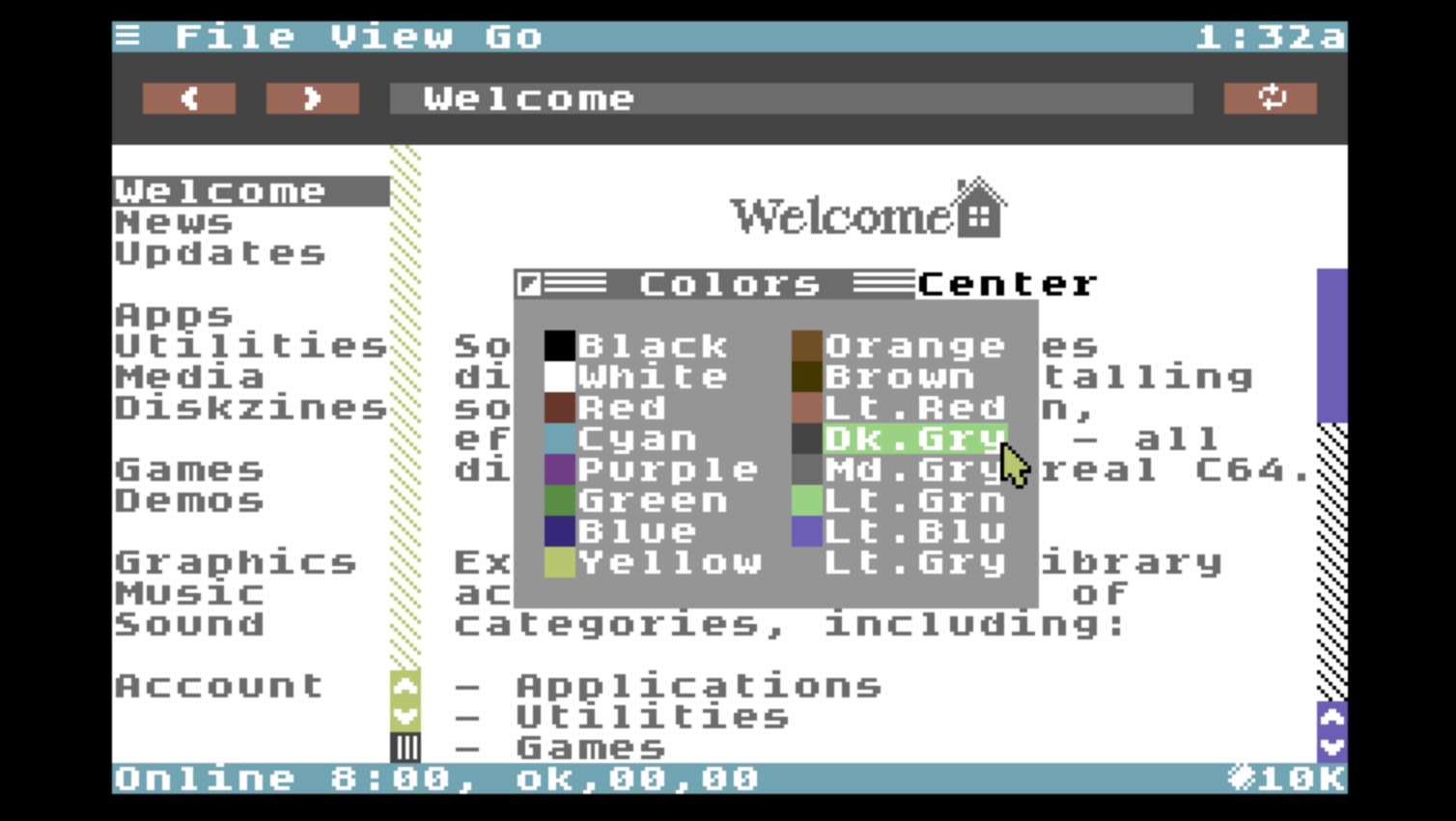
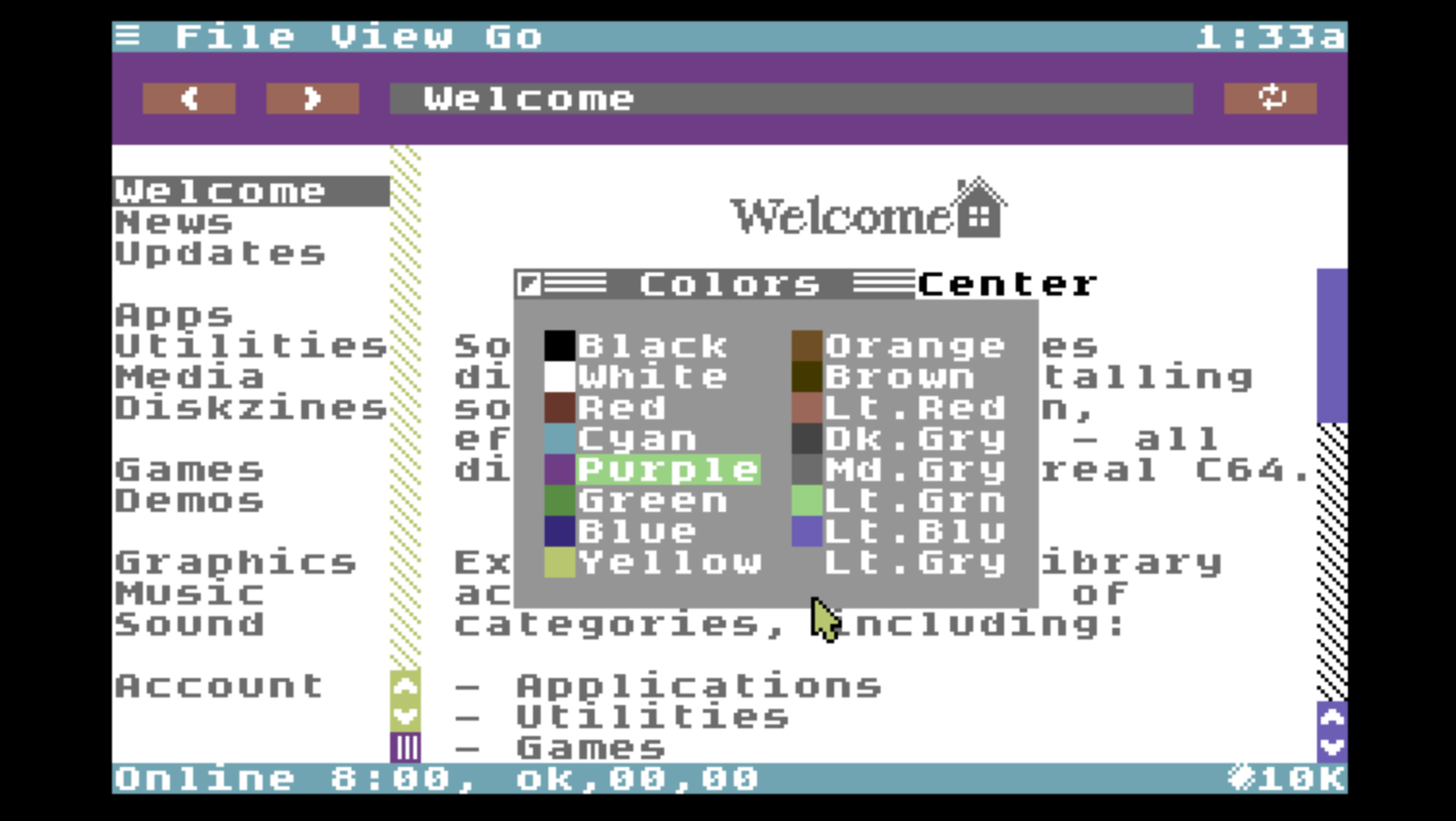
The background color of the navigation bar and the download footer can have their color customized using the Color Utility.
Open the Color Utility by choosing Colors from the View menu, or pressing CONTROL+C. Pick a color from the color picker to suit your tastes.
Navigate Software Center
Now that you know a bit about how the user interface works, using Software Center is very intuitive.
Start by picking any section that interests you from the table of contents. Read the page content to learn some history and find out what is available. Click on links to navigate further into that section and explore. If you've gone too far, click the back button to go back up the chain of links you've followed.
When you find something you're interested in downloading, and you see the link with the down arrow, click it. The download footer pops up automatically. Click the Get button from the bottom right corner of the download footer. Watch as your file downloads.
In a nutshell, this is everything you need to know.
How content in Software Center is organized will continue to evolve. The server-side generated pages can easily be changed and adapted to different kinds of content without any fundamental changes to how the Software Center Application works. Like a web browser, Software Center fetches and renders whatever content is provided by the server.
Following are some examples from different types of content.
Exploring Games
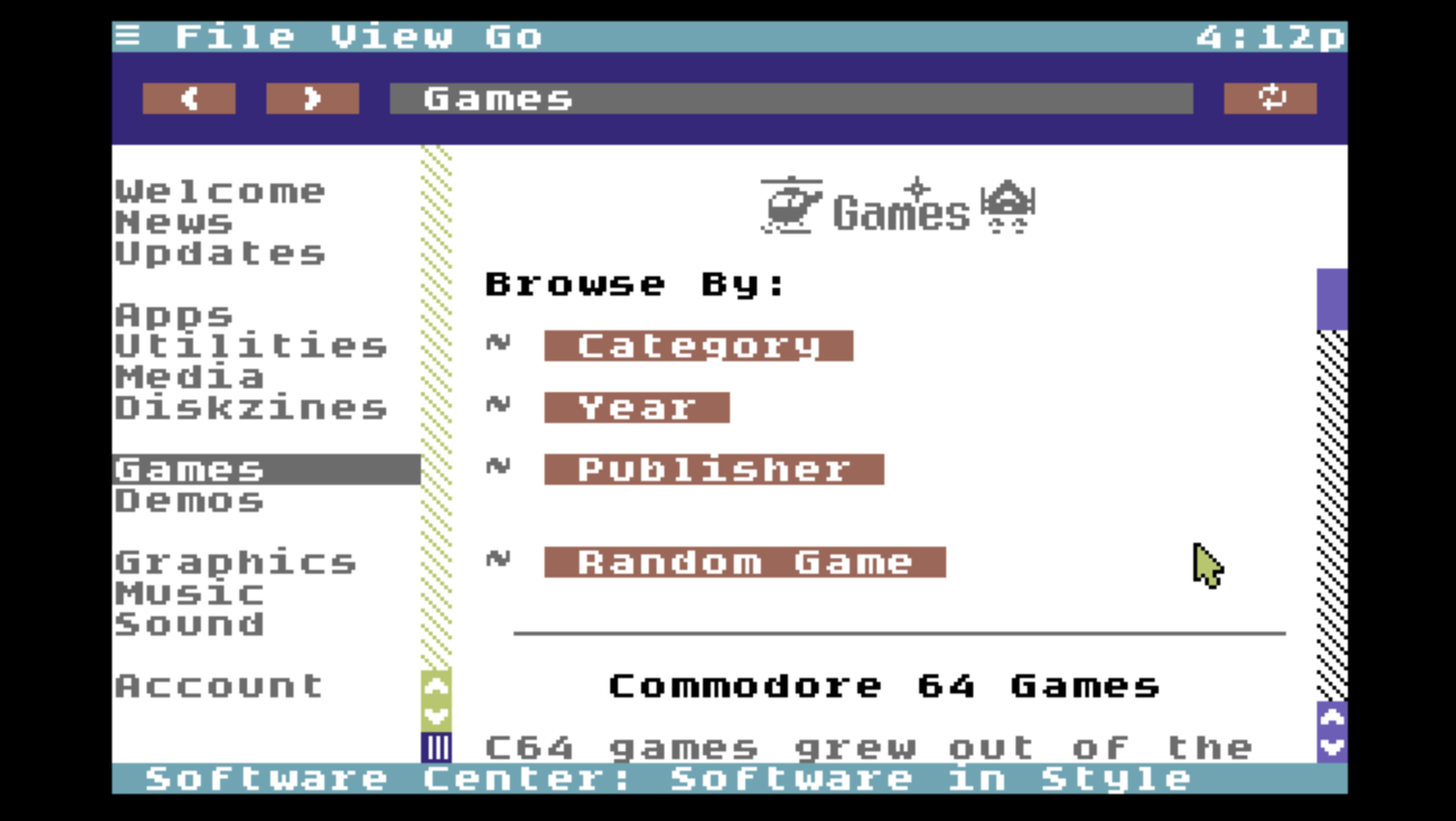
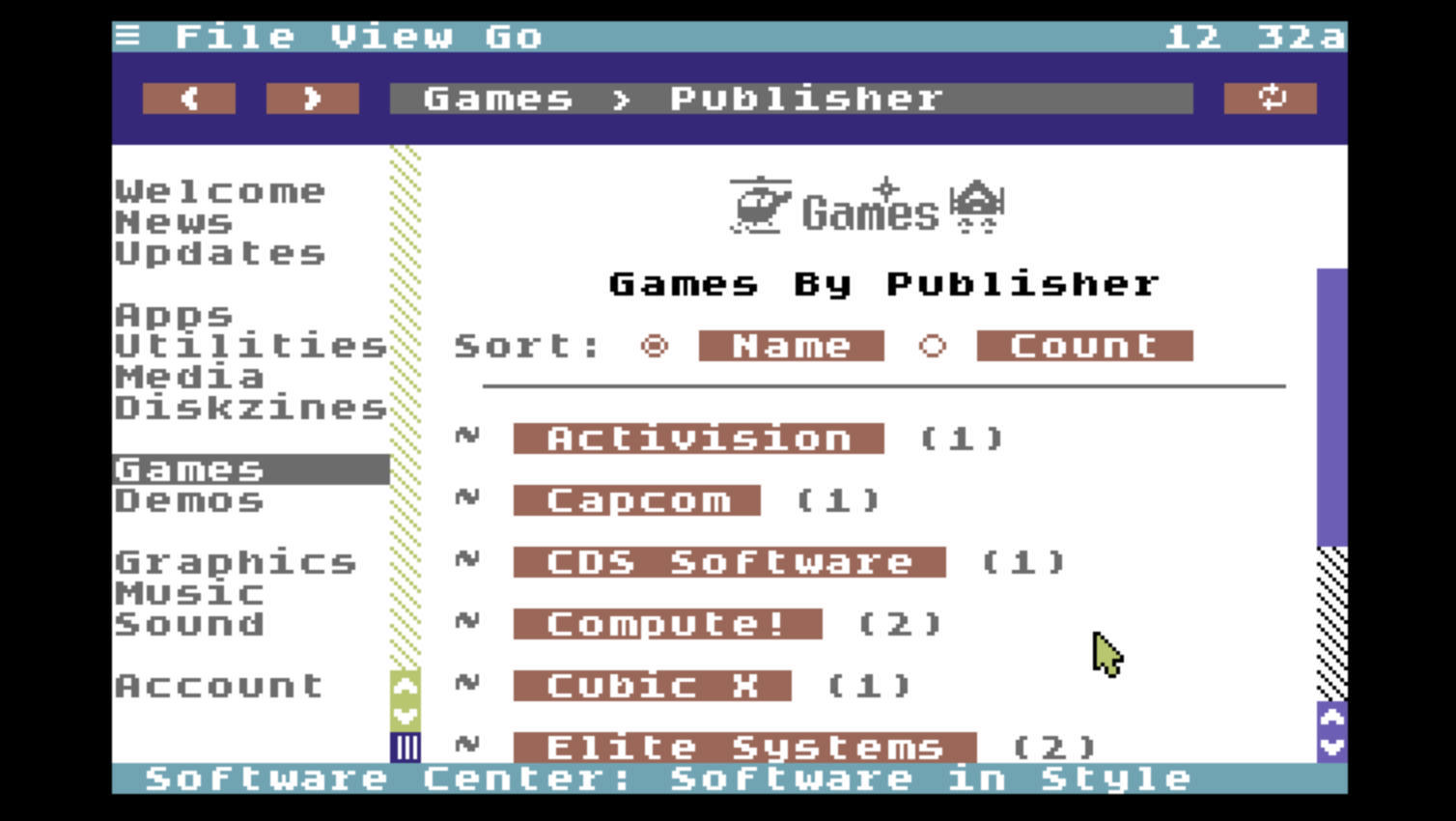
Click Games from the table of contents and you are taken to the introductory page for games. It has a custom logo and options are presented to browse the library by Category, Year, or Publisher. There is also an option to find a game at random.
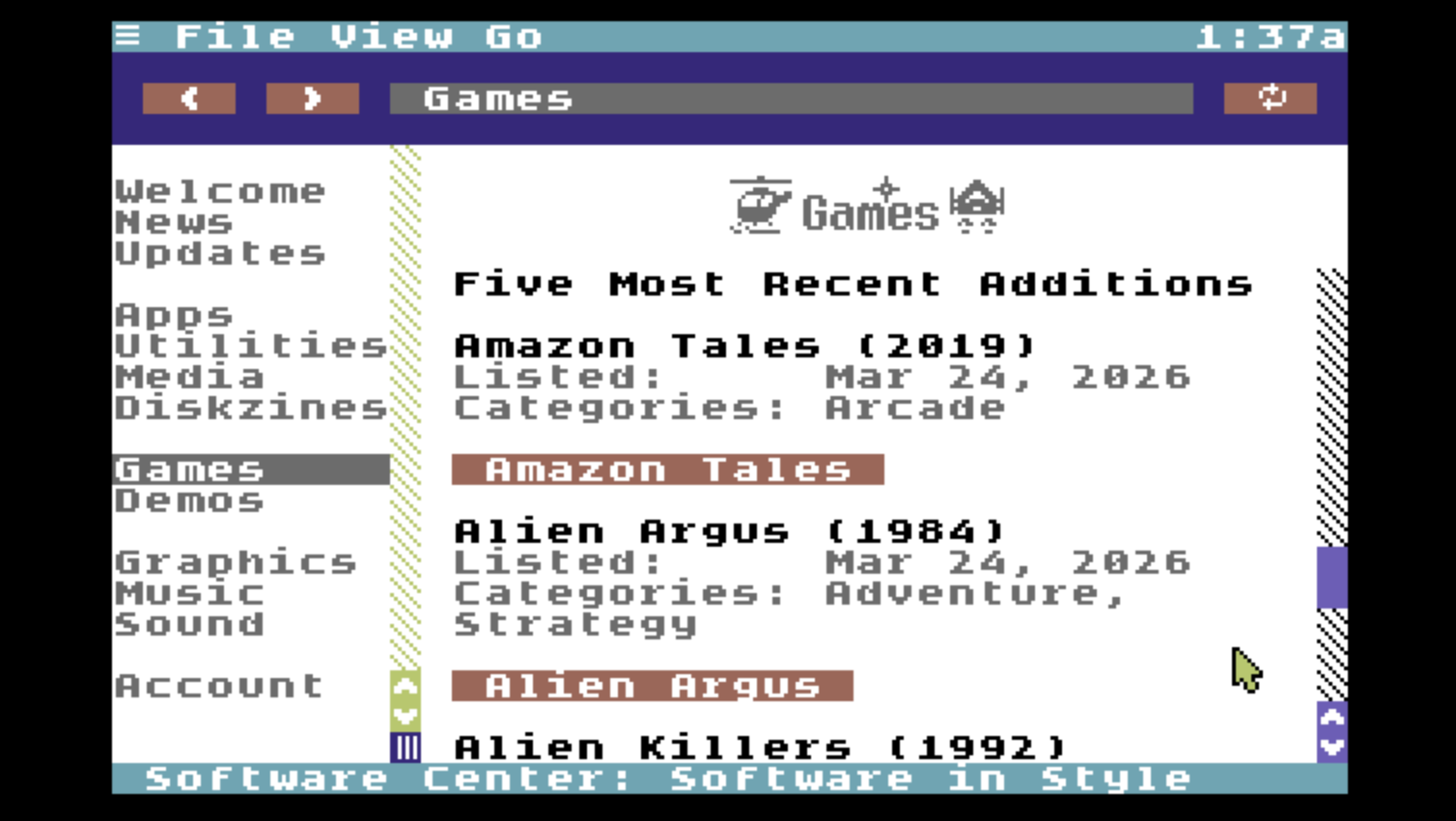
Further down the introductory page for games you can find a listing of the five most recent games added to Software Center. This is a form of news, and neat way to discover things you might otherwise never notice.
It doesn't matter how these games are categorized, they get surfaced and highlighted simply because they're recent additions to the Software Center library.
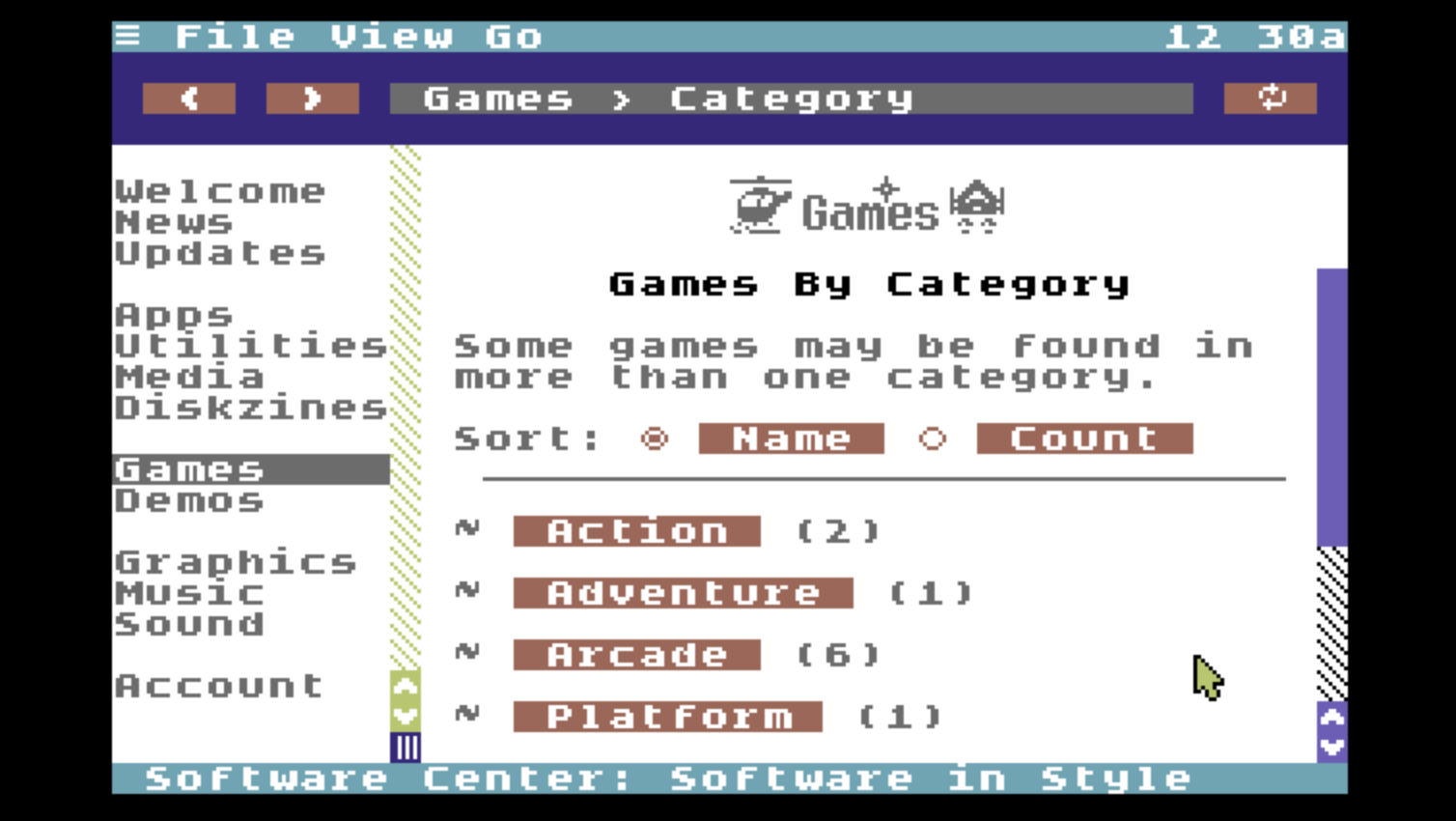
Under Browse By we'll click the Category button. The next page presents a list of categories. At the top of the page are radio buttons to sort the categories alphabetically by name or the number of available items in each category.
Each time you click a button, the page refreshes with content ordered differently by the server.
Server-Side Rendering: SSR
On the web, this technique is called server-side rendering (or SSR). The Software Center server is written in NodeJS and dynamically renders MText from PText templates which it populates with data from a MySQL database.
This takes a lot of load off the Commodore 64 and enables a great degree of flexible rearrangement and reorganization without needing to change the C64's software.
After clicking the arcade category, the page refreshes and shows a list of games available for download from this category. The path indicator shows us where we are:
Games → Category → Arcade
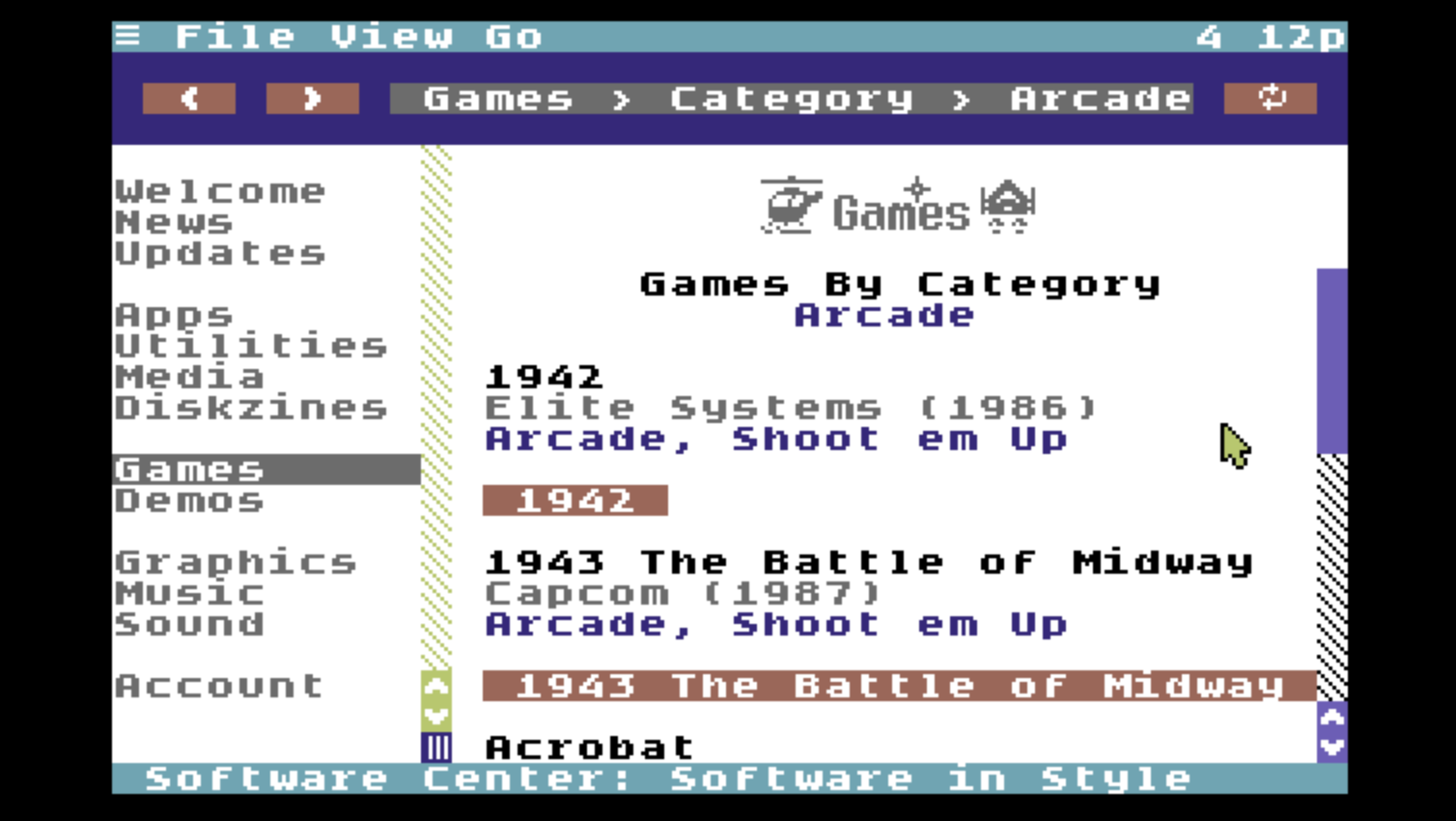
Any given game may be found in more than one category, as they are categorized by metadata in the database rather than in the strict hierarchy of a file system, such as is found on an FTP server.
Information about each game is displayed in a small block: name, publisher, year of publication, and a list of categories, followed by a button to open the item page for this game. Notice that there is no down arrow on these buttons. This tells us that clicking the button will take us to another page.
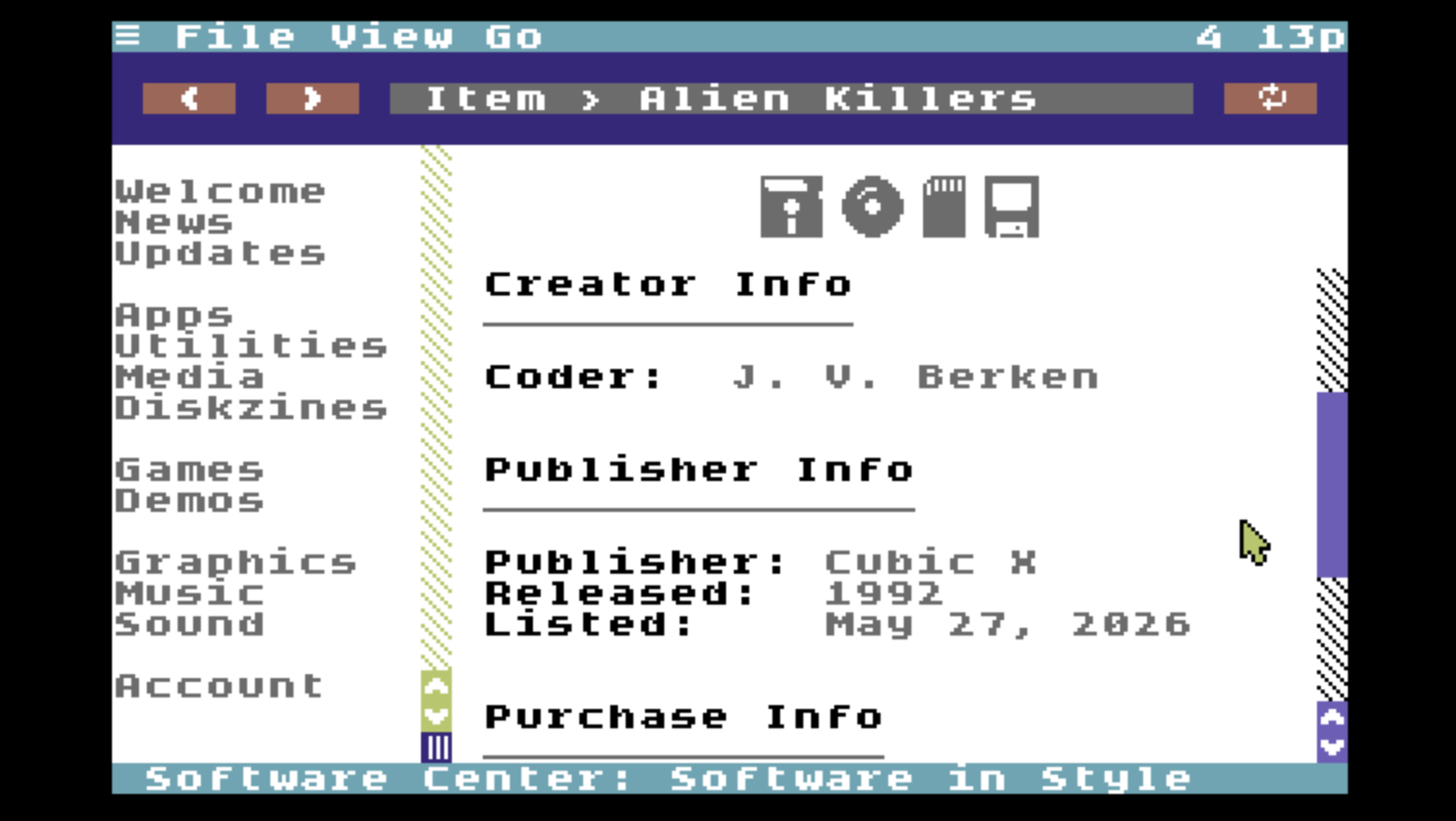
After clicking the button of a game, we are taken to the item page for that game. There are many different ways that could lead you to this same item page. A game could be featured in an reviewer's top picks. The game could come up after a random selection. Or you could find the game in your download history. Each of these paths lead you to the item page. The item page is the canonical page whence this item can be downloaded.
Exactly how an item page gets rendered depends on what kind of item it is. Games usually have coders, musicians and graphicians. They also usually have publishers, publication years, and fall into one or more game categories. All available information of this kind is presented on the item page. Other kinds of items, such as a GEOS Font or a static graphic from an art competition, won't necessarily have this same kind of metadata. Item pages are tailored to the kinds of data that are typically available with each type of item.
Notice that on this page, the path indicator shows:
Item → Alien Killers
And while on this page there is no overarching section highlighted in the table of contents.
Note also that an item and a file are not necessarily the same thing. Some games are distributed as two (or more) disk images. Each file can be downloaded individually, but the two files together comprise just one item.
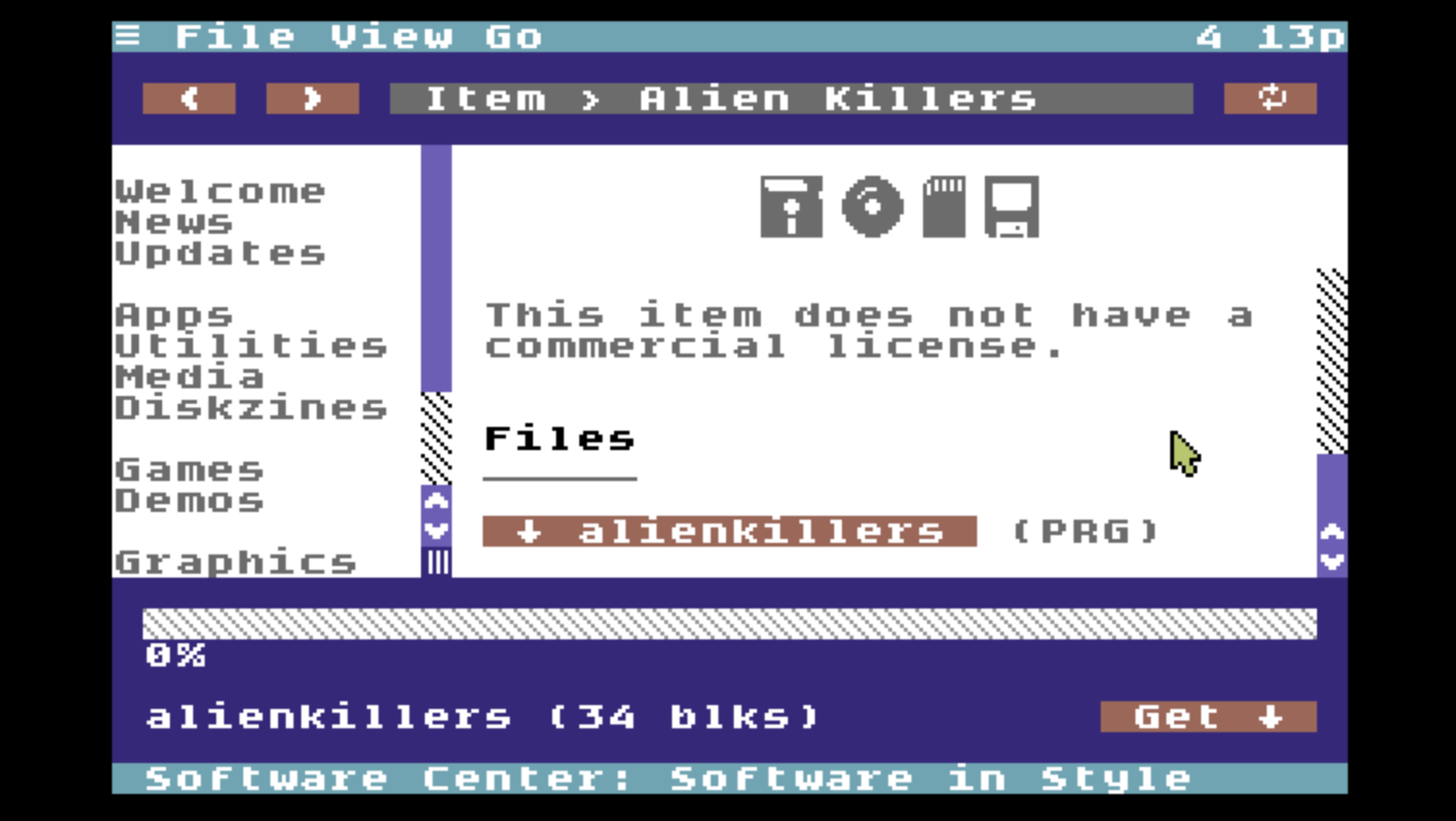
Scrolling to the bottom of the item page we can find the file or files available for download under the Files heading. Notice that these button links are preceded by the down arrow, so you know that when you click them they will open the download footer.
After clicking the file download button, the download footer is opened. The progress meter is currently showing 0% and no time estimate because we are not yet downloading anything. The name of the file, alienkillers, and its block size, 34 blks, are displayed.
Also note that the name of the file is not identical with the name of the item. Why is that? In the screenshot listing some games in the arcade category, one of the games is called "1943 The Battle of Midway". This may be the legitimate title of the game, as originally printed in its user manual and on the box it came in. But this is 25 characters. That's too many for a filename. Therefore, each item has a proper name which displays in Software Center, but when it comes time to download the files, they have filenames that are ideally suited for saving on a native C64 storage device.
Finding System Updates
Of course, Software Center isn't just about games. C64 OS system updates are also distributed through Software Center. In fact, it's easier to figure out what you need. Software Center knows what version of C64 OS you are currently running and it knows what updates are available and what versions they can be installed over top of.
Start by clicking Updates from the table of contents.
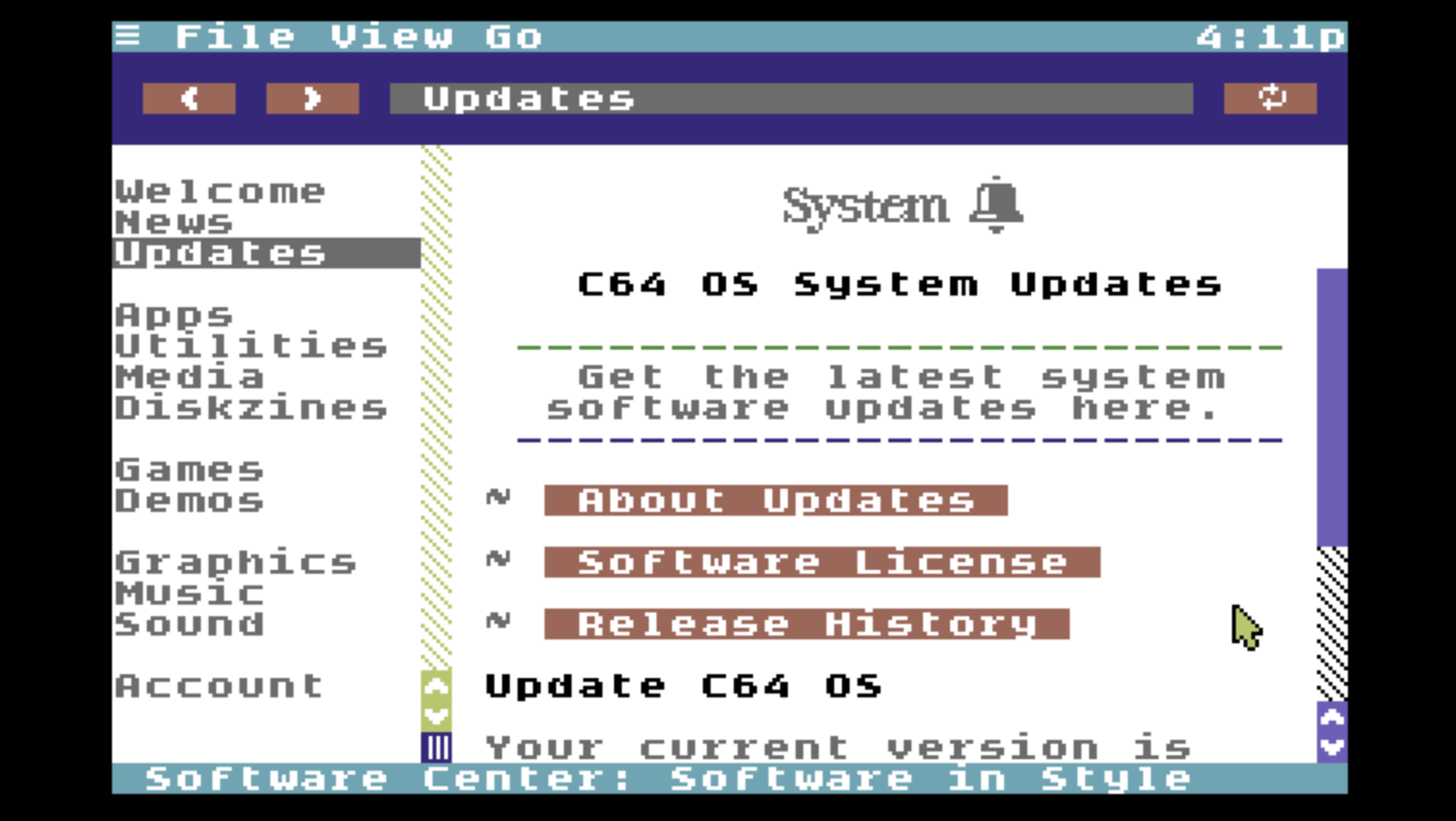
The introductory page for C64 OS System Updates is completely different than the page for games, and that's a good thing. Each page is tailored to the kind of content it is, what you need, and how to find it.
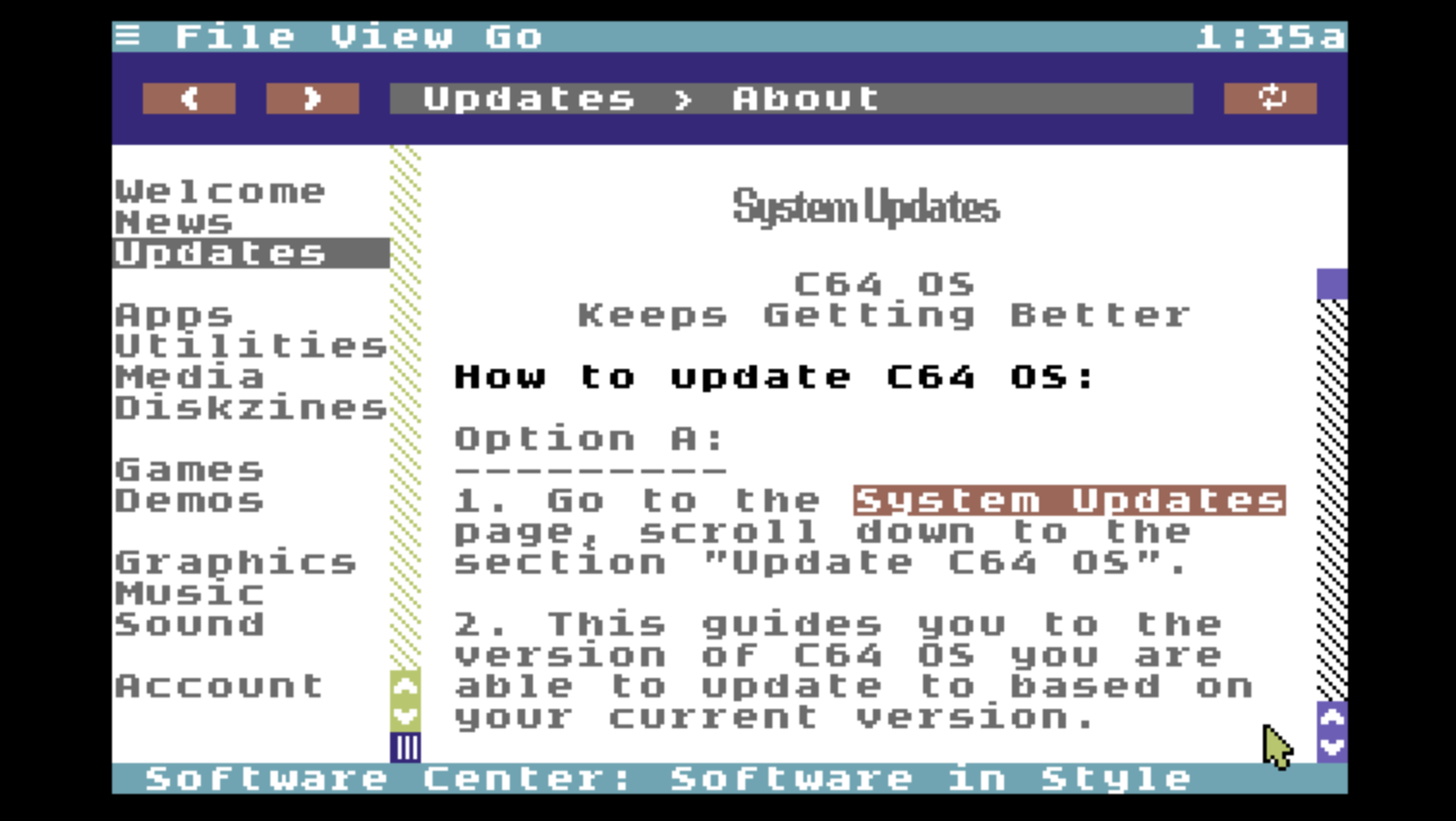
About Updates takes you to another page where you can read all about C64 OS system updates: how to install them, how to find them on the web, what a .CAR archive file is and how they work. Software License takes you to another information page where you can read and review the C64 OS Software License.
Release History provides a list of all the C64 OS system updates in reverse chronological order. You can navigate into any release and read its full release notes. You can use a C64 running a current version of C64 OS to download any system update you may need to perform a system update on an installation of C64 OS starting from some other version.
For the first time, you can use C64 OS to fetch updates to itself.
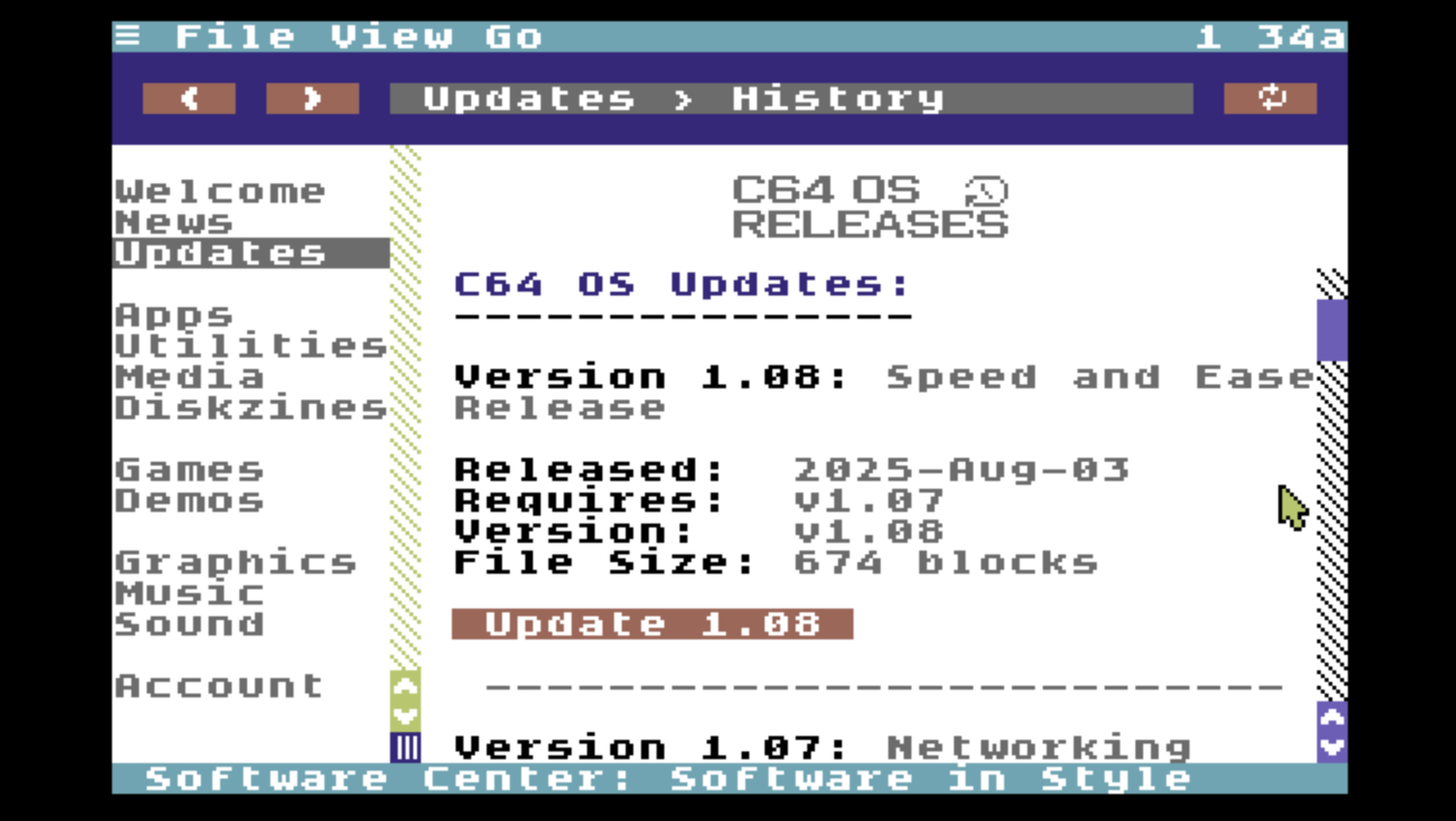
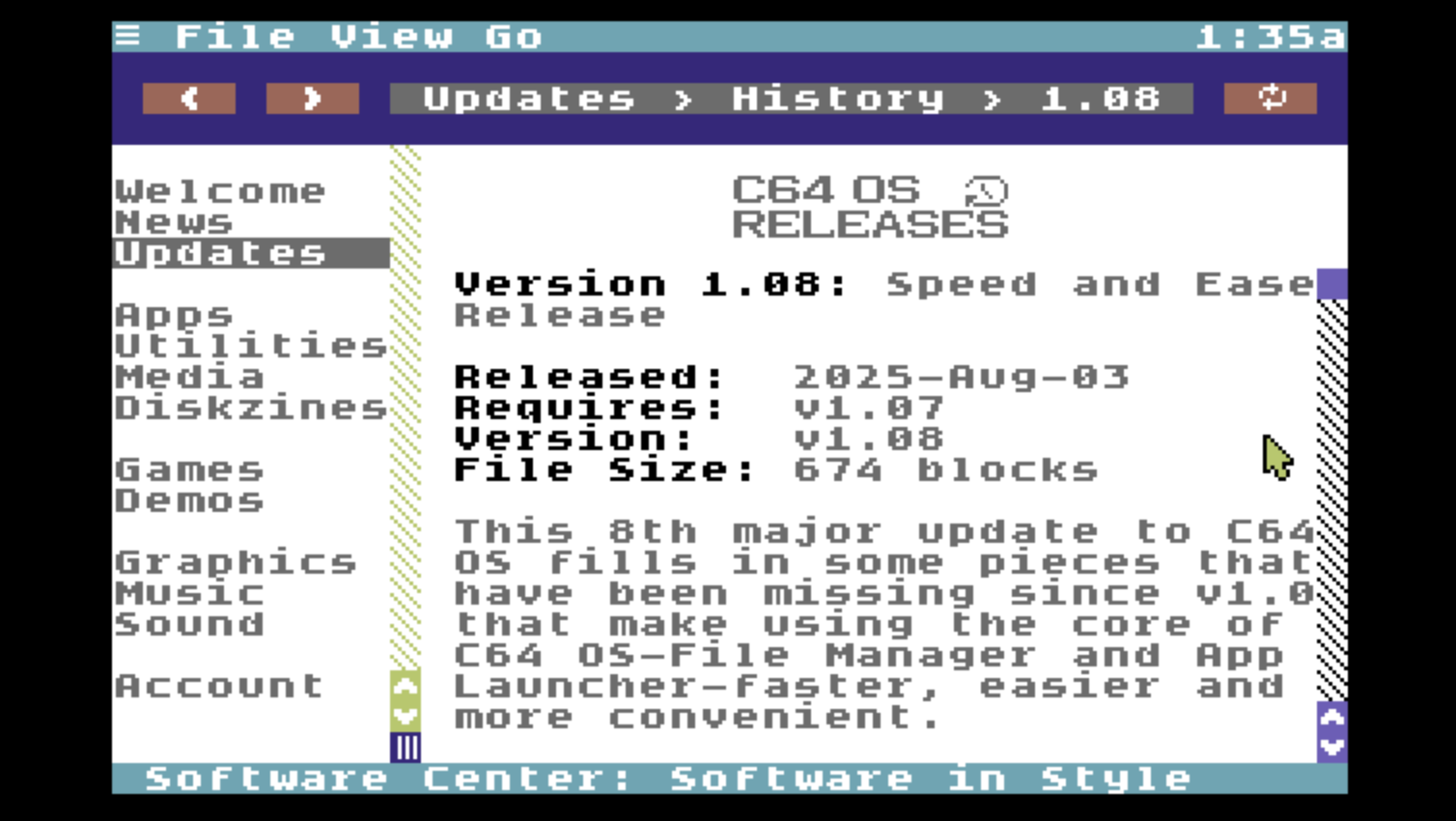
Next version autodetection
From the introductory page of system updates, in the lower part of the page it tells you what version of C64 OS you are currently running. It tells you if you are up to date and if not it gives you the link to the update you need to install next.
Download that and install it.
After booting up in the next version, Software Center may tell you that there is another update available, or that you're fully up to date. It takes all of the guesswork out of updating if you happen to be a couple of versions behind.
Your Software Center account
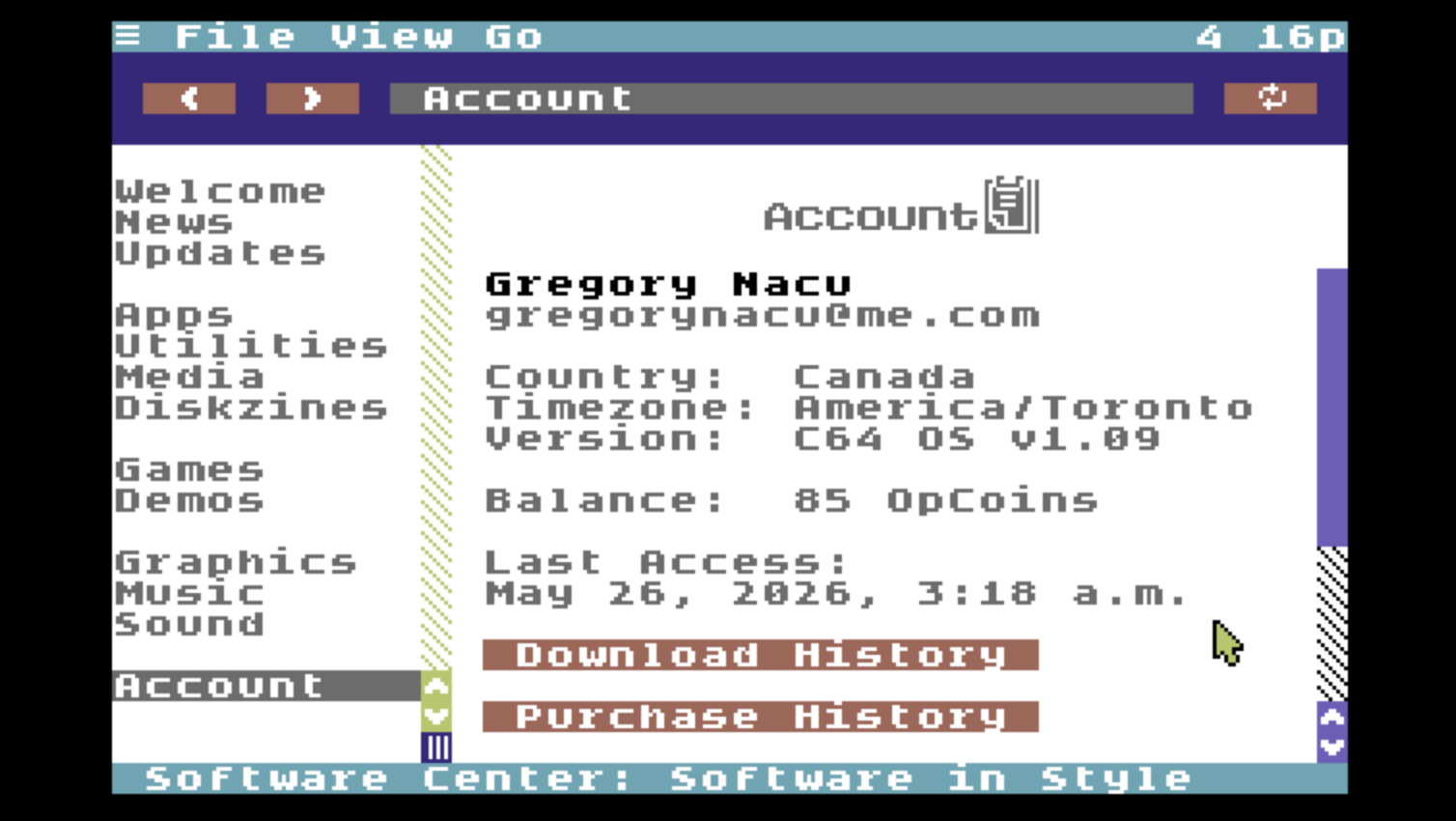
The Account section is found at the bottom of the table of contents.
Your account is created automatically the first time you open Software Center. It uses the CNP Authentication Protocol to fetch an authentication token from the CNP server. The Software Center server uses that token to fetch information about your user profile from the CNP server you're using to get C64 OS online.
If you're a new user, an account is immediately created from the profile information. If you are a returning user, the Software Center's account profile is updated from the most recent information provided by the CNP server.
This includes your name, email address, country and timezone.
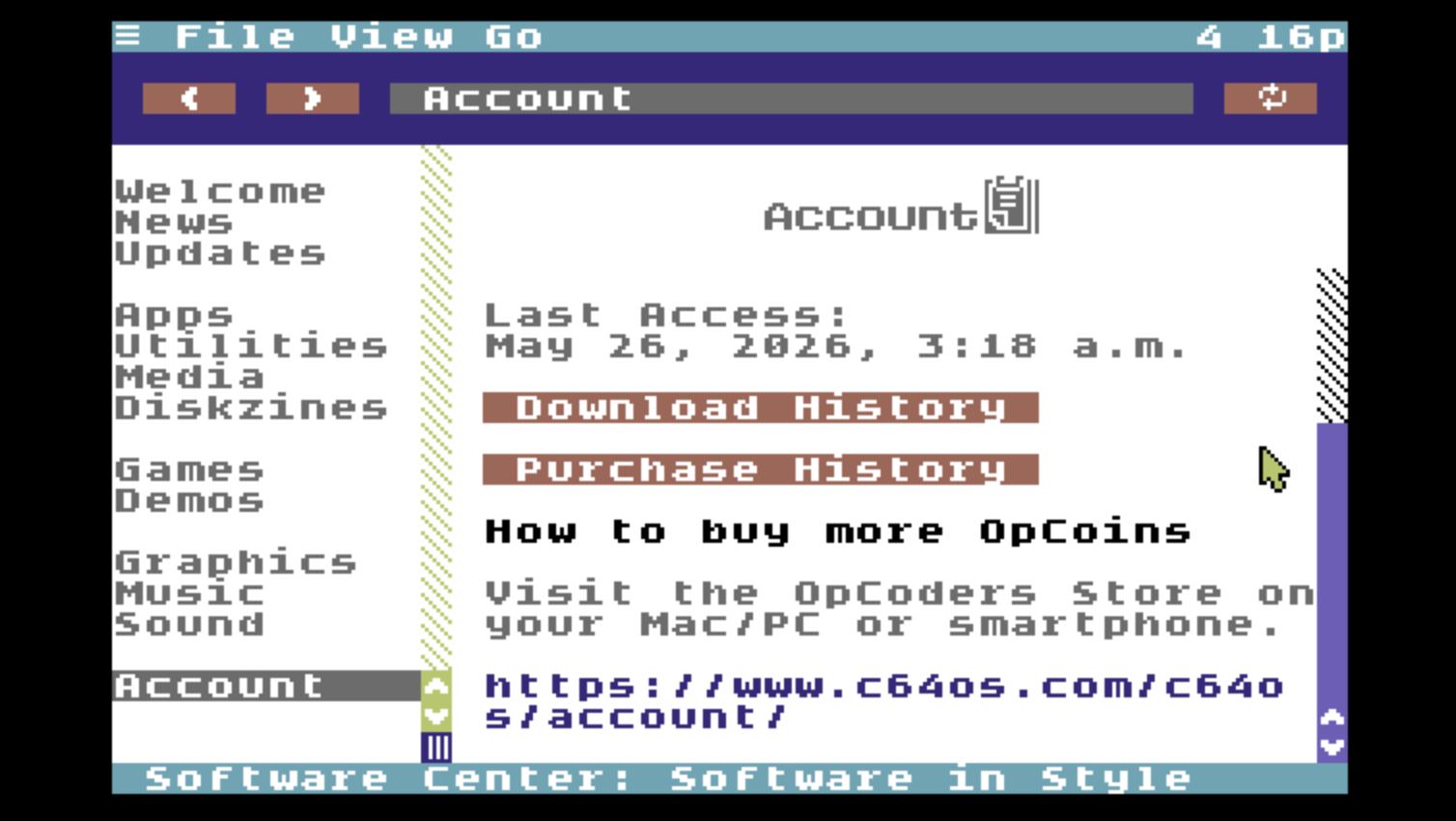
As you navigate Software Center your authentication token is used like a session cookie. Your backwards and forwards navigation stacks are held in your server-side session. Therefore, if you log into the Software Center on more than one computer using the same CNP server and account, each Software Center session maintains separate navigation stacks.
When you download any file, the date and time of the file you downloaded is saved in the account's download history. This is shared across all instances that are logged in as the same user. Your most recent access is listed in your account details.
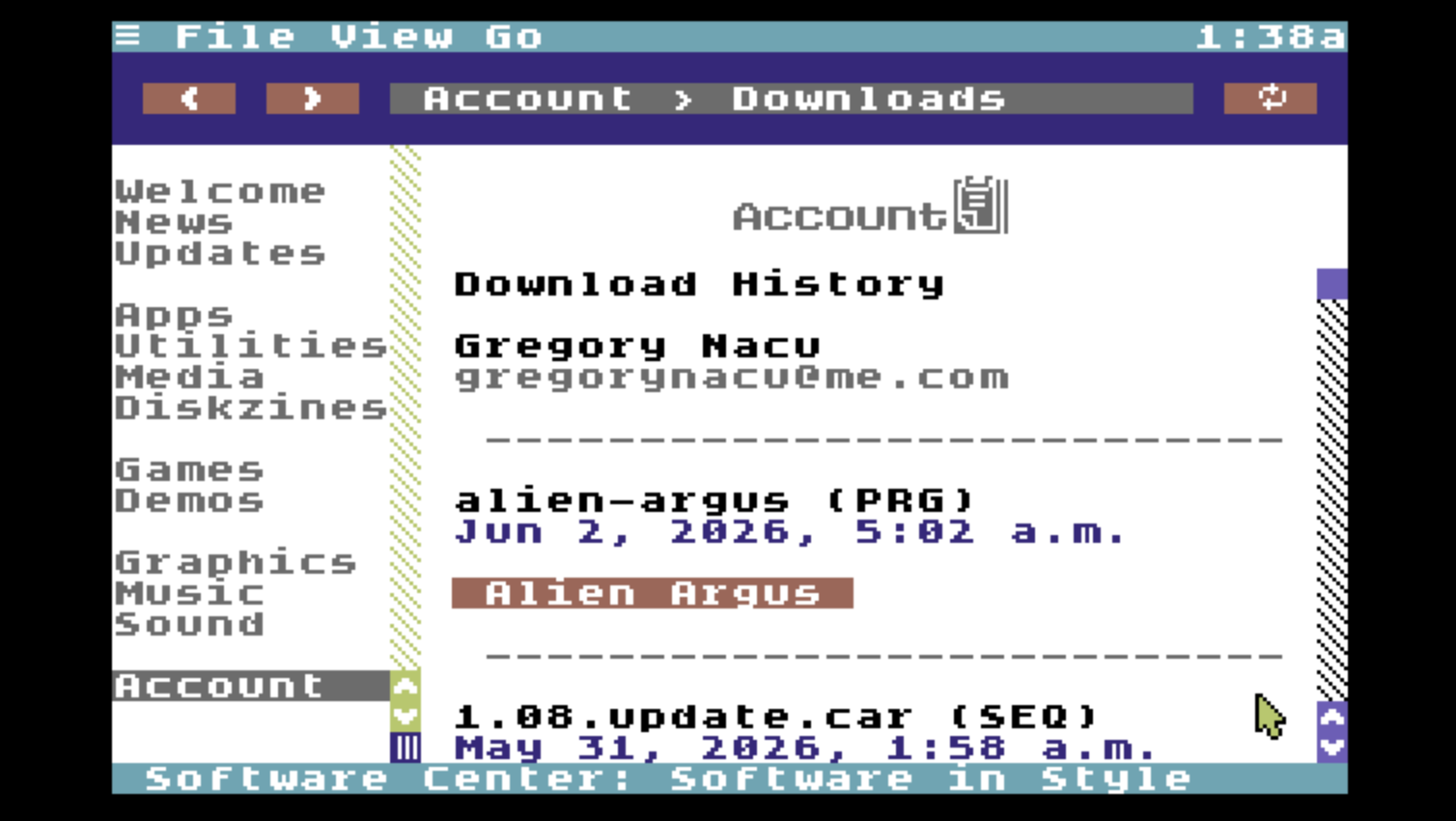
Account Download History
What are OpCoins?
One of the goals of Software Center is to allow you to purchase commercial software and other digital assets directly from your Commodore 64. This is an ambitious goal. There are security concerns, because the network connection between C64 OS and the Software Center server is not encrypted.
In order to make this possible, purchases made through the Software Center Application are paid using a virtual in-store currency called OpCoins.
Purchasing Securely from a Commodore 64
The C64, as a retro computer, is inherently insecure by modern standards. No memory protection, no privileged hardware modes, no file system permissions, and no encrypted networking.
For this reason, you cannot use the Commodore 64 itself to make purchases using a real credit card. We shouldn't even try. You use a modern computer, smartphone or tablet, using a web browser and the latest encryption standards to purchase OpCoins. These can be purchased in small quantities, as little as just $5 Canadian (less than $4 USD.)
On the C64, you can make "purchases" in exchange for your OpCoins. Because Software Center transactions involve only OpCoins and not real currency, the potential impact of unauthorized account activity is limited to the OpCoin balance associated with the account.
If you suspect unauthorized activity, contact OpCoders Inc. We maintain logs that may assist in investigating suspicious activity and determining whether taking action is necessary. Where appropriate, corrective steps may include restoring OpCoins or other account adjustments.

How to acquire OpCoins
One OpCoin is worth 10 Canadian cents. OpCoins may be purchased by using a modern web browser, either on desktop, laptop or mobile, and signing into your account at C64OS.com, and then going to your Purchase History.
OpCoins are sold in packs for minimum price of $5 CAD for 50 OpCoins. The purchase of OpCoins appears in your C64OS.com account's purchase history, and the value in OpCoins is credited to your Software Center account.
When your account is first created it is provisioned with a welcome bonus of 20 OpCoins which you may spend on anything in Software Center, so that you can see how it works.
Some items found in Software Center have a commercial license. Before you are able to download the files for these items, the price in OpCoins is displayed with a clear indication that clicking the button will make a purchase. Your OpCoins balance is debited and a record of your purchase is recorded. This grants you a license to download and use the purchased item.
Purchase History
From your Software Center account section there is a button to view your purchase history.
All items purchased through Software Center appear in the purchase history. These appear as an an OpCoin debit for the price at which the item was purchased. Once an item has been purchased, you can download it as many times as you want and you can download it on as many Commodore 64 computers (including compatible reproductions and emulators) as you own.
Your purchase history is tied to your account. It is the same across all the instances of Software Center that you log into on any computer.
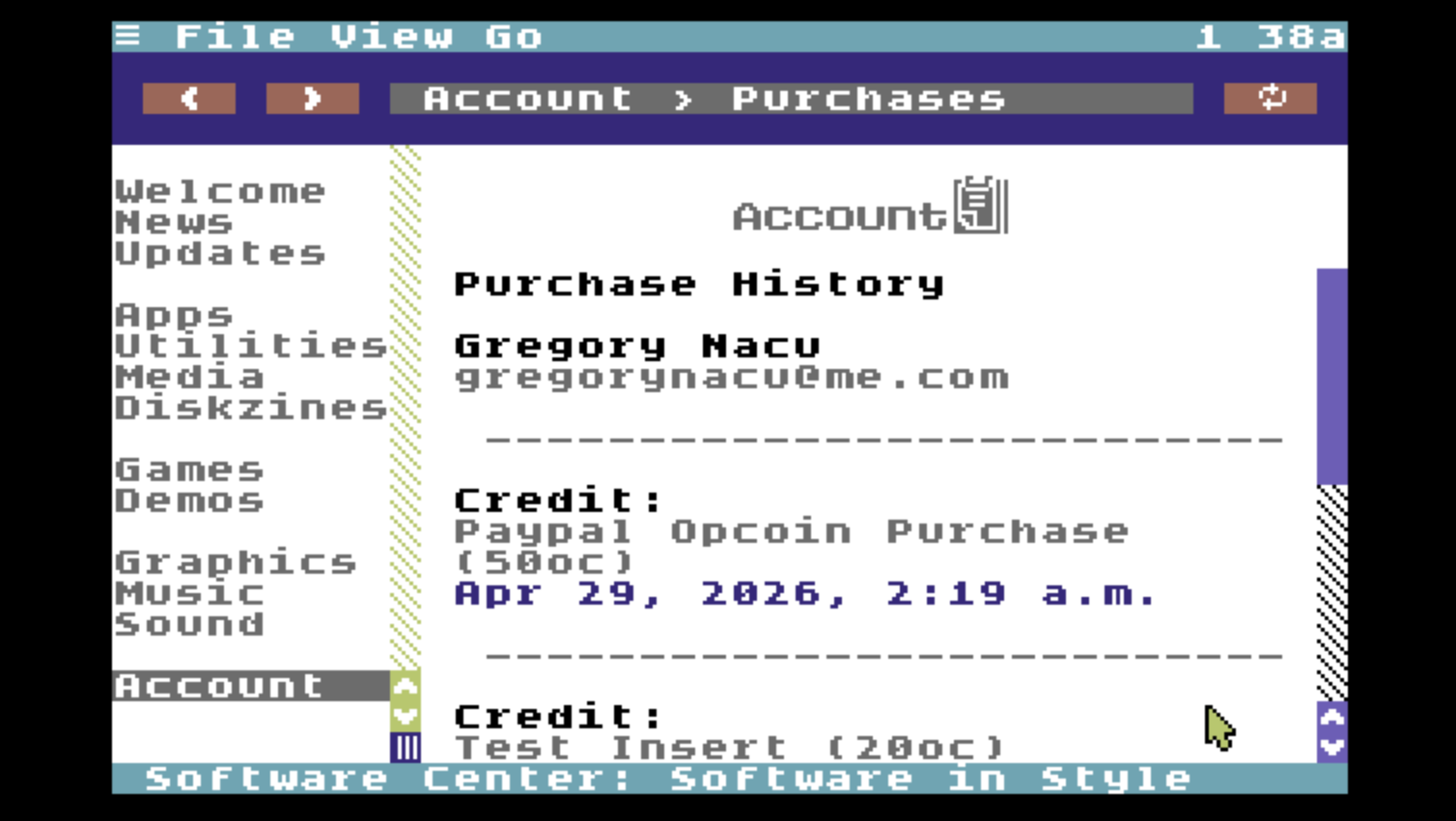
Account Purchase History
How to download
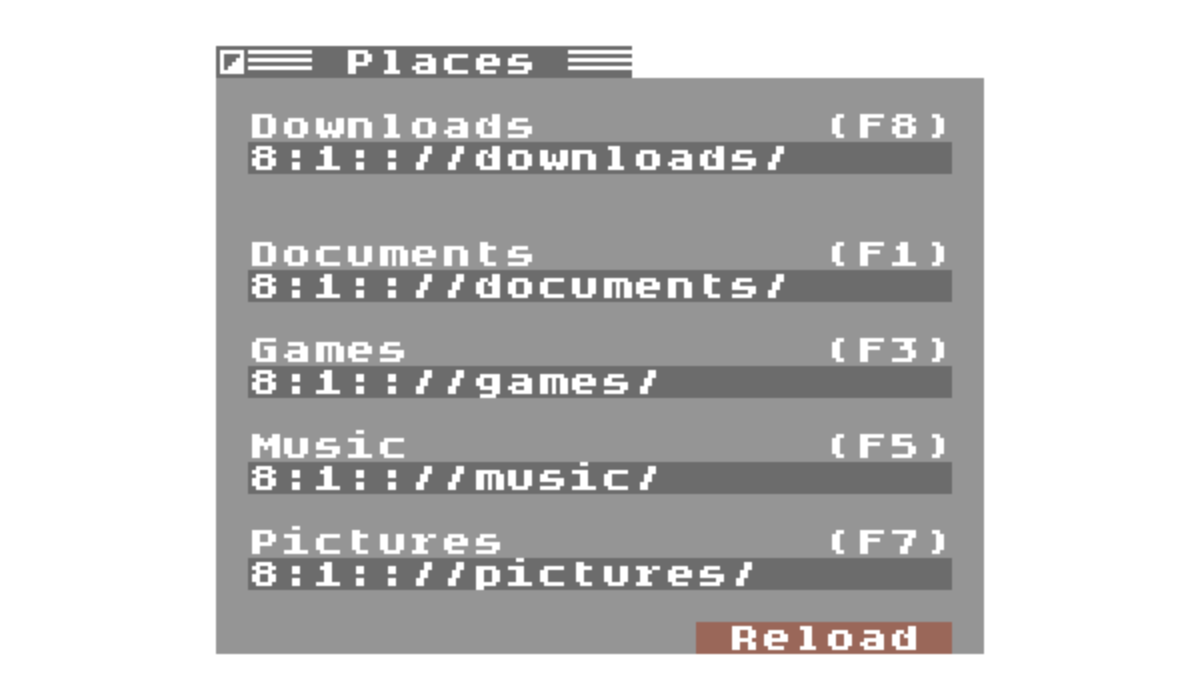
Starting in C64 OS v1.09, there is a new place—"downloads"—defined by a system setting that is user-customizable and accessible with a function key or from the Go menu in File Manager.
Where do downloads go by default?
After updating from C64 OS v1.08 to v1.09, the default downloads directory is copied from the user's settings for their documents directory. C64 OS v1.09 also updates the Configure Tool to v1.3. This creates and defines a separate downloads directory if you use it to configure default places.
Choose "Downloads" from the Go menu or press F8 to jump directly to your downloads directory in File Manager.
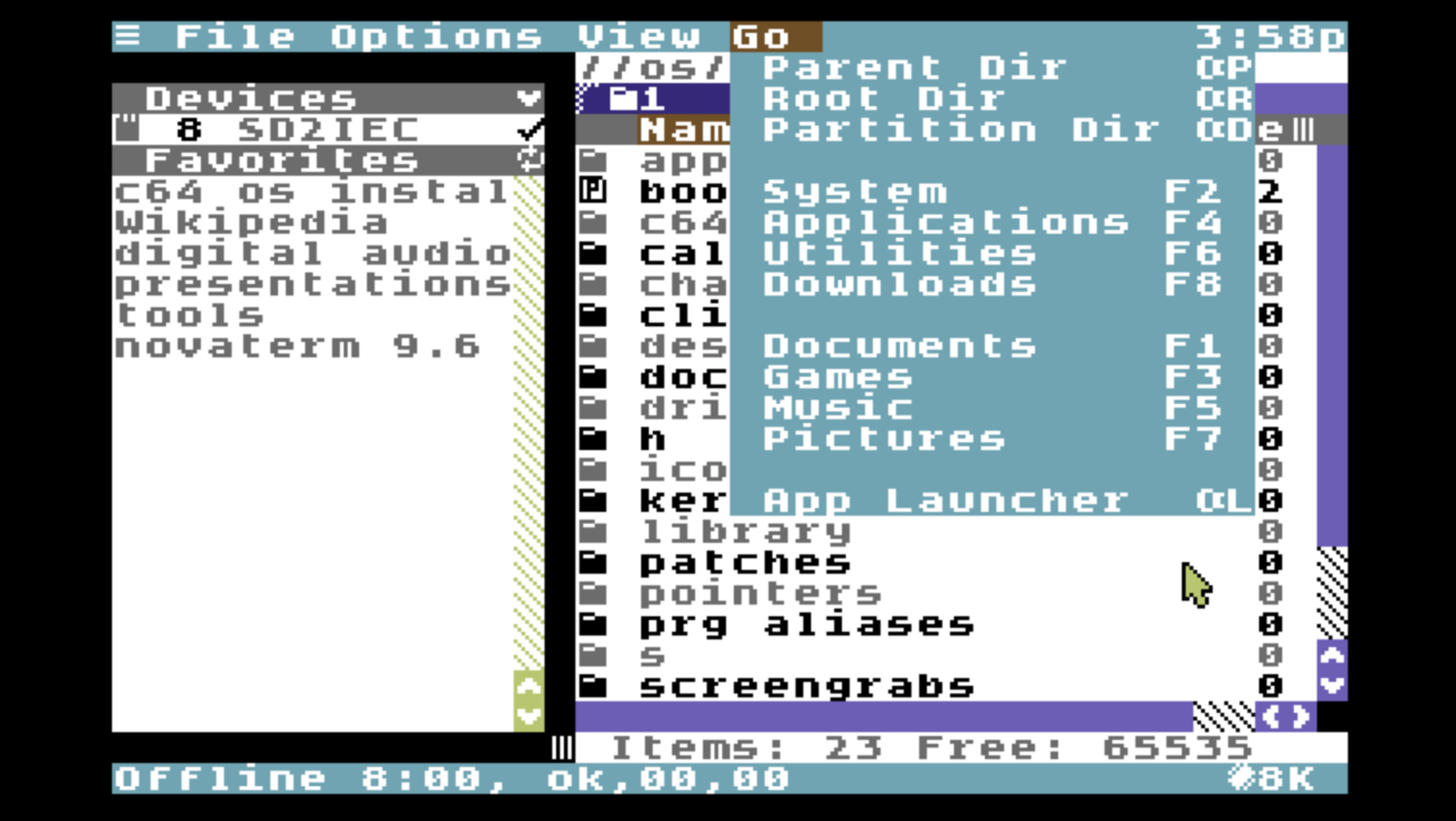
Downloads in File Manager's Go menu
The Places Utility, accessible from File Manager's Options menu, has been updated in C64 OS v1.09 to enable customization of the downloads directory.
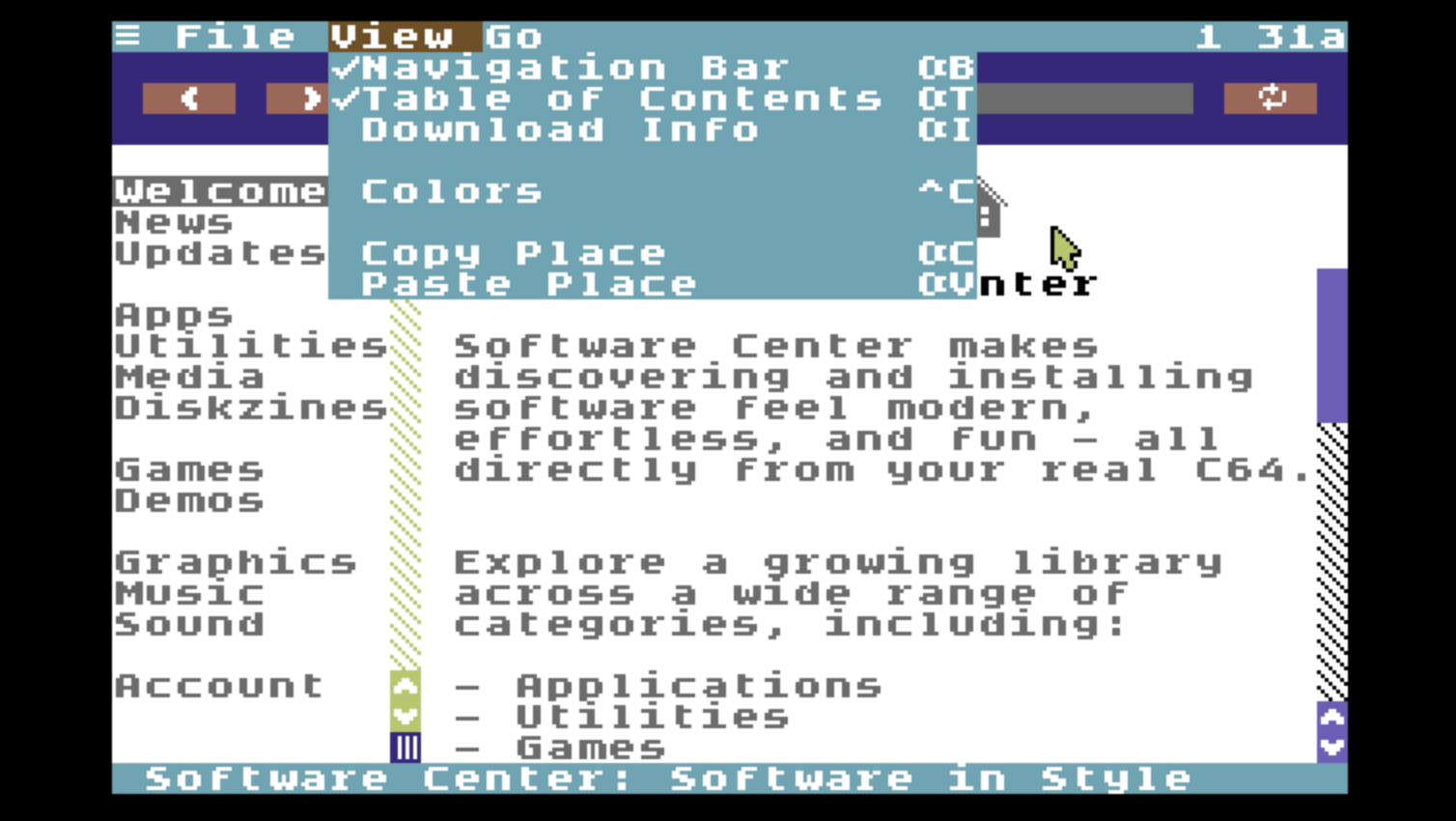
In Software Center, you may show or hide the download footer at any time by choosing Download Info from the Options menu or pressing COMMODORE+I. If nothing is downloading, or nothing is queued to be downloaded, the footer displays empty fields, 0% progress, and the Get button is disabled.
Normal links take you to other pages or other places in Software Center. Download links are special, they open the download footer and prepare it to download a file. You can always tell what is a download button because it is preceded by a down arrow. Note that the item name on the button is not necessarily the name of the file.
Click on any download button to open the download info footer and queue a file for download. The download does not start automatically. It shows the name of the file and its size in 254-byte disk blocks.
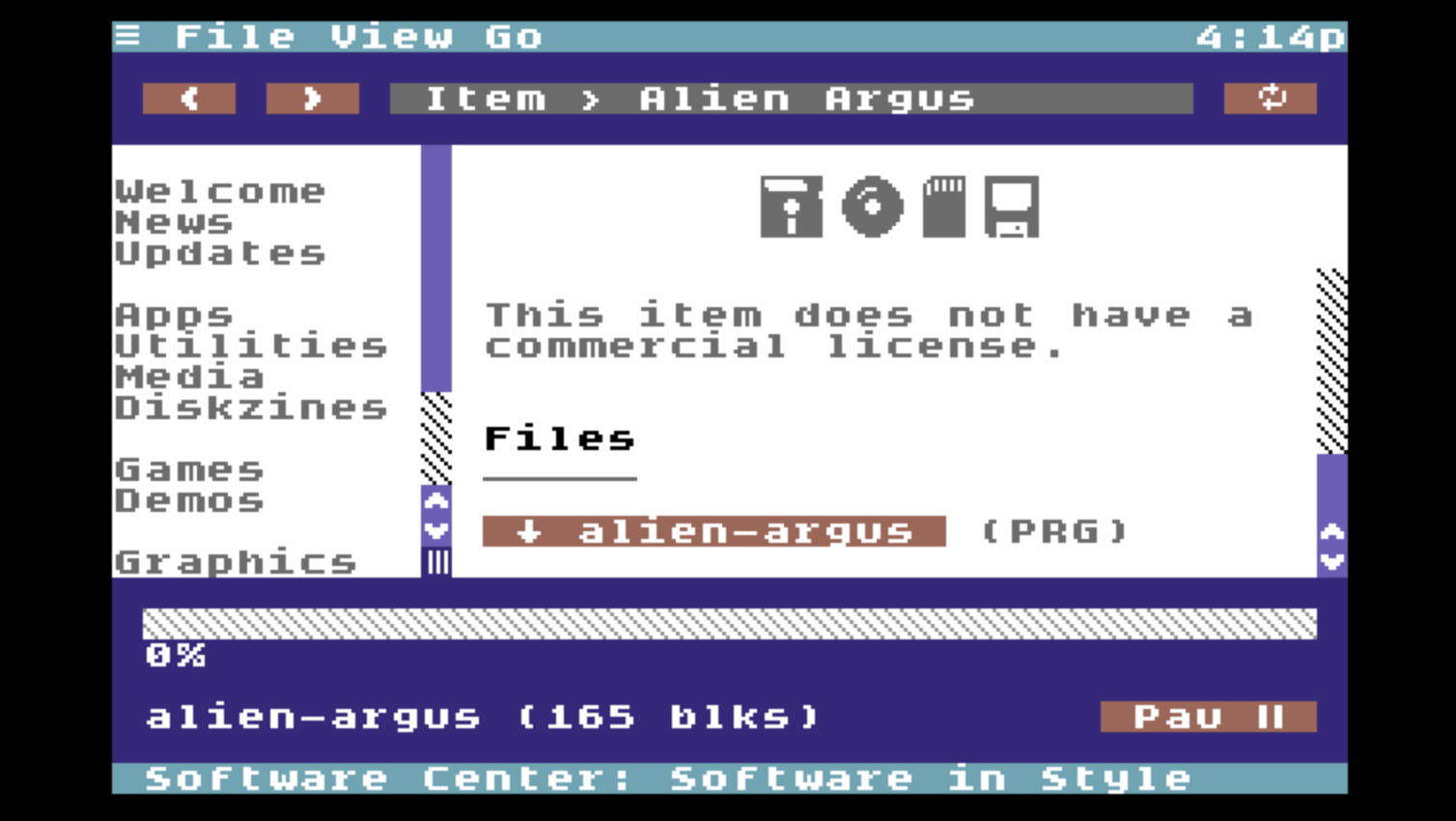
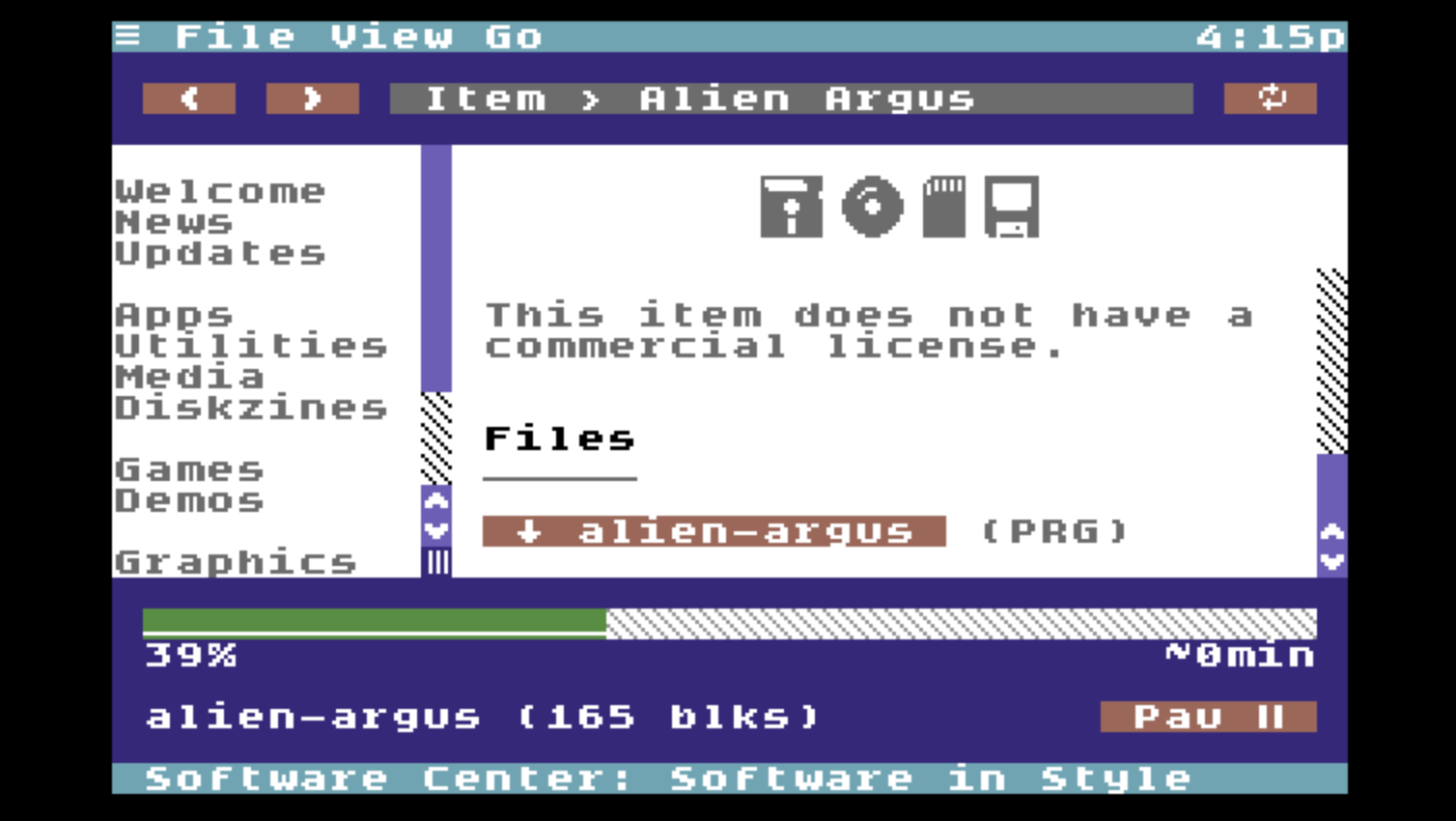
If the download info footer is not already showing it pops up automatically when you click a download button.
Manage Downloads
After clicking a download button, the download footer pops up with information about the file. The download is ready but awaits confirmation to begin.
There is no preflight to ensure that there is sufficient free space in the downloads directory. If you are getting low on free space or if the file is large, you should check with File Manager that there is enough room to download the file before you begin.
At this point you can still navigate around Software Center. The info remains in the download footer queued for download. It remains in the download footer until downloading is finished or it's replaced by a different item. You may also hide the download footer and the item will remain queued in it.
To explicitly clear the download footer, choose Cancel from the Download menu under the File menu.
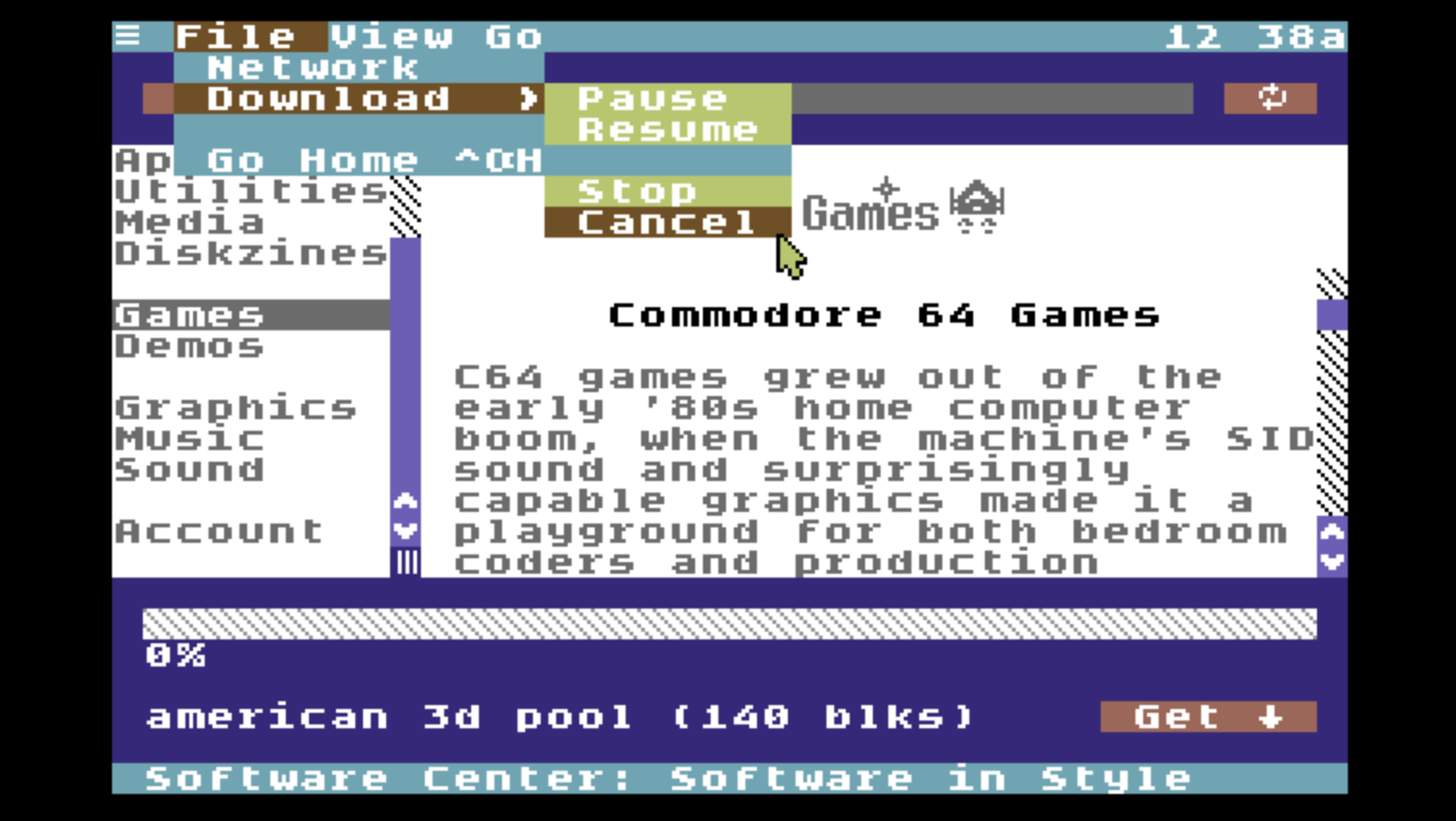
Explicitly cancel a queued download
Download a file, pause and resume.
There is a button on the download footer. When the file is ready to download it is enabled and says "Get ↓". After clicking the get button the download begins. The progress meter indicates how much of the file has been downloaded as a percentage and it calculates approximately how many minutes are remaining.
Technical Considerations
On modern computers, progress meters of this sort typically update once per second. The Commodore 64 has far fewer resources, and so it updates once every 15 seconds.
Downloading and saving to disk are synchronous at the packet level. In other words, a packet is received, that packet is written to disk, the packet confirmation is sent, and then the next packet is received. This repeats until the file is downloaded.
On the Commodore 64, serial bus performance is dramatically impacted if the VIC-II has to display sprites. For this reason the mouse pointer is turned off. Moving the mouse restores the pointer and you can use it to click on things, but it is quickly hidden again by the download process.
Navigating Software Center while a download is in progress is possible but not recommended.
A download in progress can be paused at any time. After clicking "Get ↓" the button changes to "Pau ⏸️" (i.e. pause with a small double-bar pause icon). Click this button or choose Pause from the Download menu under the File menu. The download is still in progress but paused, relieving disk and CPU usage. You may now more quickly and easily navigate around Software Center.
The pause button is changes to "Res ▶️" (i.e. resume with a small triangular plan icon.) Resume a paused download at any time by clicking this button or choose Resume from the Download menu under the File menu.
If you have Fast App Switching enabled, you may actually leave Software Center while a download is paused. When you return, you can resume the download right from where it is. In fact, if you choose Go Home from the File menu while a downloading, it pauses the download automatically and resumes it automatically when you return.
Download Continuations
In addition to pausing a download you may also stop a download. Choose Stop from the Download menu under the File menu. There are several reasons why you might wish to fully stop a download rather than just pausing, for example:
- You decide mid-download that you no longer want this file.
- You want to download a different file before waiting for this one to finish.
- You don't have time to finish now and need to go offline or shutdown your C64.
Stopping closes the file and leaves the portion already downloaded in the downloads directory. A stopped download can usually be continued later.
Continuing a download that was previously stopped is easy. As soon as a file is queued to be downloaded, Software Center checks to see if a file with an identical name is already in the downloads directory. If a matching item exists the button shows "Con ↓" instead of "Get ↓".
A continuation is not guaranteed. Initially the button saying "Con ↓" only indicates that a continuation will be attempted. If seeing "Con ↓" is unexpected, you can switch to File Manager to deal with the situation. For example, if two items have the same name (rare but not impossible), you can move the original item somewhere else or rename it to avoid the conflict.
To attempt a continuation, click the "Con ↓" button. Software Center performs a CRC32 checksum on the portion already downloaded. This may take some time. However, calculating a checksum on a partial file is much faster than redownloading it. When finished, Software Center sends the byte size of what you already have, along with its checksum. The server validates the checksum.
If the checksum is correct, ia continuation response is returned and it immediately starts sending the rest of the file which gets appended to the part you already have. You may start, stop, and continue a download as many times as you like before the file is fully downloaded.
If the checksum fails, though, a restart response is returned and the server begins sending the file again from the beginning. The original partial download is scratched and a new file is created with the same name.
Additional features
Navigate page content
While a page is downloading, the main content says "Downloading..." and the status bar indicates the percentage downloaded. It is possible for this process to get stuck, since network reliability is never 100%. If loading page gets stuck or is taking longer than you want, you can click the stop button to the right of path indicator, or choose Stop from the Go menu or press COMMODORE+PERIOD.
The button is stop only while page content is loading. Once page content has finished loading this button becomes a reload button. To reload the current page, click the reload button, or choose Reload from the Go menu or press COMMODORE+R.
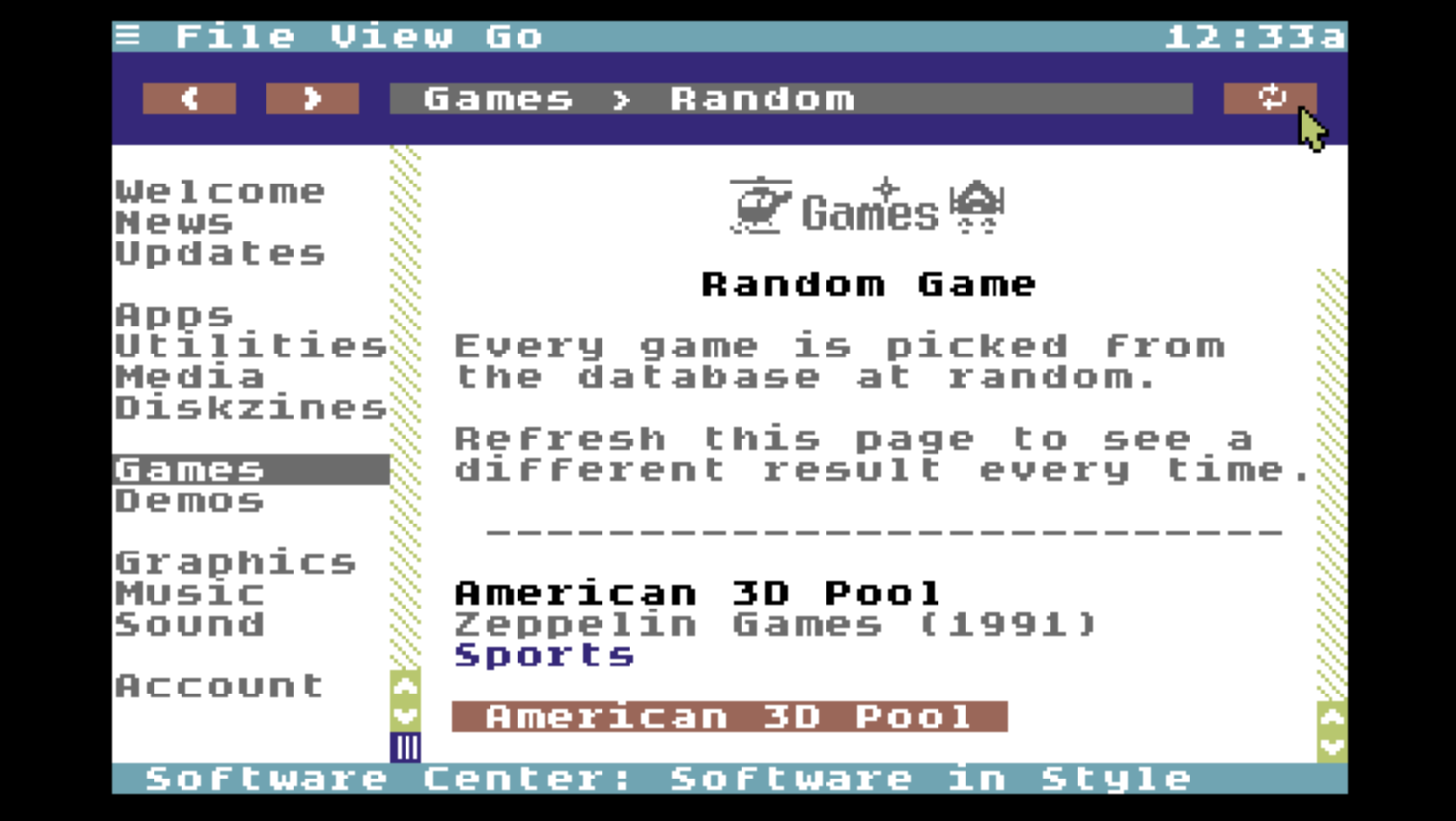
If the page you're on generates dynamic or randomized content, reloading the page repeatedly will result in different content being loaded each time. For example, there is page for choosing a game from the database at random. Each time you press reload a different game, chosen at random, will be featured on the page. Similarly, there is a page that shows recent additions to Software Center. If software is added to the database, reloading the page will immediately reflect that change.
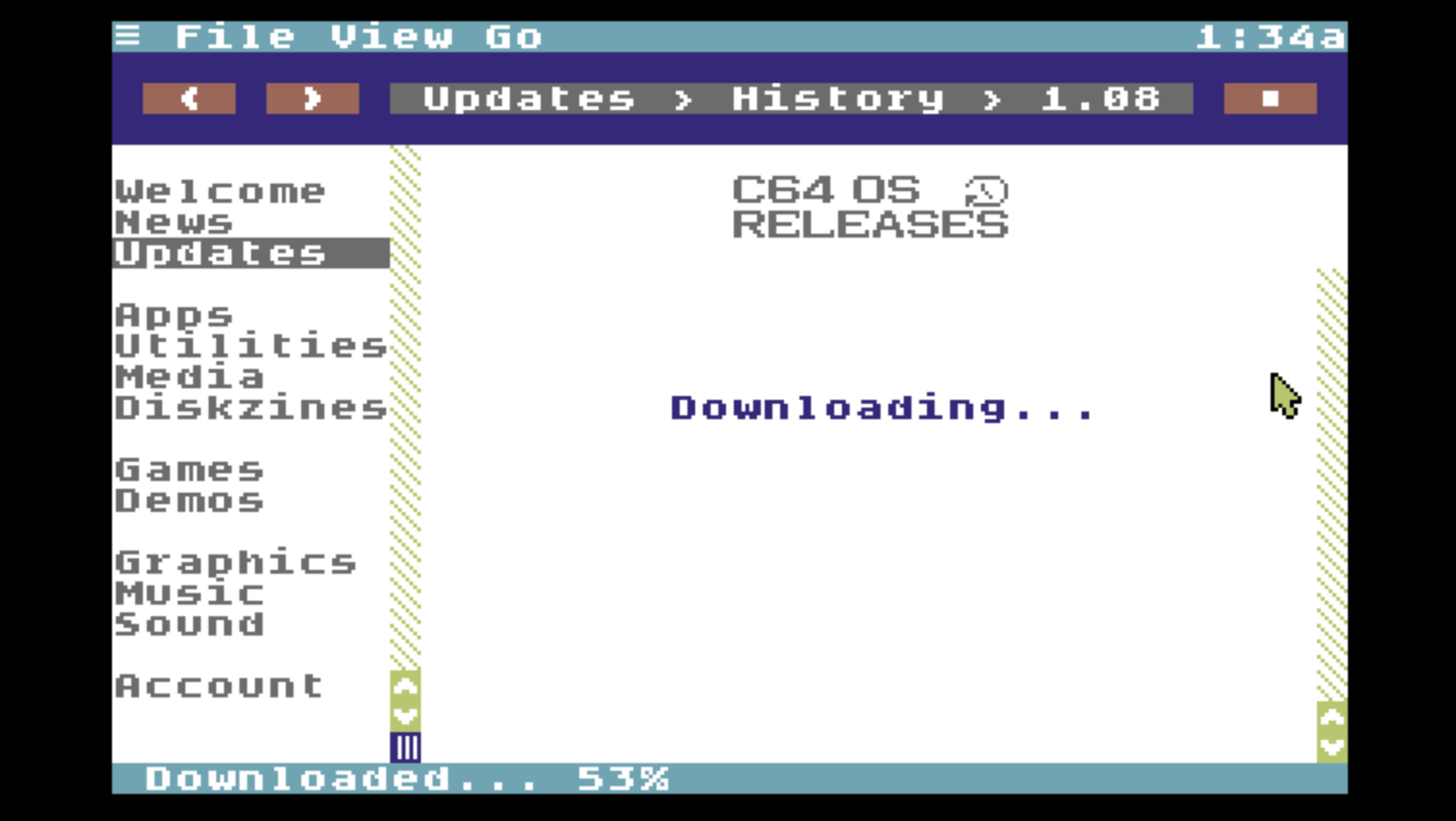
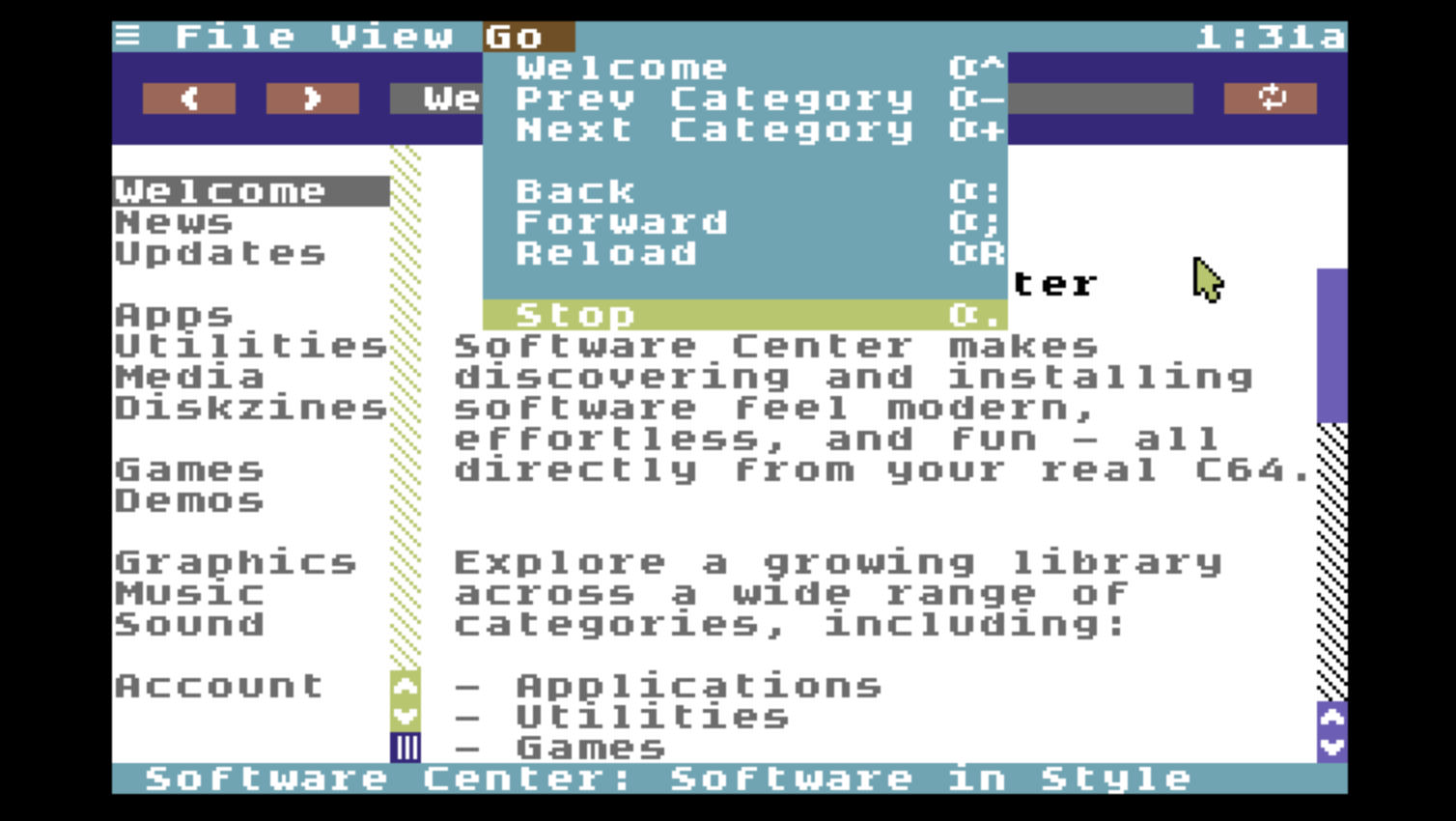
Back and forward buttons operate on a stack principle. As long as you navigate forward, from page to page to page, either by clicking links or by choosing new starting points from the table of contents, each new page is added to a stack of pages you've visited.
Click the back button, or choose Back from the Go menu or press COMMODORE+COLON (:) to go back one page. When you go back, the page you're currently on is pushed to a forward stack and the topmost page from the back stack is pulled off to become the current page.
Reloading the current page does not affect the back/forward navigation stack. Press the forward button, or choose Forward from the Go menu or press COMMODORE+SEMI-COLON (;) to go forward one page. This is only possible if you have anything on the forward stack. The current page is pushed to the back stack and the topmost page from the forward stack is pulled off to become the current page.
If you have pages on the forward stack and you navigate normally, by clicking a link or choosing something from the table of contents, if the page you're going to happens to be the next one in the forward stack, then the rest of the forward stack is maintained just as if you had clicked the forward button. If, on the other hand, you navigate forward to some other page then the enitre forward stack is immediately cleared. This behavior is typical of how web browser navigation works.
Make use of the clipboard
C64 OS has a universal clipboard. This allows you to copy and paste different types of data between Applications and Utilities.
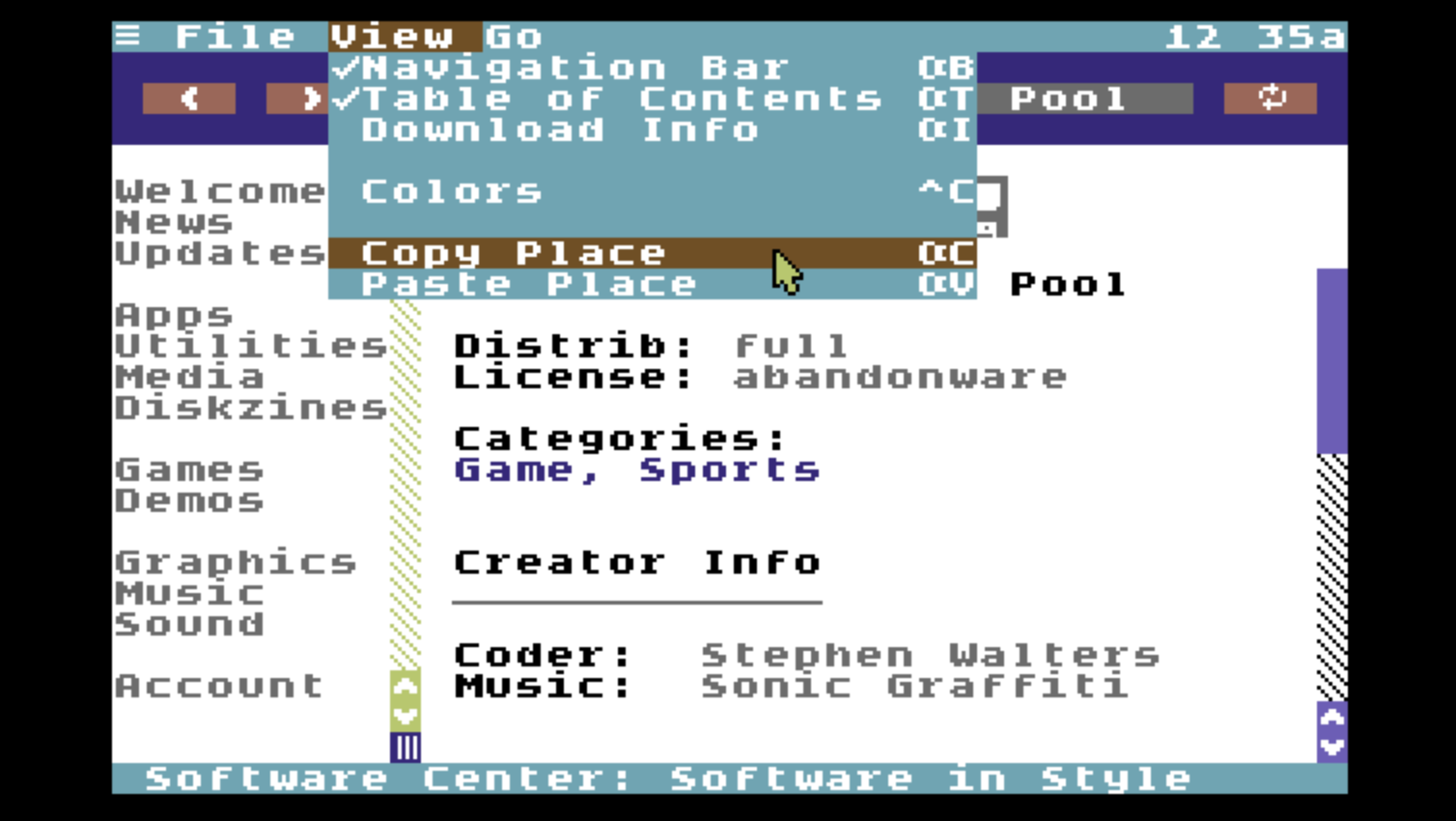
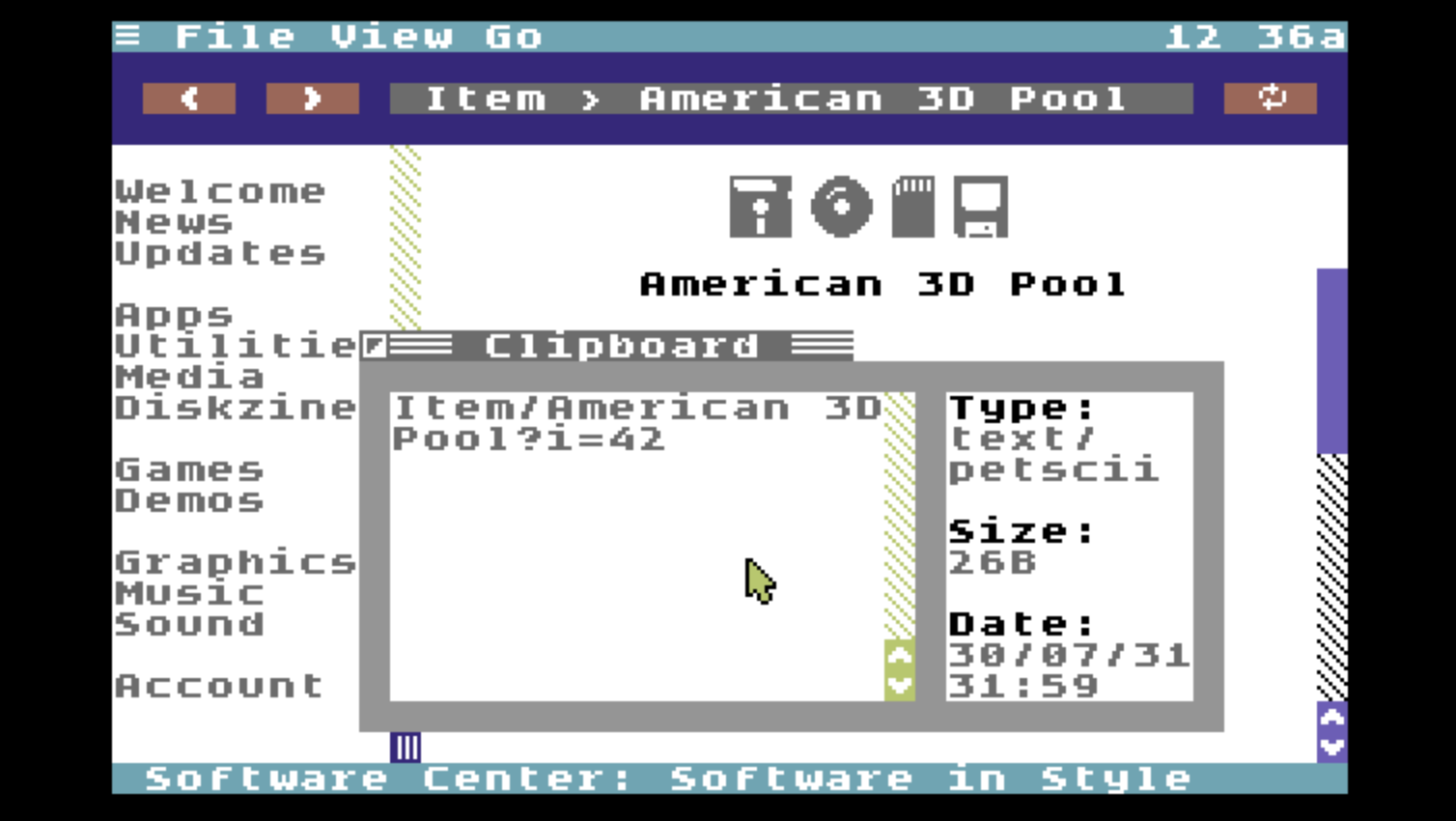
Every page in Software Center has a unique address. Copy your current place in Software Center to the clipboard by choosing Copy Place from the View menu or press COMMODORE+C. You can see that page address using the Clipboard Utility.
You can save page references by pasting them to Memos or to a files with MiniEdit. You can also share Software Center pages with other users by pasting a page reference to READYChat. With a page reference on the clipboard, choose Paste Place from the View menu to return to that page.
Content from any Software Center page can be copied to the clipboard too, using the universal copy gesture. Hold the COMMODORE key and left click the first character to mark the start of a selection. Scroll down if necessary, then hold the COMMODORE key and right click the last character to copy everything between the start and end to the clipboard.
Using MiniEdit, this is a handy way to save information to a text file along side a download.
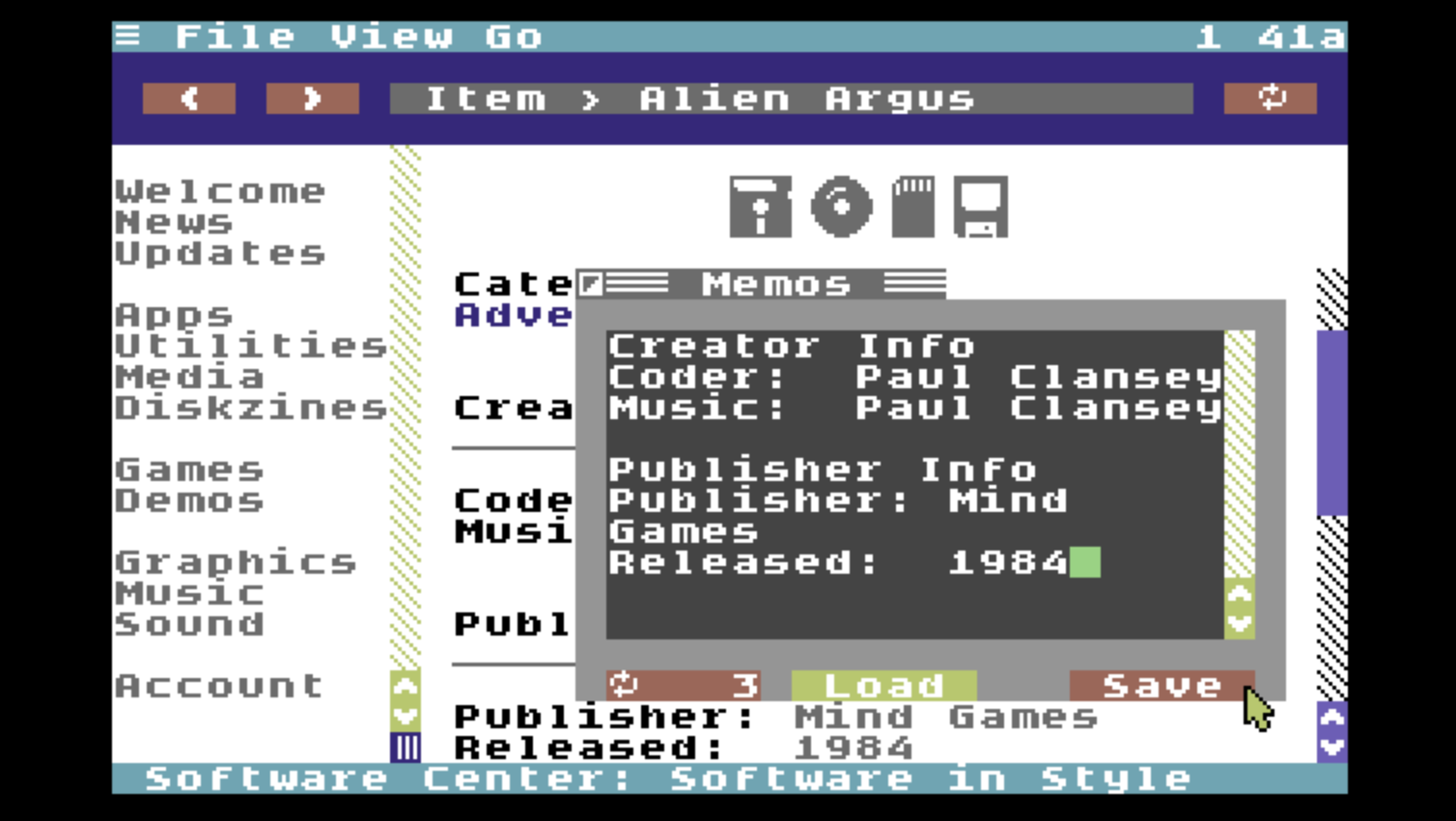
Copy text content to clipboard
Try software you've downloaded
To enable the best Software Center experience buy or use an REU and enable Fast App Switching. This allows you to leave Software Center while downloads are paused and to return later to exactly where you left off. You can even use other C64 OS software that makes use of the internet (Wikipedia, READYChat, Image Search, etc.) while Software Center is in the background.
Leaving Software Center to go to File Manager can be very useful. This allows you to check your available disk space, or to free up disk space by scratching unneeded items or moving them to a different device or partition. This is a powerful capability that is made easy by C64 OS. The following situation is possible:
- You are in the middle of a download.
- There is not have enough free space to complete the download.
- Go back to File Manager and the download automatically pauses.
- Use File Manager to free up some space.
- Return to Software Center and the download automatically resumes.
- There is now enough space available to finish.
After a download is complete, go back to File Manager. View your downloads directory by choosing Downloads from the Go menu or by pressing F8.
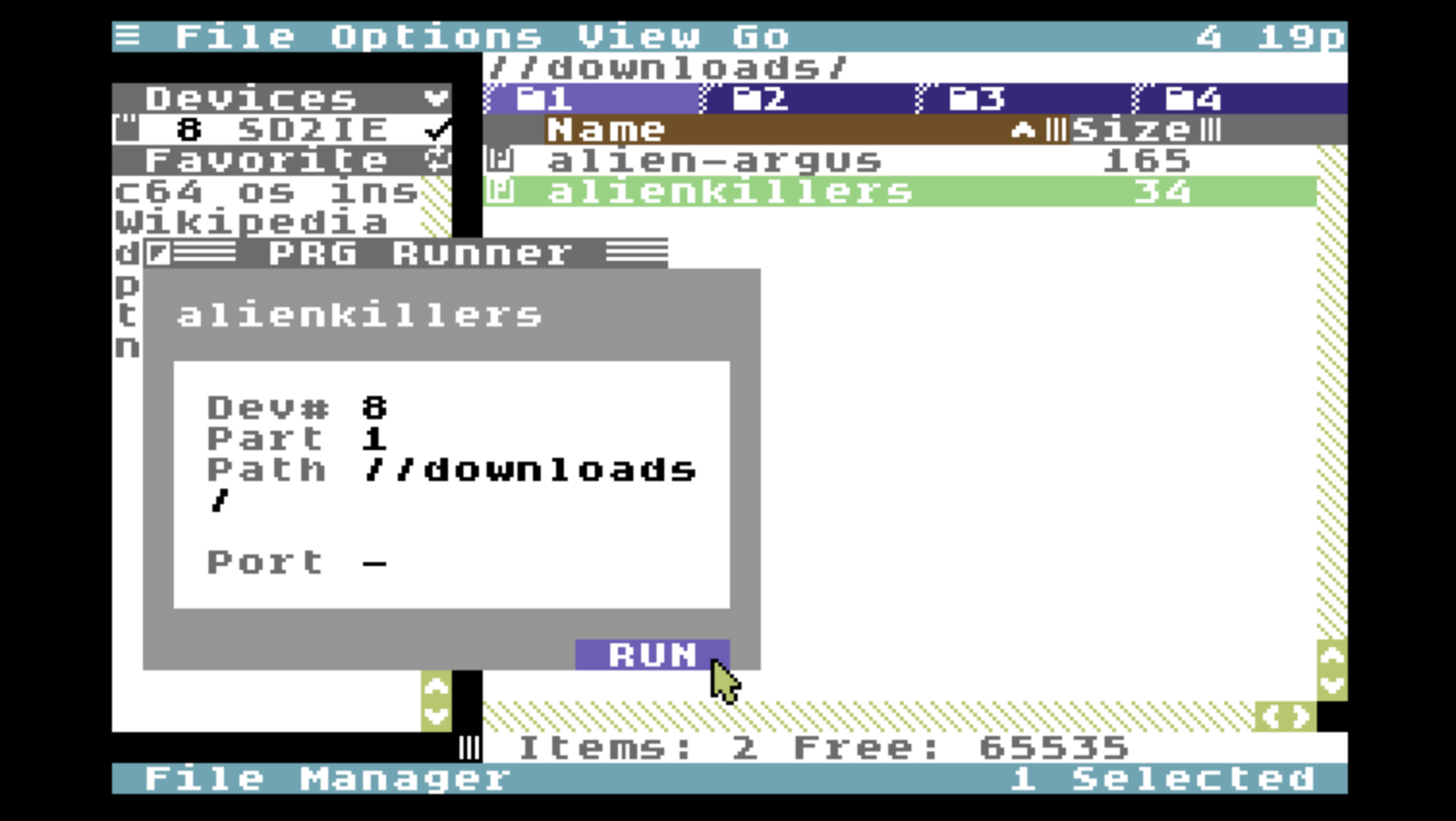
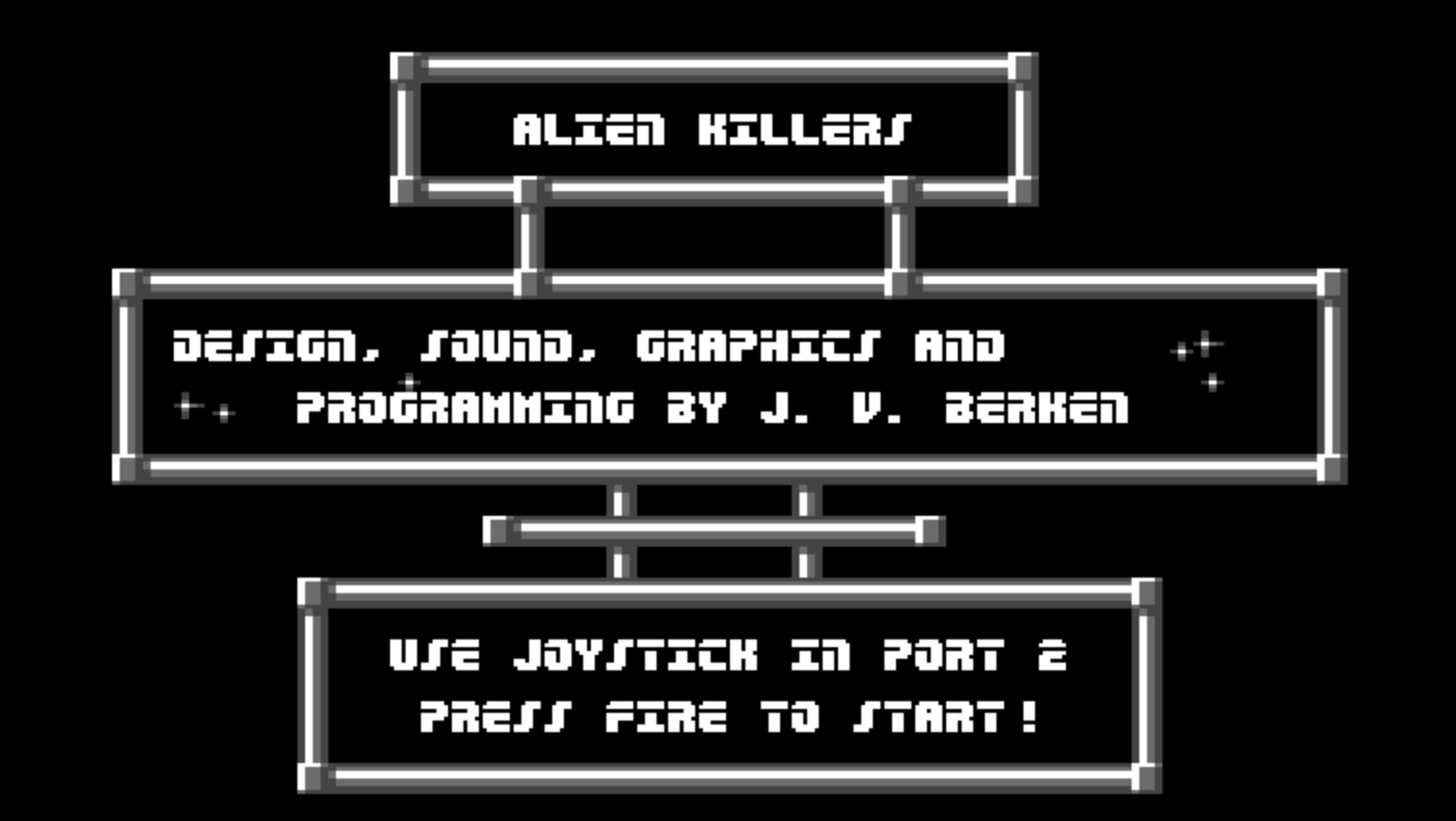
If the item is a single PRG file, a program for the Commodore 64 (but not for C64 OS), select it and choose PRG Runner from the File Menu or press CONTROL+O. From the PRG Runner Utility click the RUN button.
Return to C64 OS
From non-C64-OS software you may have launched using PRG Runner, eventually you need to return to C64 OS. This is fastest and easiest if you have an REU with Fast App Switching enabled.
First, try to use any feature of the software available to quit, exit or return to BASIC. If no such feature exists, next try a soft break, hold the STOP key and tap RESTORE. After a soft break, if it works, the READY prompt may still not behave exactly as expected. You can have the computer perform a soft reset by issuing the following command:
sys 64738
Proceed to load and running the C64 OS booter, like normal. With Fast App Switching C64 OS should reboot very quickly and return you to just where you left off.
If a soft break and soft reset don't work, then try pressing a hardware reset button if your computer has one available. Then proceed to boot C64 OS.
As an absolute last resort, if you have no reset button and you cannot exit or soft break from the software, it may be necessary to power cycle the computer.
Technical notes
If you perform a hardware reset on the computer, it is very likely that the modem will reset too and drop its connection from the internet. For this reason, exiting the software cleanly or with a soft break is preferable to a physical reset button.
If you are required to power cycle the whole computer, this will likely clear or corrupt the contents of the REU and prevent a C64 OS fast reboot.
The modem's connection to the CNP server needs to be maintained or it will time out. If you are out of C64 OS (or do not have an C64 OS Application or Utility that uses the internet in the foreground) for 10 minutes, the CNP connection will be closed by the remote end.
If the modem disconnects due to inactivity or because you were forced to perform a hard reset, then upon returning to C64 OS via a fast reboot Software Center will still be open, but you're offline. Attempting to navigate Software Center while you are offline generates a system alert (the border flashes) and the status bar indicates "Offline."
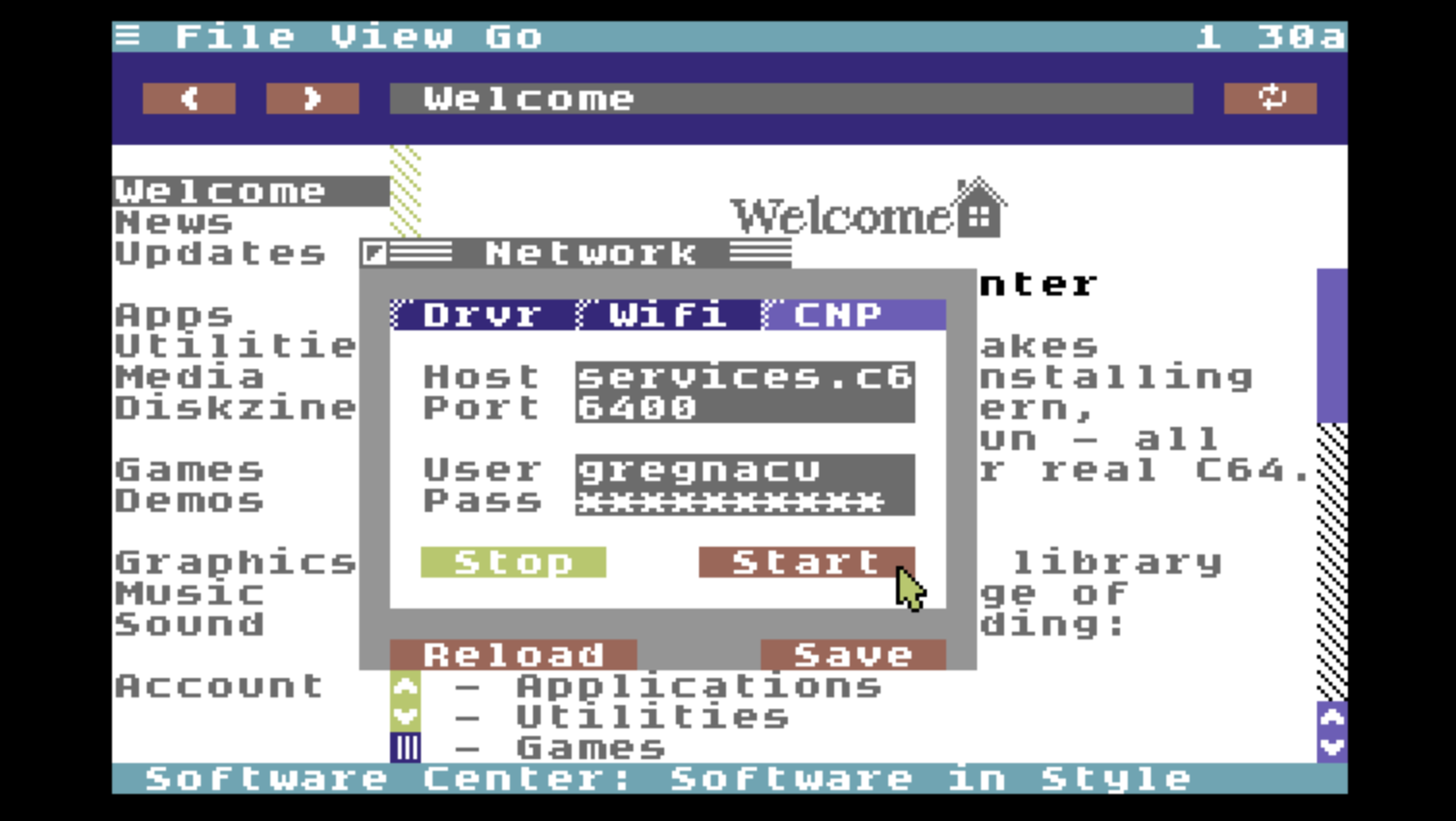
Choose Network from the File menu. From the Network Utility, choose the CNP tab and click start to re-establish C64 OS's internet connection.
Restart the network connection if necessary
Final thoughts
Software Center is a powerful and elegant new way to browse, find and download software for the Commodore 64.
The Software Center Application is browser for a rich and intricate web of pages and content that are hyperlinked together and dynamically generated on the server from templates, database entries, and other services.
At the time of launch, Software Center's library was small and limited. However, new content is being constantly added to the database. Everytime you open Software Center you will find content that wasn't available before. In addition to new things to download, the organization and presentation of that content is growing and evolving too.
At its launch, Software Center is only the beginning of an exciting new way to use your Commodore 64 itself to explore its wealth of software and digital media.
Some ideas to ignite the imagination
- If you are using your own CNP server, it has to be version 2.0 or greater, with support for the CNP authentication protocol. If you use the CNP server provided by OpCoders Inc. you don't have to worry about this, it'll just work.
Last modified: Jul 21, 2026