
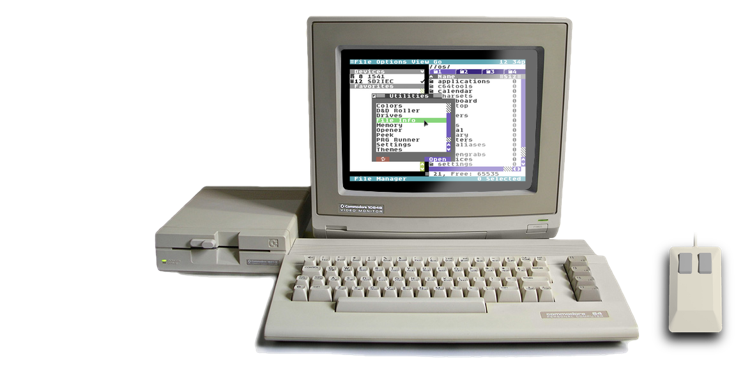
Wikipedia for C64 OS
Browse over 5 million topics in 6 languages
with the C64 OS native Wikipedia client.
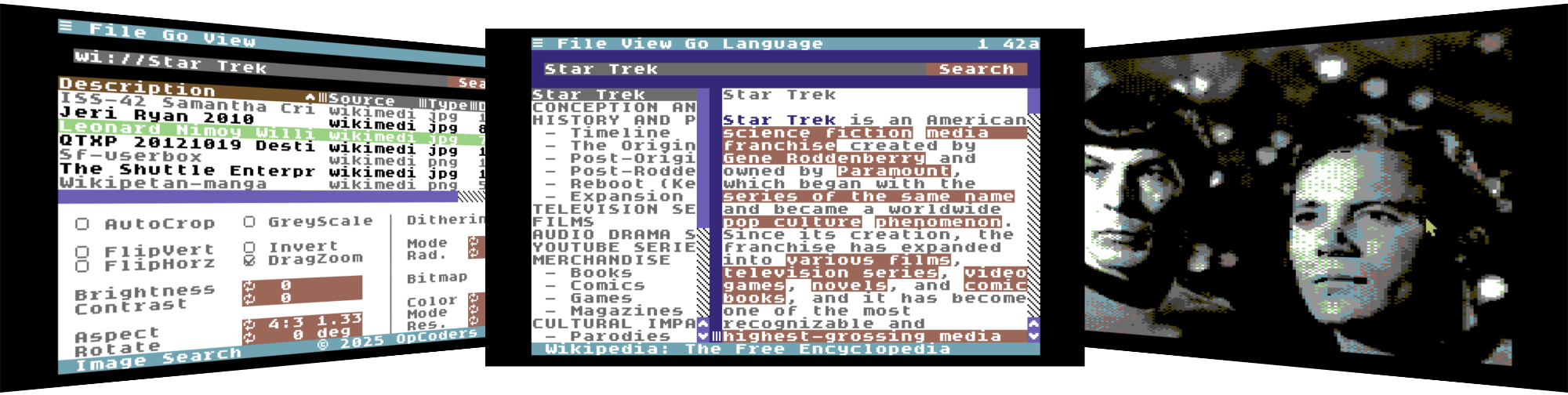
Introducing Wikipedia

Wikipedia is a free online encyclopedia written and maintained by volunteers from around the world. It covers millions of topics, from history and science to technology, entertainment, and current events. Articles are continuously updated and expanded, making Wikipedia one of the largest and most comprehensive reference works ever created.
And now with C64 OS and its native Wikipedia Application, you can browse this enormous collection of informative articles directly from your Commodore 64. Articles are fetched, parsed, divided into parts by heading, converted to light-weight MText, and cached by the serverside proxy. A table of contents and the first part of the article are delivered to the C64 in seconds.
As just text, lightly formatted, and with hyperlinks to other articles, the Wikipedia client for C64 OS lets you navigate millions of articles in 6 different languages with remarkable speed. The text is dynamically wrapped on the C64 so that every article fits the screen perfectly for easy comfortable reading. Navigating with your mouse feels smooth and natural. Articles are trimmed down to their lightest essentials so that even browsing at 2400 baud feels tolerable, and browsing at 38.4 Kbps or higher feels positively snappy.
Wikipedia for C64 OS opens a doorway to knowledge and learning never before experienced on a Commodore 64. Greg Nacu — 2026 — C64OS.com
The User Interface
Launch Wikipedia from the Applications directory in File Manager, or add it to your desktop in App Launcher for quick access. Wikipedia requires a standard C64 OS internet connection. As soon as Wikipedia opens, if you are not yet online it will take you online automatically.
To learn more about what hardware you need and how to configure your internet settings, check out the C64 OS Networking Guide.
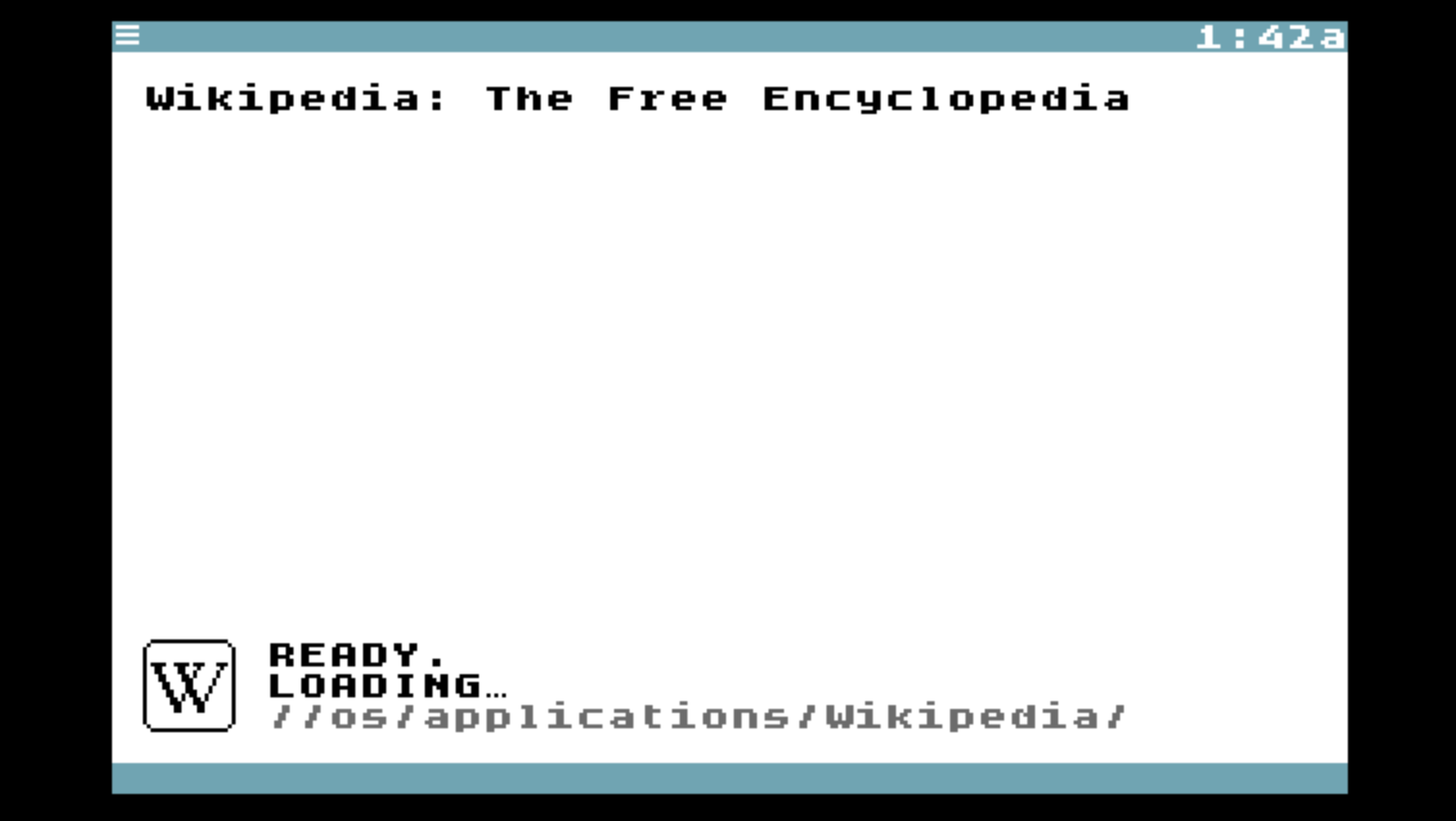
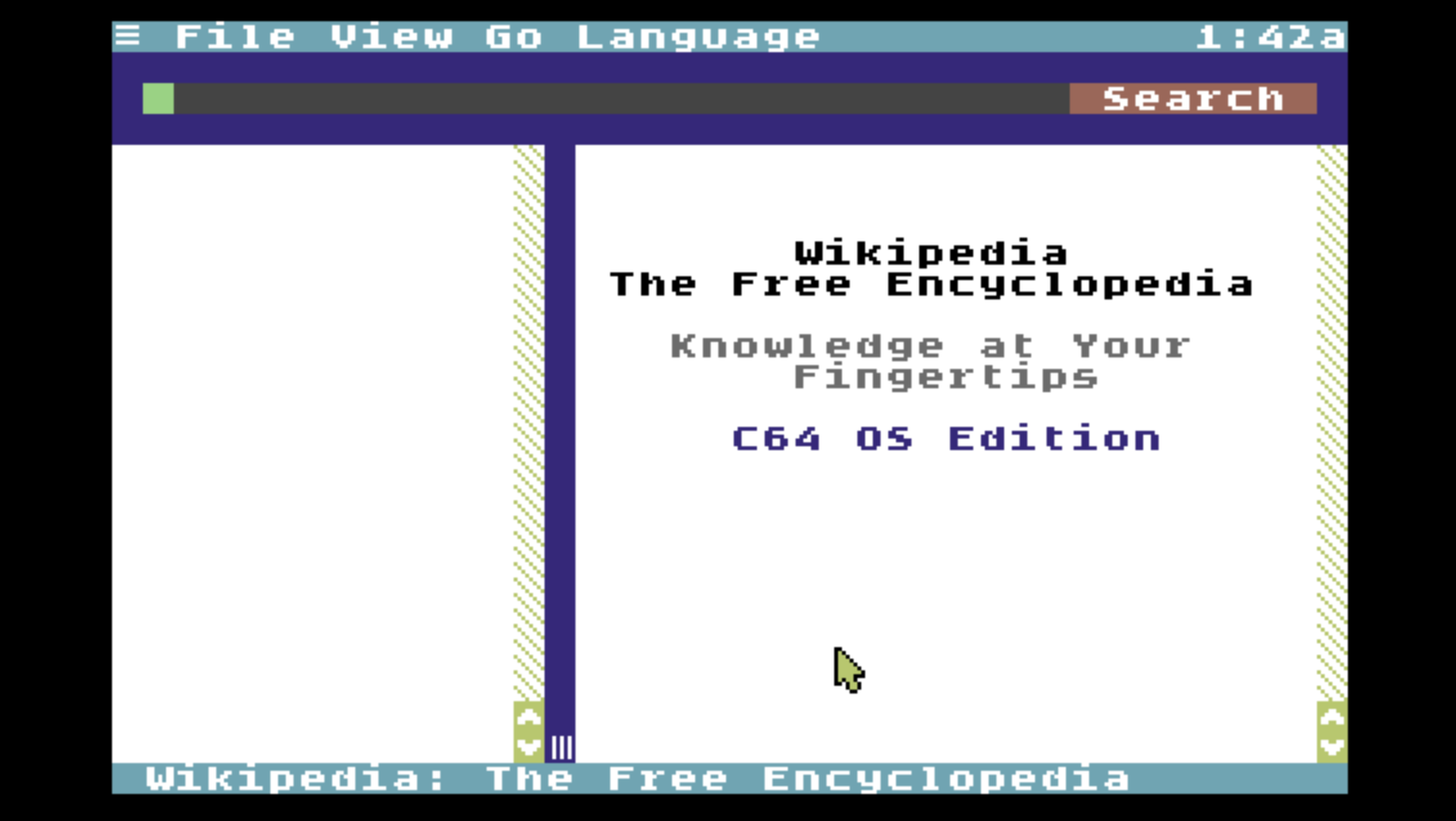
Wikipedia starts up with a welcome screen, above right. There is a header section with a text field and search button. The lower half the screen is split vertically, the two halves can be resized by dragging the vertical split bar.
On the left is a table of contents for the current article. On the right is the article viewer which shows the section of the article that is selected in the table of contents.
Enter a search term in the field and click the Search button or press RETURN. The term is used to lookup and redirect to the canonical article title, if one can be found. For example, below left, the search term "Deep Space Nine" was entered. This redirects to an article with the canonical title of "Star Trek: Deep Space Nine", shown below right.
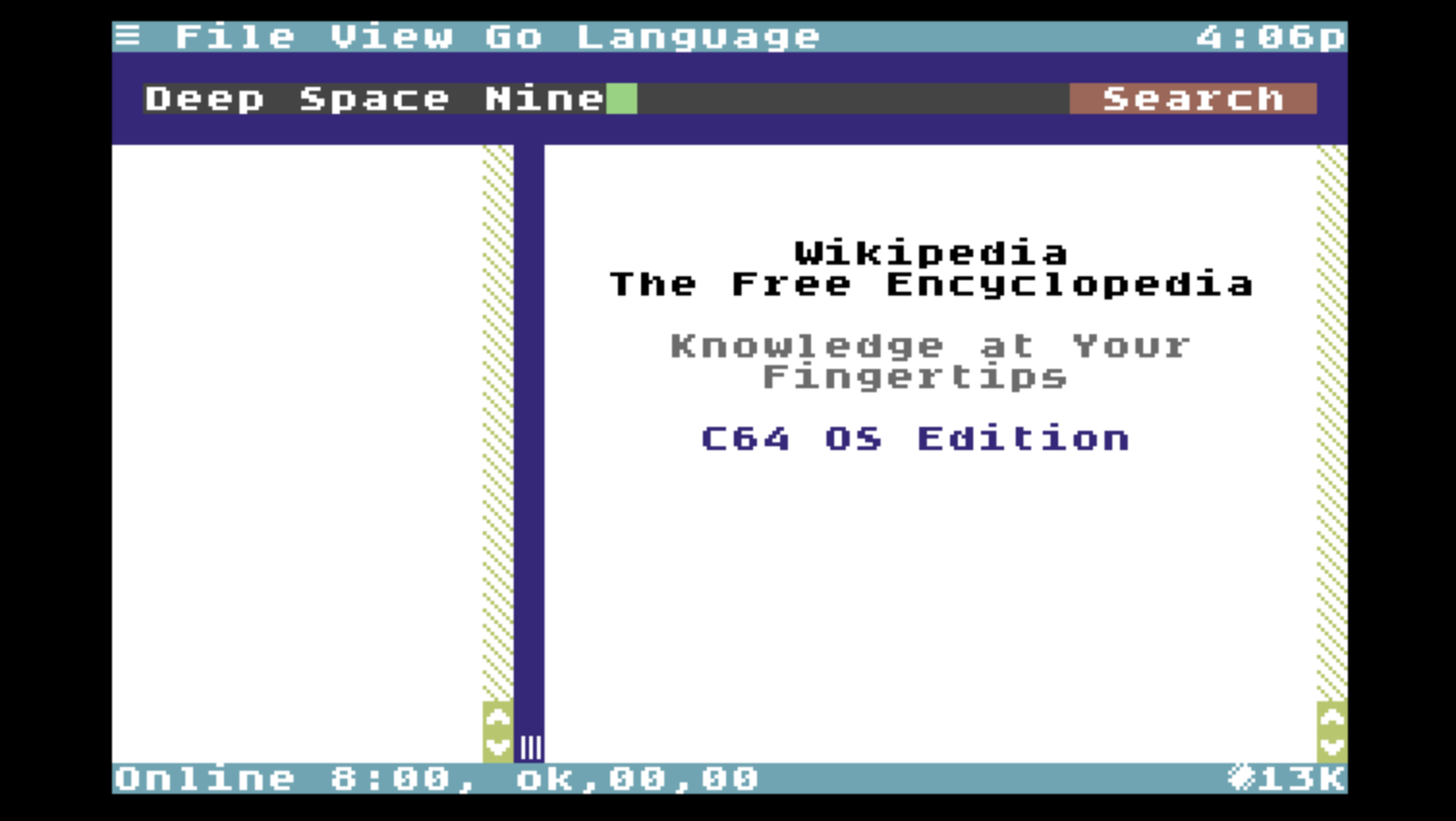
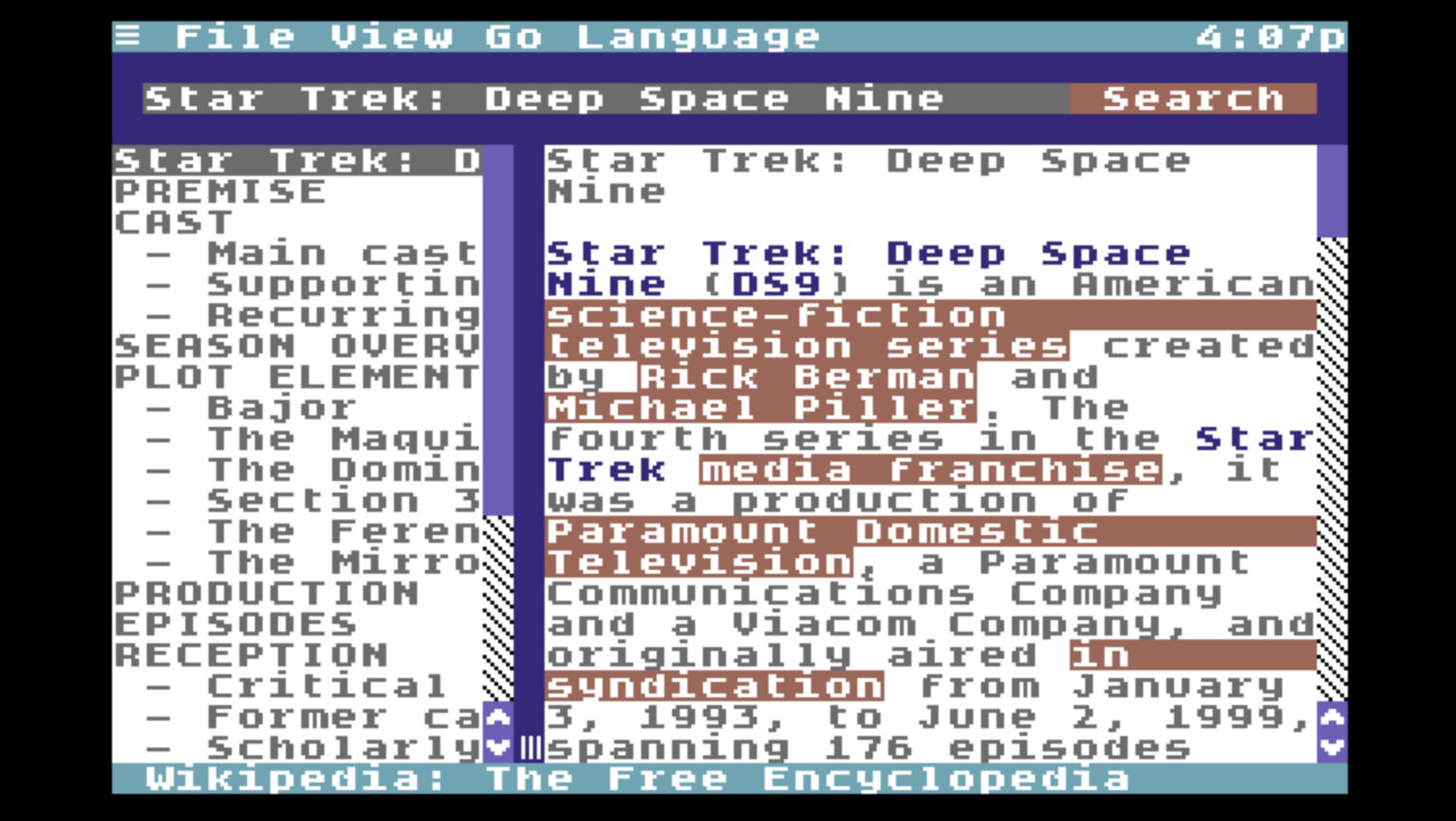
The canonical article title is returned as the topmost entry of the table of contents and this value is substituted back into the search field automatically.
The table of contents is built by extracting the structure of the article from its H1, H2 and H3 headings. You can navigate directly to any section of an article by clicking a heading from the table of contents. Each section is downloaded only when requested. The first article section is selected and downloaded by default.
Sections with no content
The section content of an article consists of the heading, plus all the text in paragraphs, lists, tables and citations up to (but not including) the next section heading.
Sometimes you will click a section from the table of contents and only the section heading appears without any content. This is not a bug. It results from two headings appearing one after the next with no other content between them.
Articles are formatted with MText. This supports standard body text, strong and emphatic text (which are displayed in different colors), and hyperlinks which appear in reverse red text. The MText styles can be configured as part of the C64 OS color theme, which you can set with the Themes Utility.
Clicking a link takes the value of that link and puts it in the search field, then performs a search which takes you to a different Wikipedia article.
View Options
There are several options under the View menu.
Toggle the visiblity of the search bar by choose Search Bar from the View menu or by pressing SHIFT+COMMODORE+S. Hiding the search bar gives you more screen real estate for reading the article.
In addition to manually dragging the split to allocate more or less space to the table of contents, you can also quickly toggle the table of contents closed or open by choosing Table of Contents from the View menu, or by pressing COMMODORE+T.
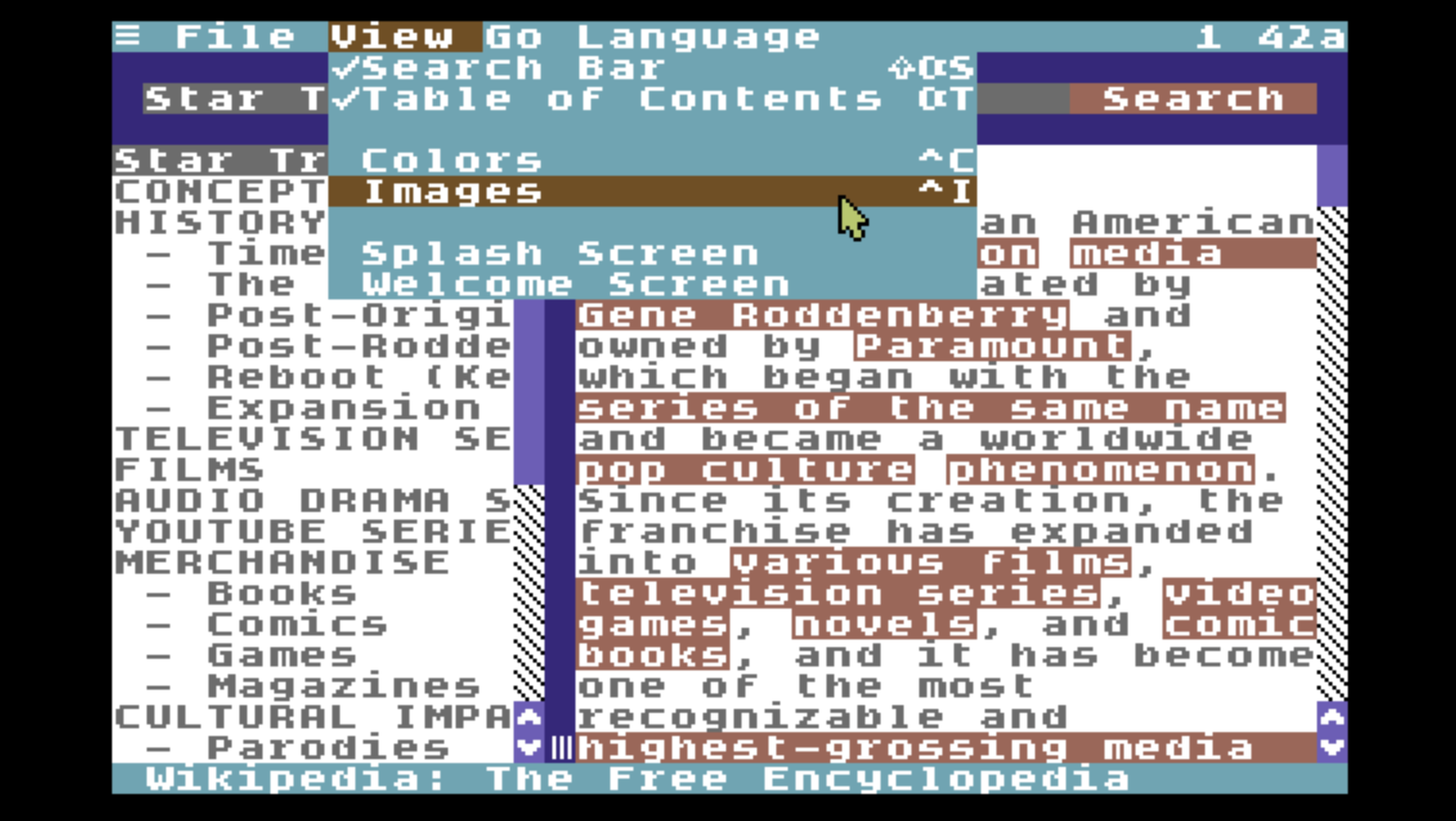
The color of the search header and the split bar can be changed with the standard C64 OS Color picker. To open it, choose Colors from the View menu or press CONTROL+C. The color that you select for the UI chrome is saved automatically when you leave Wikipedia.
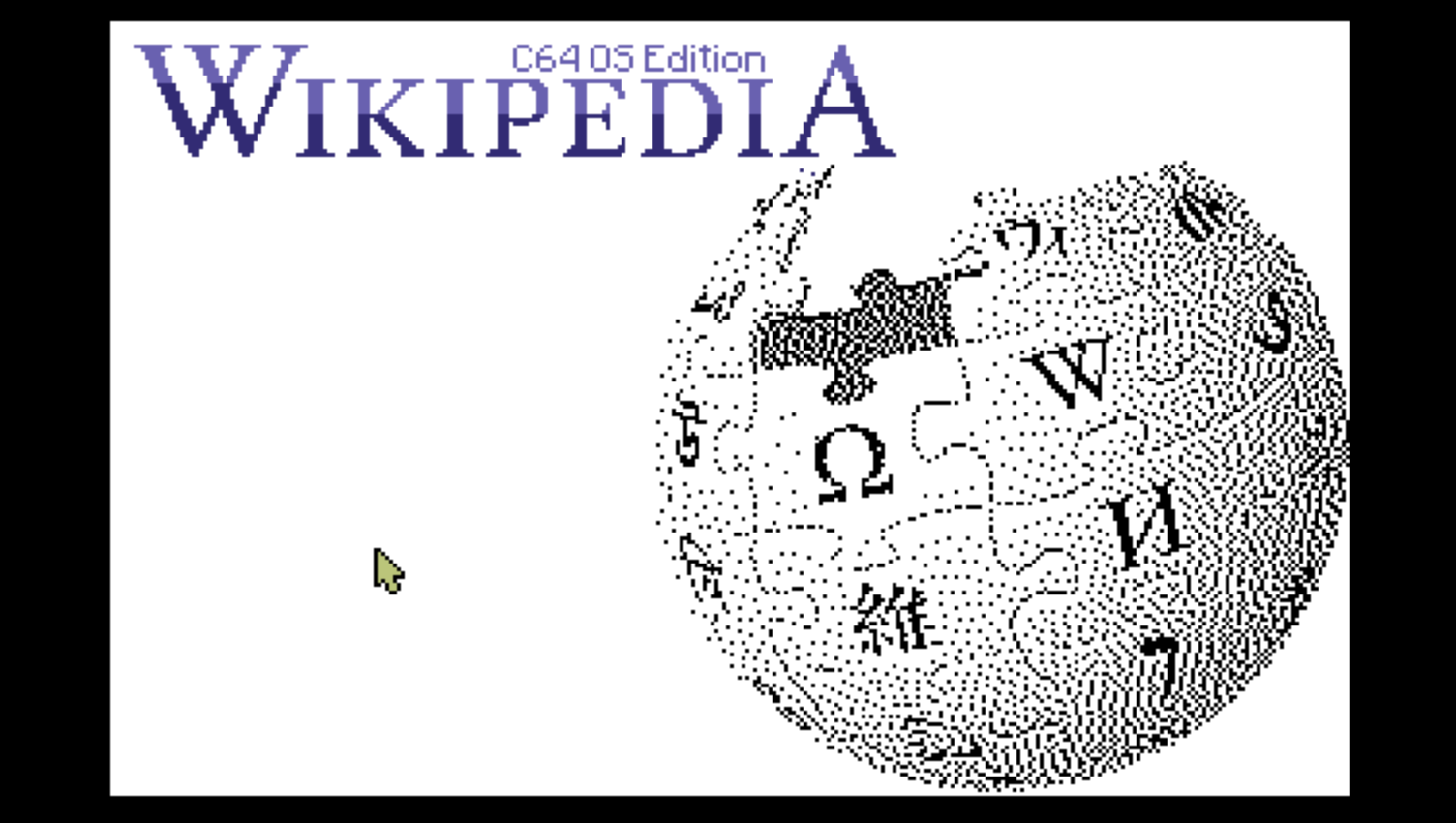
There is a nice built-in splash screen, a bitmapped Wikipedia logo, which you can view by choosing Splash Screen from the View menu. Click anywhere on this screen to return to the main user interface.
If, for some reason, you get stuck on a page that doesn't render properly or searching for the next page isn't working (since nothing is 100% bug free), you can return to a fresh state by choosing Welcome Screen from the View menu.
This clears the search field, clears the table of contents, closes any open network sockets, clears the article buffer, and displays the welcome screen text again on the right.
Browsing in Multiple Languages
Quite famously, Wikipedia is available in many languages. The C64 OS Wikipedia App offers the ability to search in 6 languages.
- English
- German
- Spanish
- Esperanto
- French, and
- Italian
At the time of this writing, English has around 7 million articles. German and French both have around 3 million articles. Italian and Spanish both have around 2 million articles, and Esperanto (a constructed international language that nerdy folk can appreciate) has around 300,000 articles. Bringing the total available to C64 OS to ~17 million articles.
Not everything in every article is renderable, and most people don't speak more than one or perhaps two languages, which is the reason for the conservative statement that on average it brings you over 5 million articles.
From the Language menu you can choose from up to 6 languages:
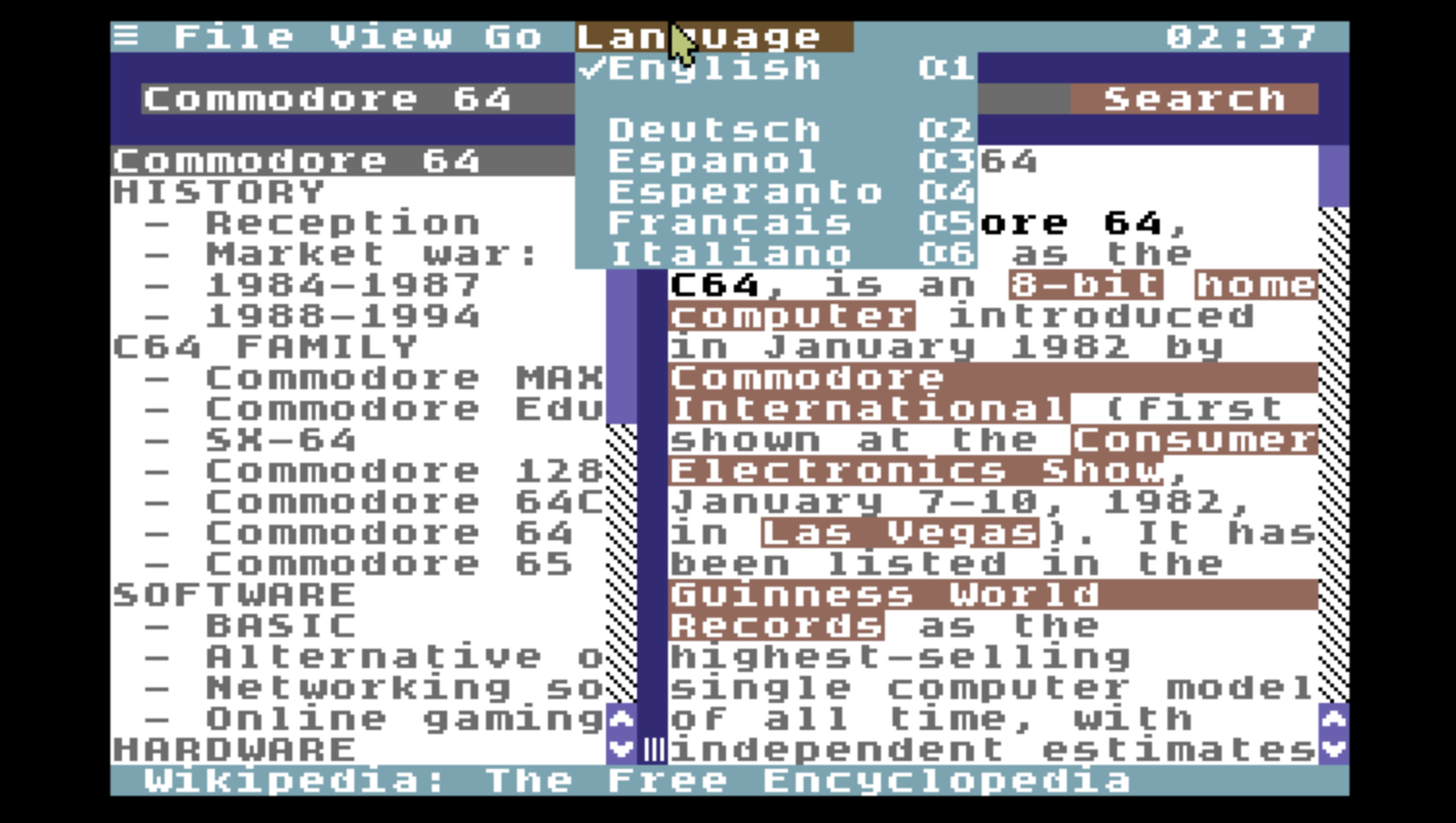
English is the default, and can be accessed by pressing COMMODORE+1. The others are listed below in alphabetical order, by the name of the language in that language, and can be accessed using COMMODORE+2 through COMMODORE+6.
The next search you perform will be directed to the Wikipedia of the selected language.
Clicking links in an article replaces the search field with the link's value and performs the search in the currently selected language. If you change the selected language and then click a link, the requested article will probably not be found.
Handling accented letters
Diacritical marks are translated by the proxy according to the standard transliteration rules for that language. For example, in French, the accents above the letters are omitted. In Esperanto, the accents are represented by an 'x' following the letter. In German, accented letters, such as 'ü' are replaced with a combination such as 'ue'. And so on.
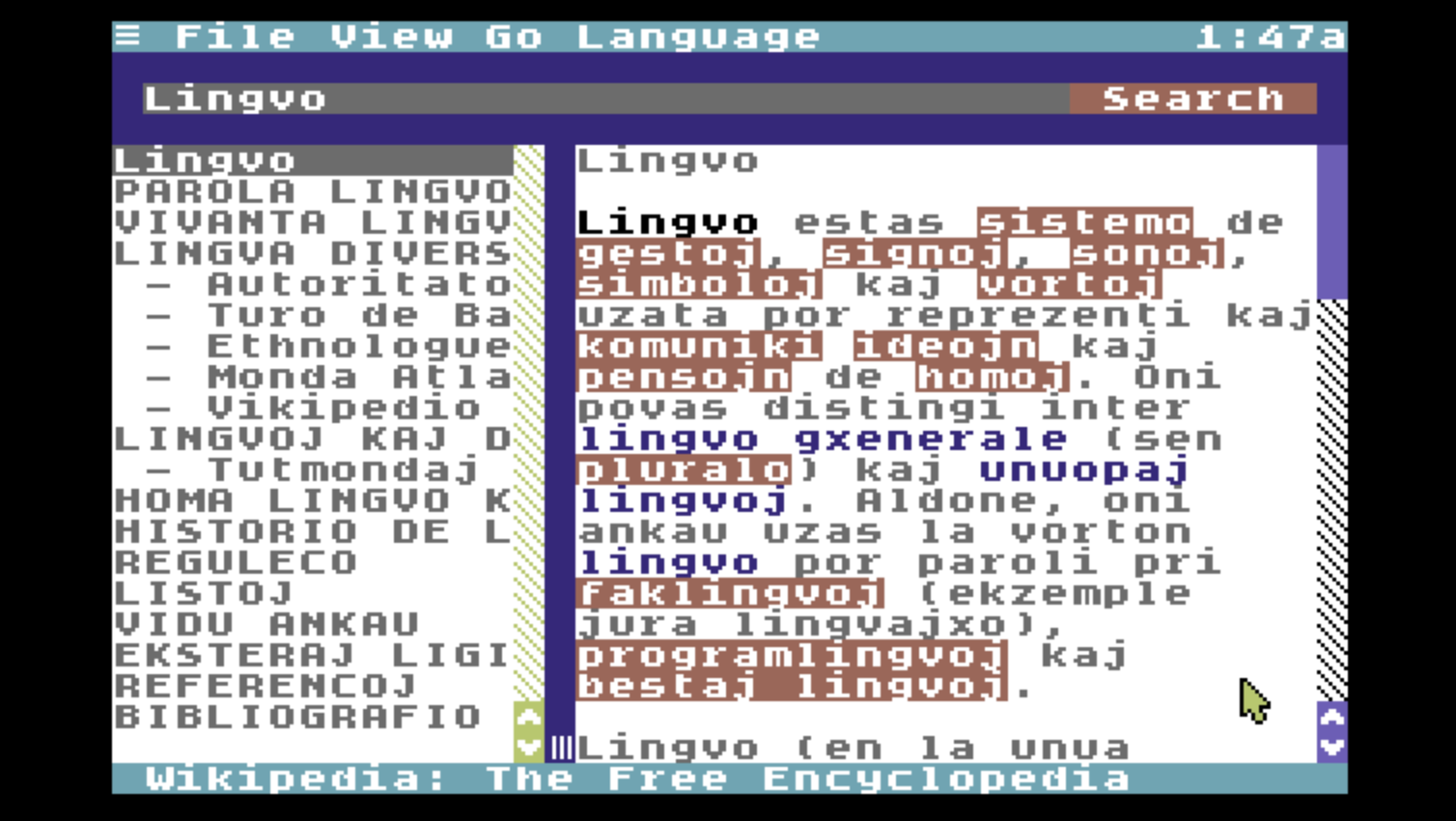
Wikipedia - Esperanto
In the screenshot above, the word "ĝenerale" has been transliterated to "gxenerale". And similarly, "lingvaĵo" has been changed to "lingvajxo". This is a standard transliteration rule for rendering Esperanto with only ASCII (or PETSCII) characters.
Copying and Saving
There are two ways to export text out of Wikipedia, these are: copying and saving.
Copying text is a feature available starting in C64 OS v1.09. You can use the universal copy gesture to copy any arbitrary selection of text to the clipboard.
See: Chapter 4: The User Interface → The Clipboard → Universal Copy Gesture of the online C64 OS User's Guide for more information.
Save an article section
You can save an article section to a file by choosing File → Quick Save, or by pressing CONTROL+COMMODORE+S.
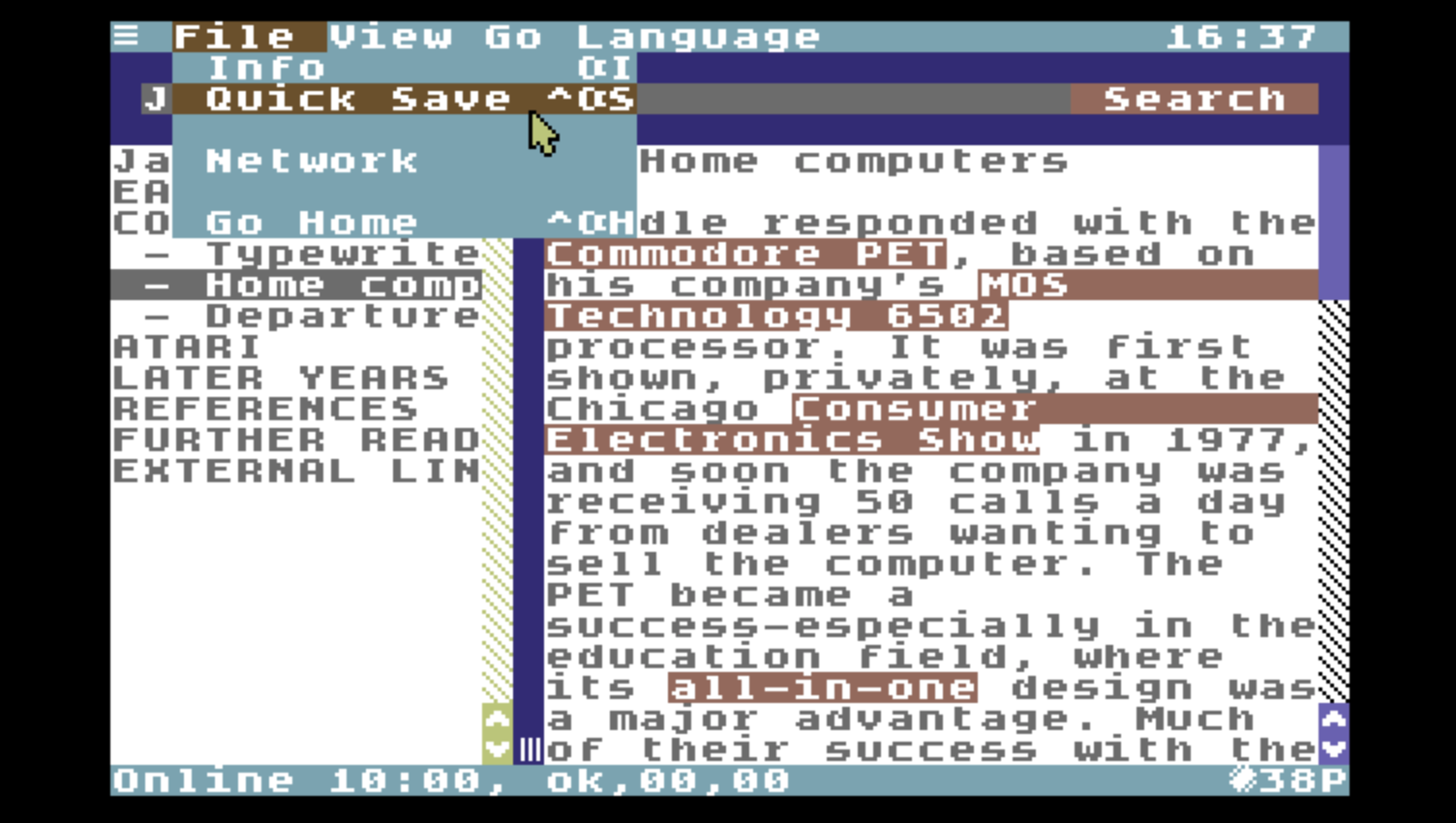
Wikipedia - Quick Save
Wikipedia creates a subdirectory of your documents directory called "wikipedia".
When you do a quick save, it saves the current article section to that wikipedia subdirectory. The file is named based on the first so-many characters of the article title, followed by a number that is the table of contents index, such that the filename does not exceed the 16 character limit.
Default places
Your default places must be configured. Wikipedia attempts to create the "wikipedia" subdirectory in your default documents directory every time it launches. Failure to create this directory may prevent Wikipedia for launching.
Your default places should always be set to valid directories. See: Chapter 6: File Manager → Navigation → Places of the online C64 OS User's Guide for more information.
Viewing Images
Starting in C64 OS v1.09, Applications can send messages to other Applications. Image Search v1.2 has been updated with two new features:
First is the ability to receive messages from other Applications about what to search for. Wikipedia has a new menu option to launch Image Search and send it a message. Choose Images from the View menu, or press CONTROL+I.
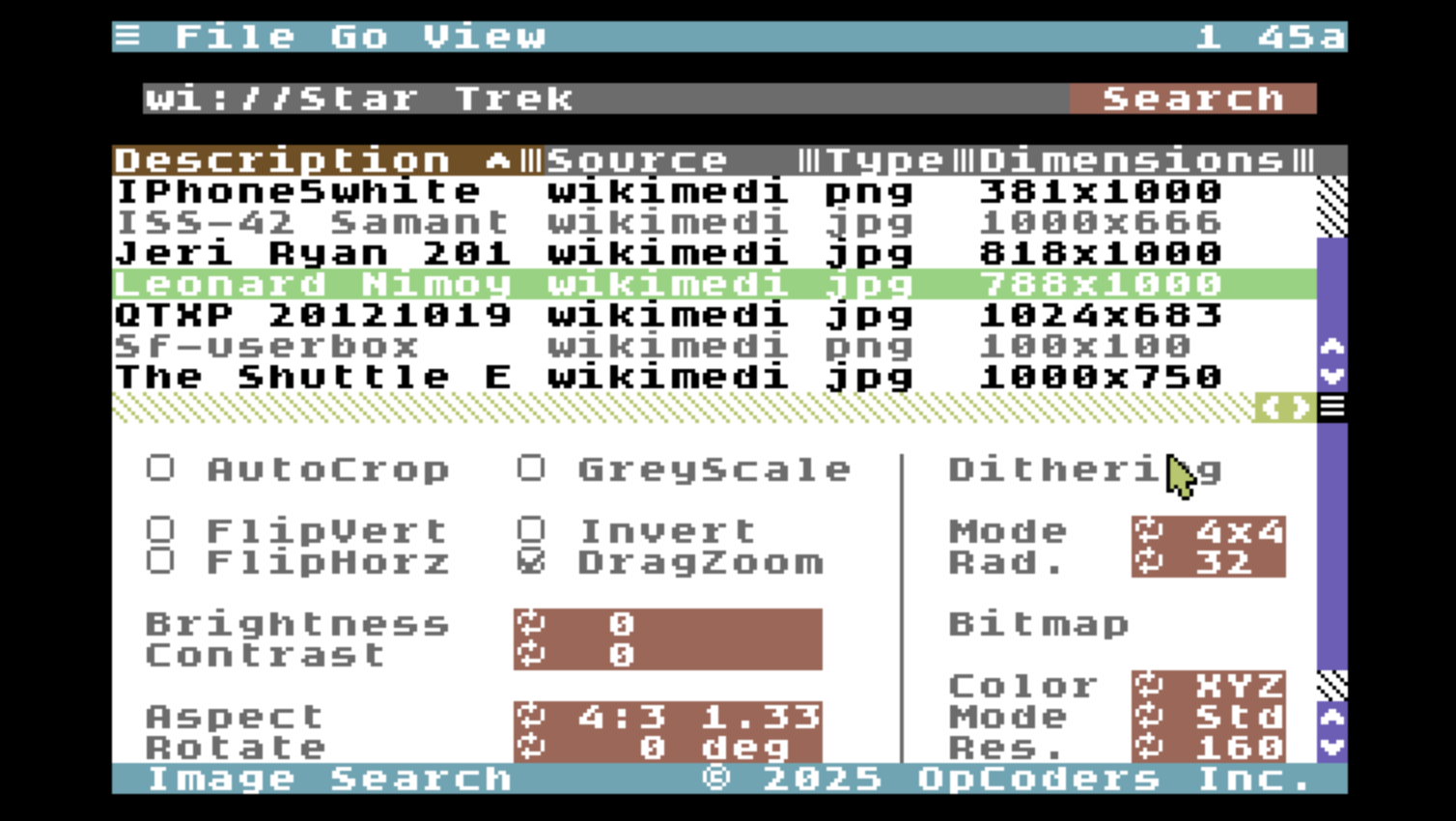
The second new feature of Image Search v1.2 is support for the "wi://" search prefix. This integrates Image Search directly with the Wikimedia API. Wikipedia launches Image Search and sends the search term in a message. For example, if you have viewing an article titled, "Star Trek", the message it sends is to search for, "wi://Star Trek"
Image Search returns a list of the images found in that page. The Wikimedia API supports requesting images at different resolutions. Image Search always asks for images that most closely fit within 1000px by 1000px.
Passing image handling requests to another Application, like Image Search, relieves memory pressure on Wikipedia. All of the conversion options available to Image Search can be applied to images fetched from the Wikimedia API. Learn more in the Image Search User's Guide.
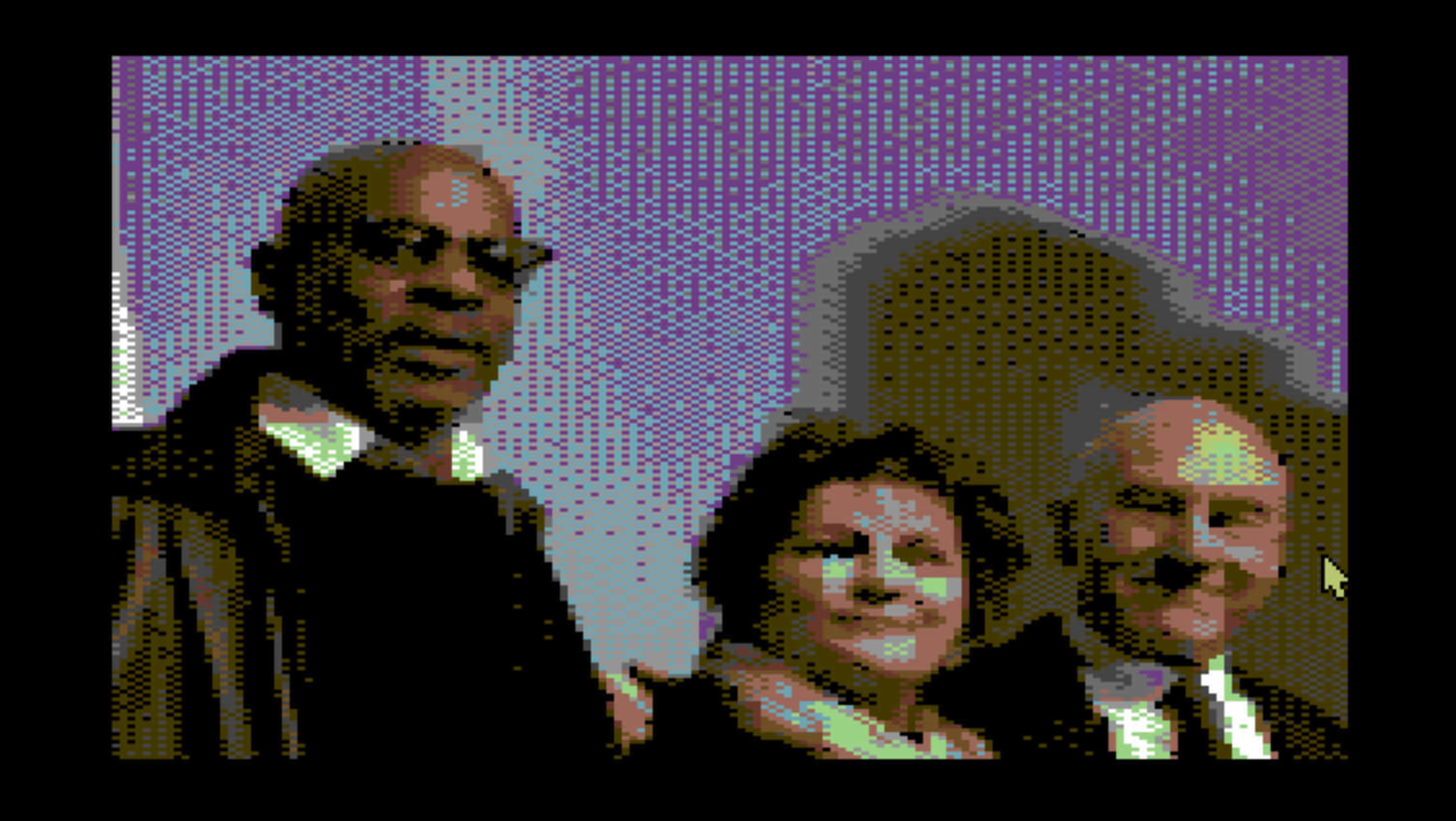
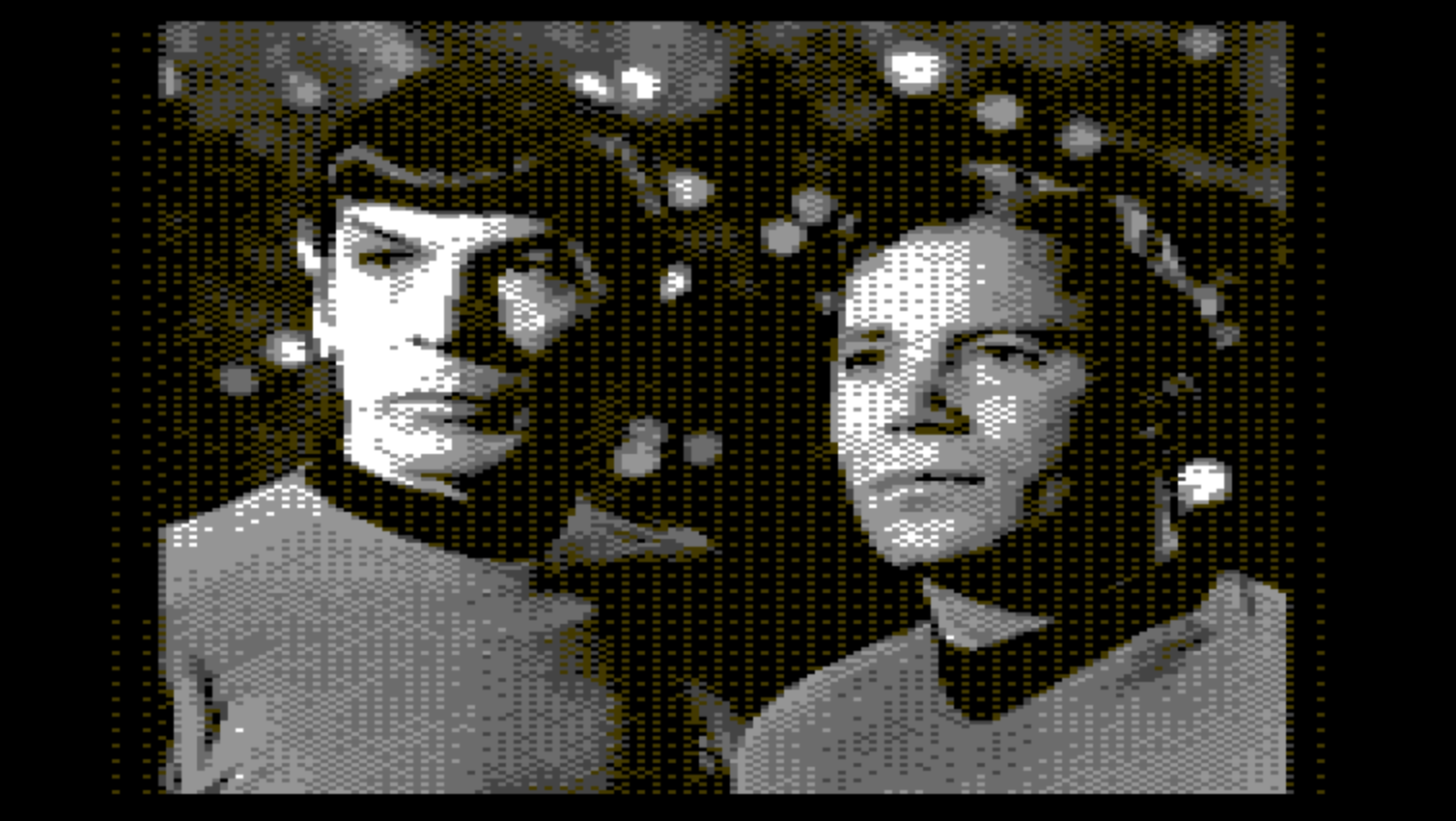
Image Search must be installed
You must install the Image Search Application before you can use the Wikipedia feature, View → Images.
If C64 OS attempts to launch Image Search, but stalls on the launching screen, it's because Image Search has not been installed. You can find Image Search in Software Center under Applications → C64 OS, under Networking Apps.
Wikipedia covers a lot of topics
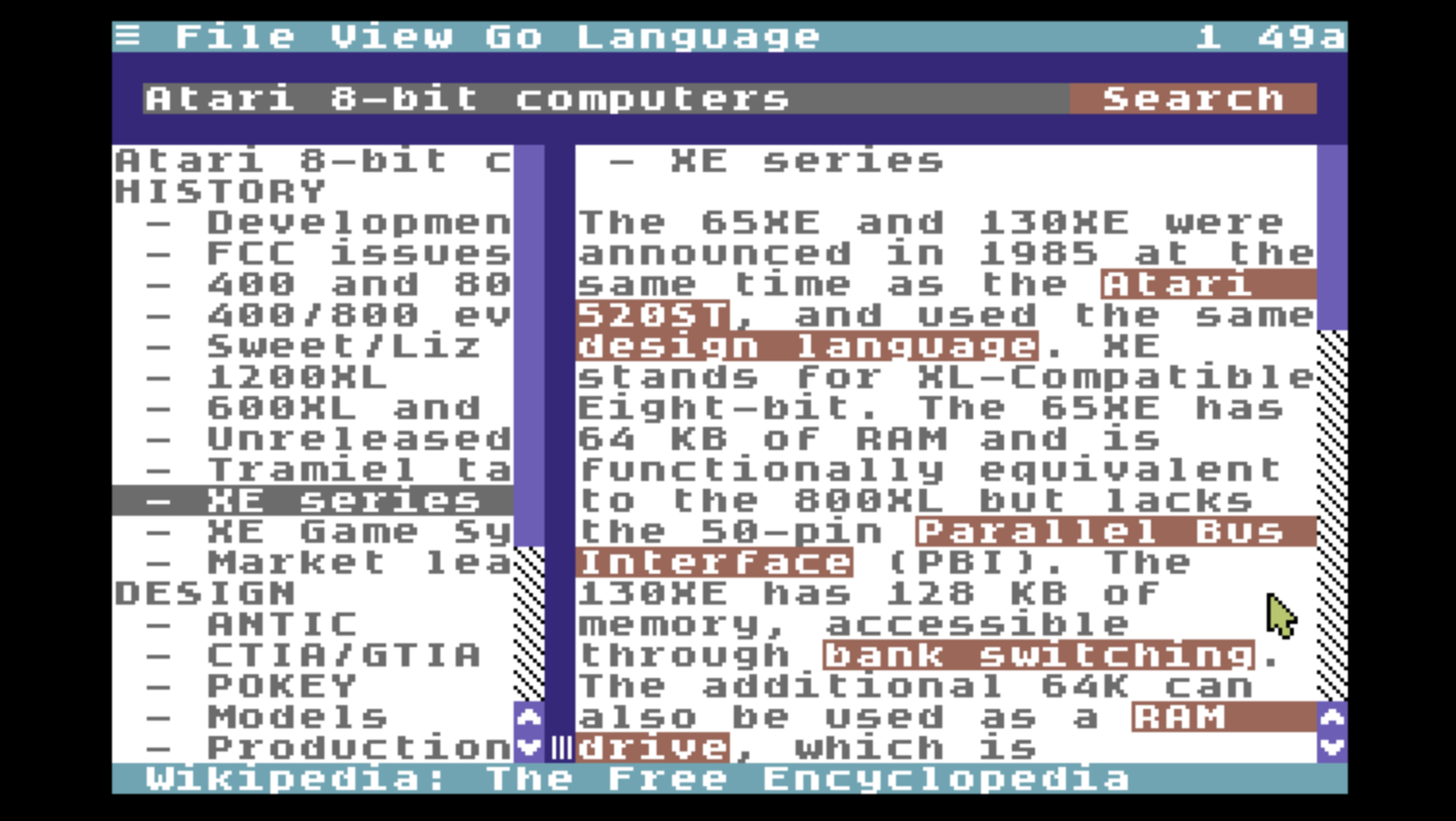
We love our Commodore computers, but Wikipedia can be used to look up our rivals too. Do you want learn something about the specifications of the Atari 8-bits? You can do that with Wikipedia for C64 OS.
Wikipedia - Atari 8-bit computers
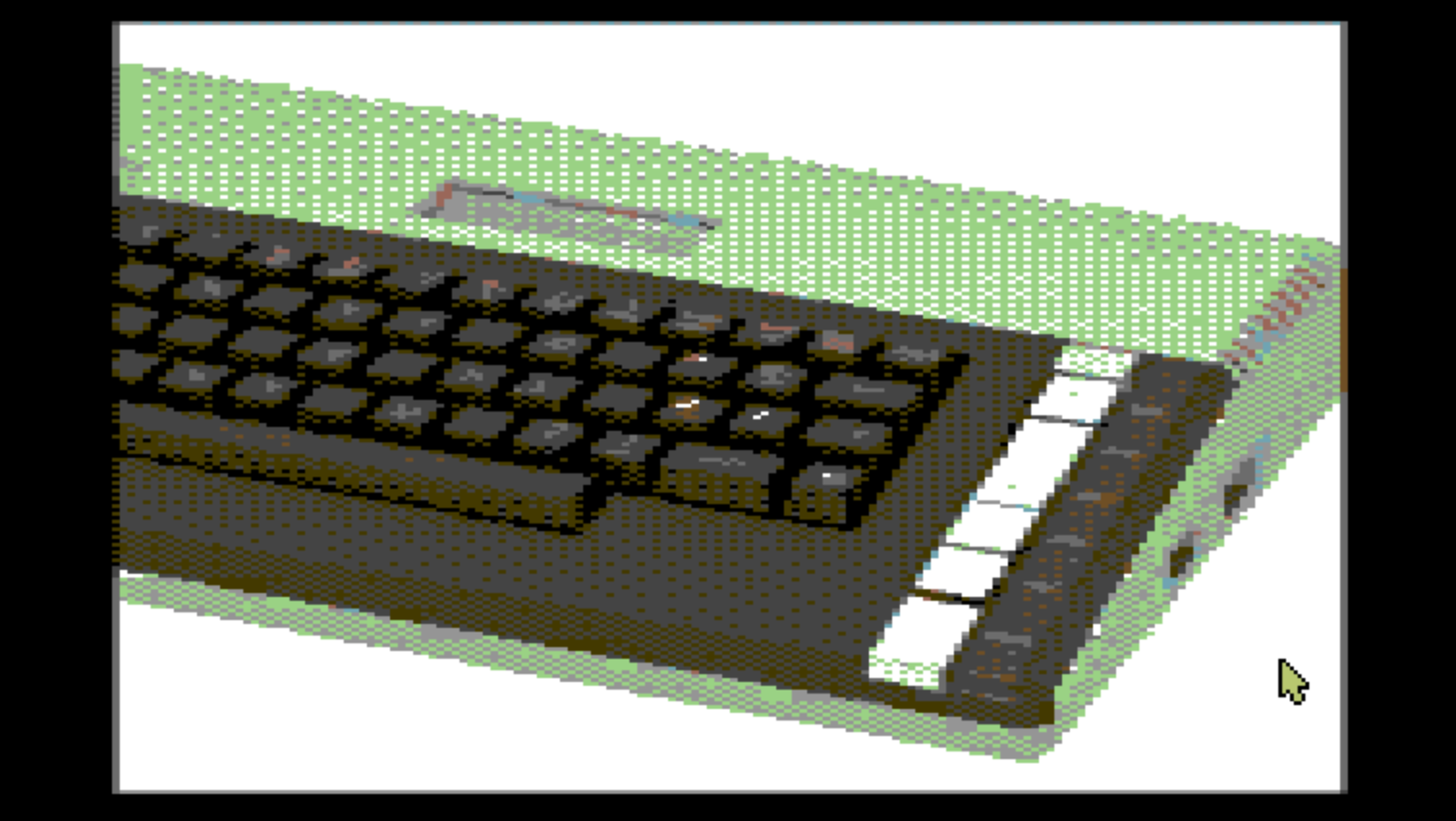
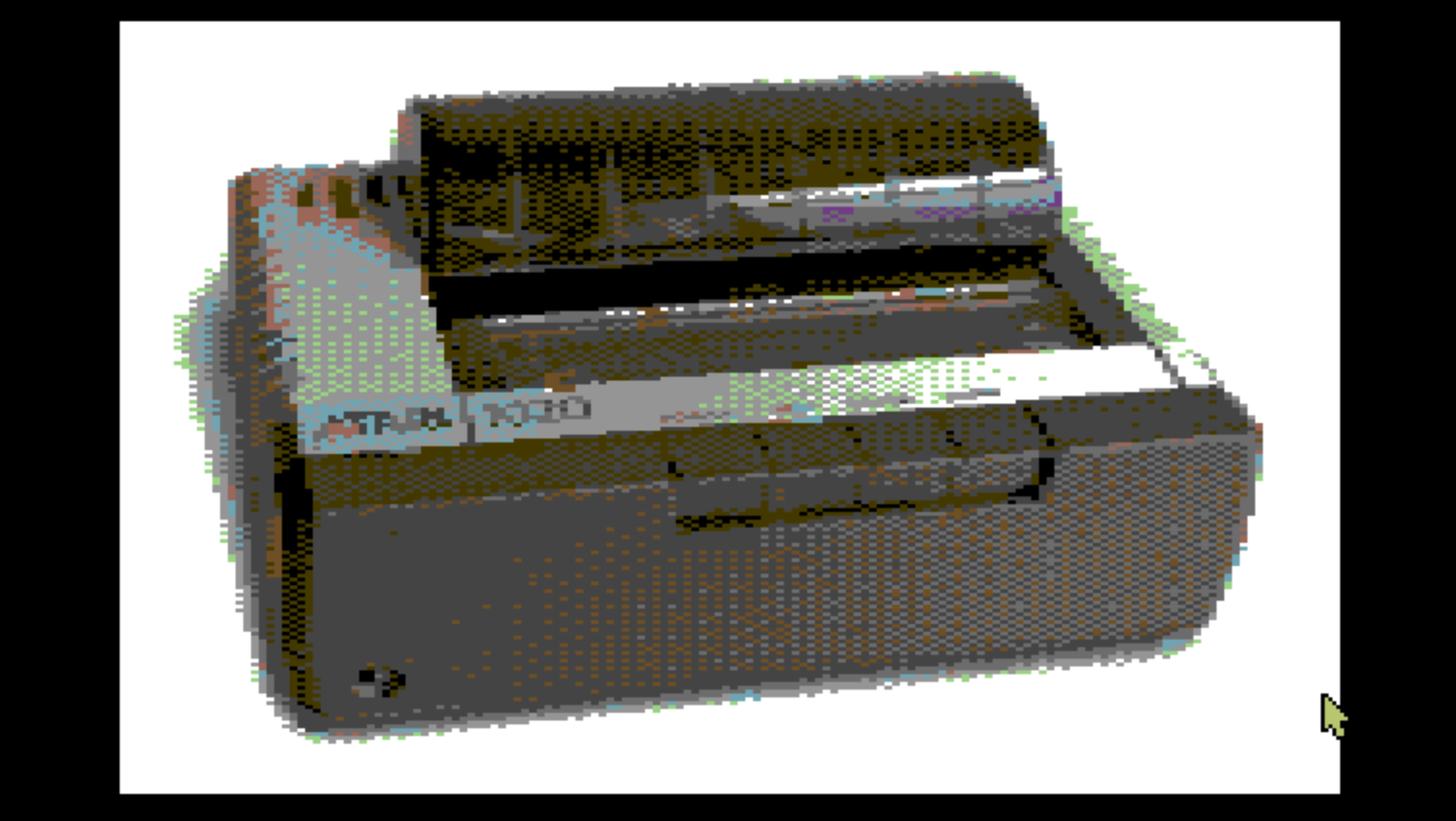
And while we're reading about those Atari 8-bit computers, why not get a look at some of them? Choose View → Images, and you can check them out.
Application Jump Back
Lastly, starting in C64 OS v1.09, there is the Application Jump Back feature. See Chapter 4: User Interface → Fast App Switching in the C64 OS User's Guide for more information.
With Fast App Switching enabled, you can double-click the button left corner of the status bar to jump immediately back to the previous Application. This feature was introduced specifically to be paired with the ability for one Application to launch another with a message.
From a menu option in Wikipedia, you get sent to Image Search to look at the images for the article. When you're finished, simply double-click the bottom left of the status bar to jump directly back to Wikipedia. Once you've jumped back from Image Search, you could also double-click the bottom left of the status bar in Wikipedia to quickly jump back to Image Search. Jumping back will not initiate a new search, since no message is passed. This allows you to quickly flip back and forth between an article and its images.
The experience is really quite fast.
Enjoy Wikipedia on your Commodore 64. More to come.
Last modified: Jul 23, 2026